
How to set up your Cloudshelf kiosk with Esper MDM

Use Esper's device management to lock a kiosk to Cloudshelf during opening hours so shoppers can't exit the app.

Last updated
September 18, 2025

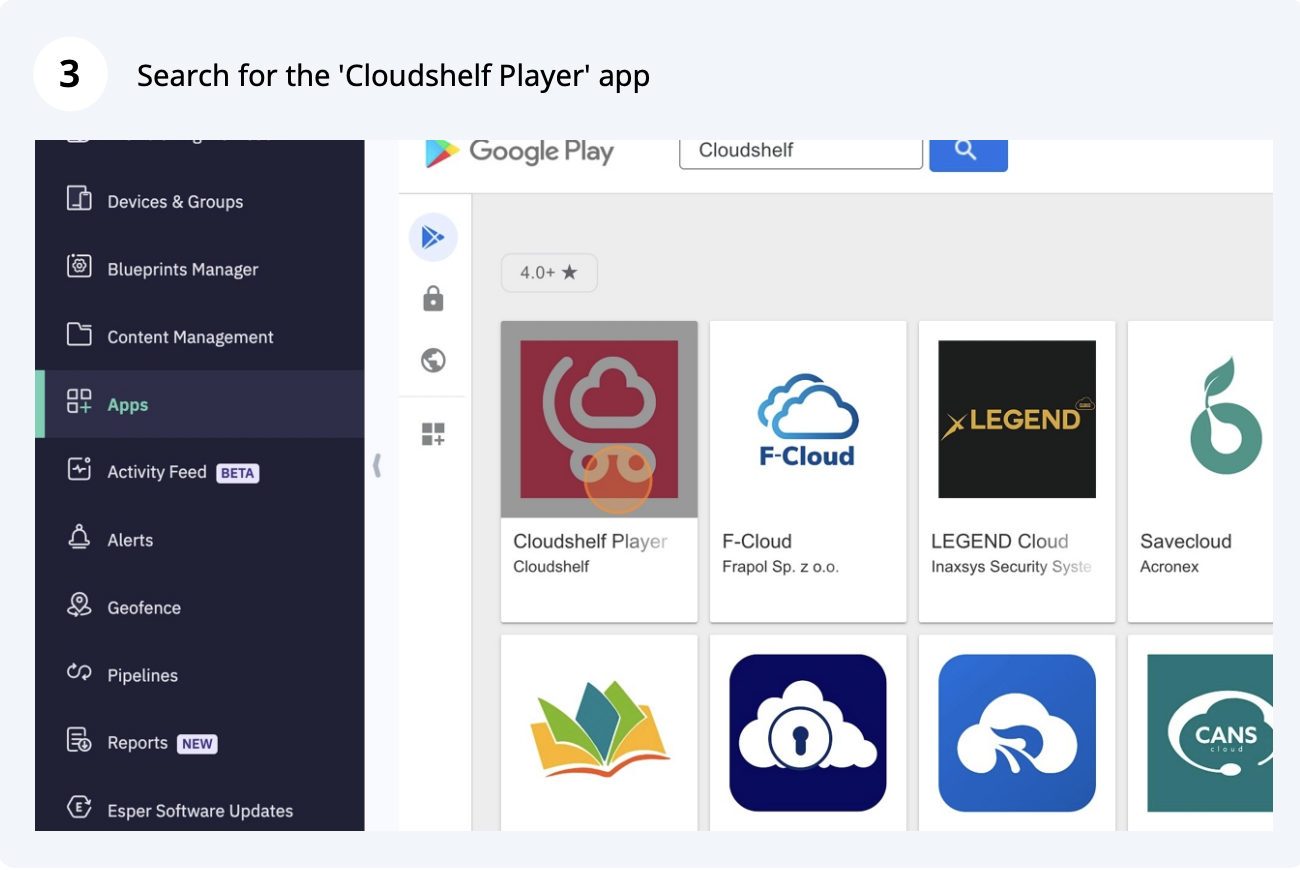
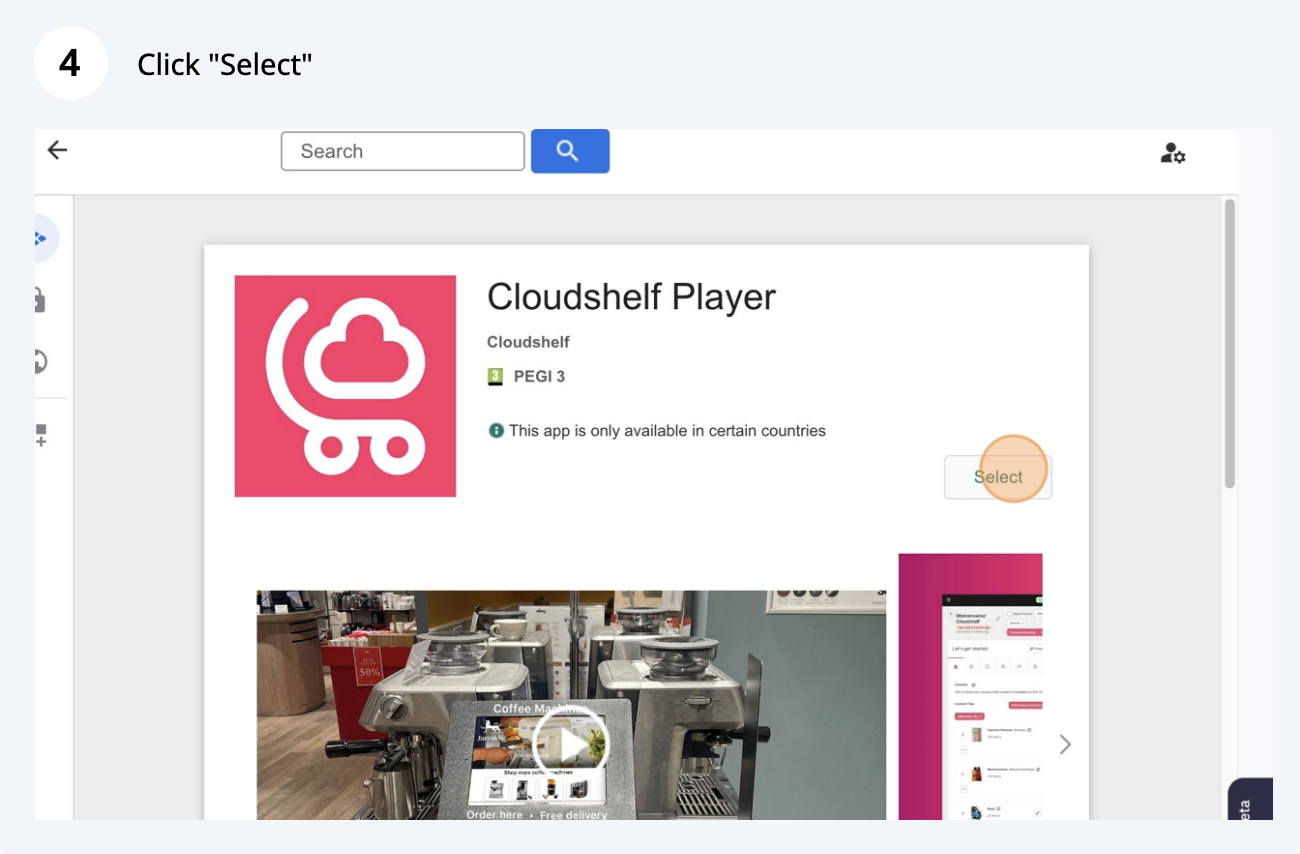
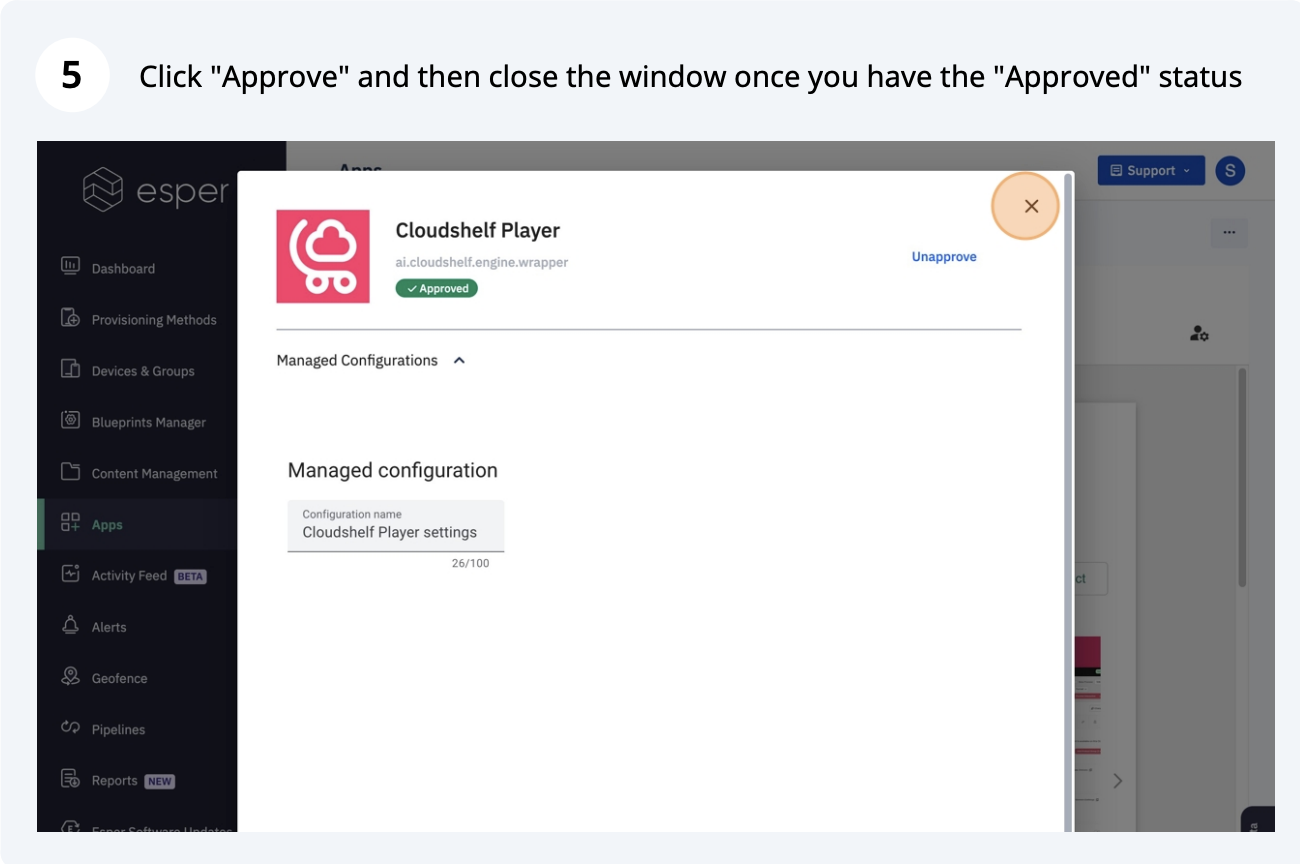
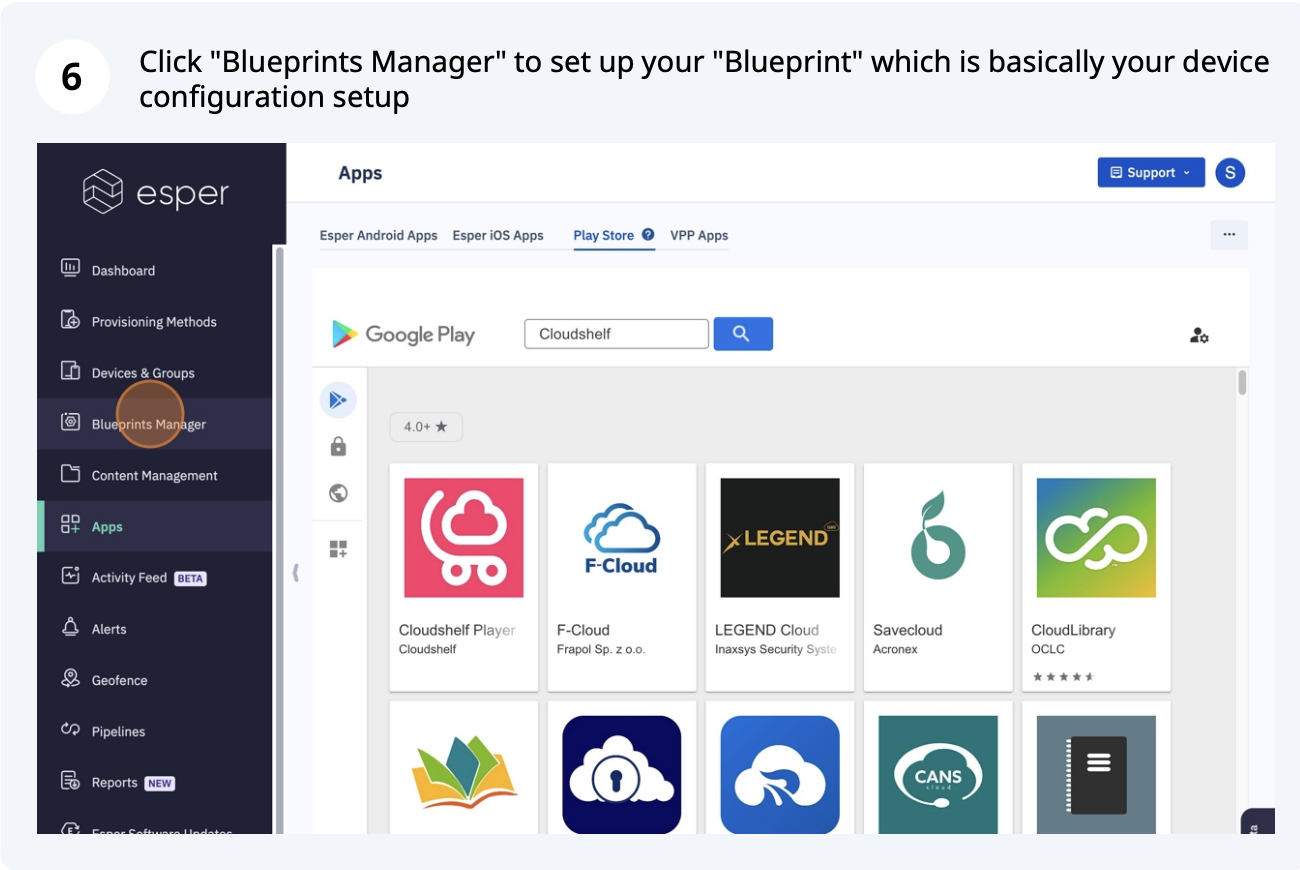
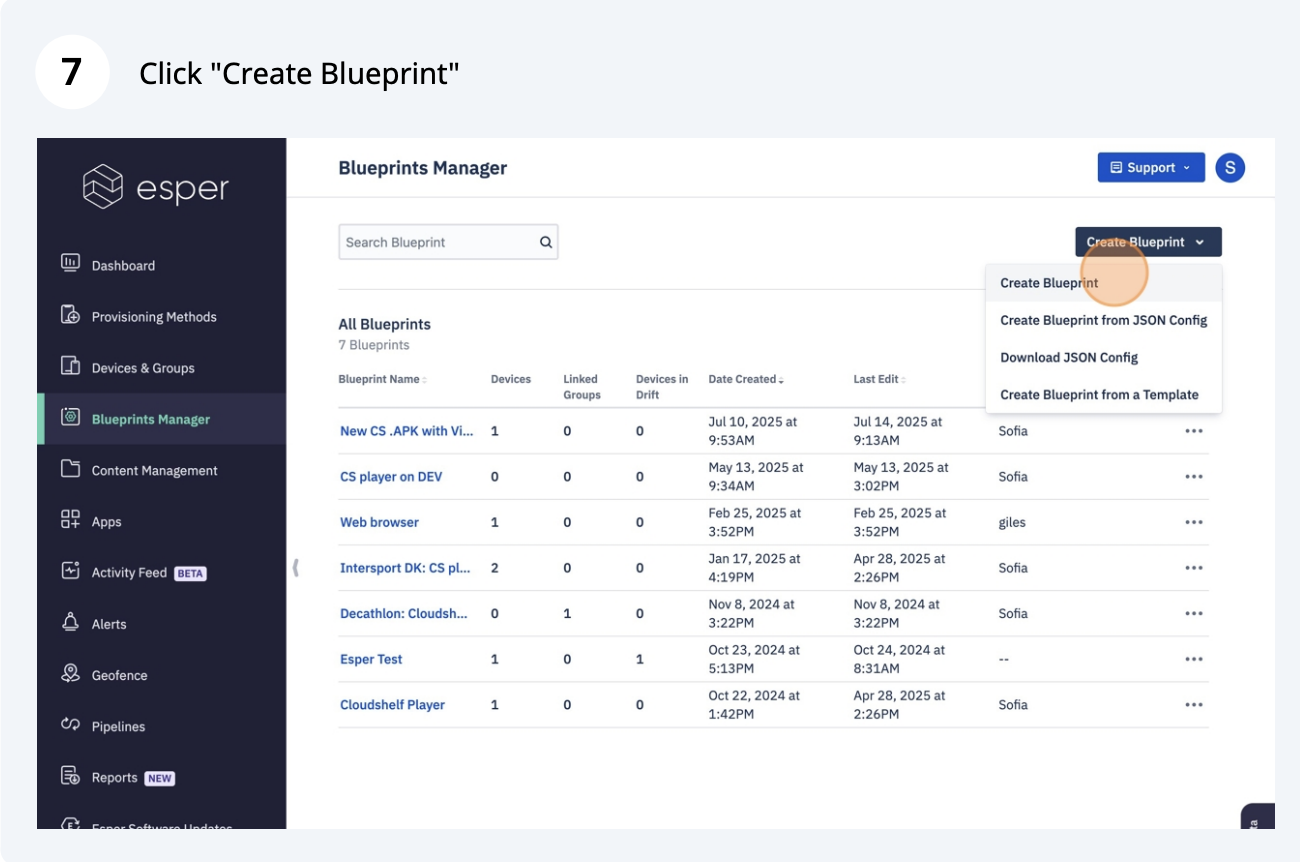
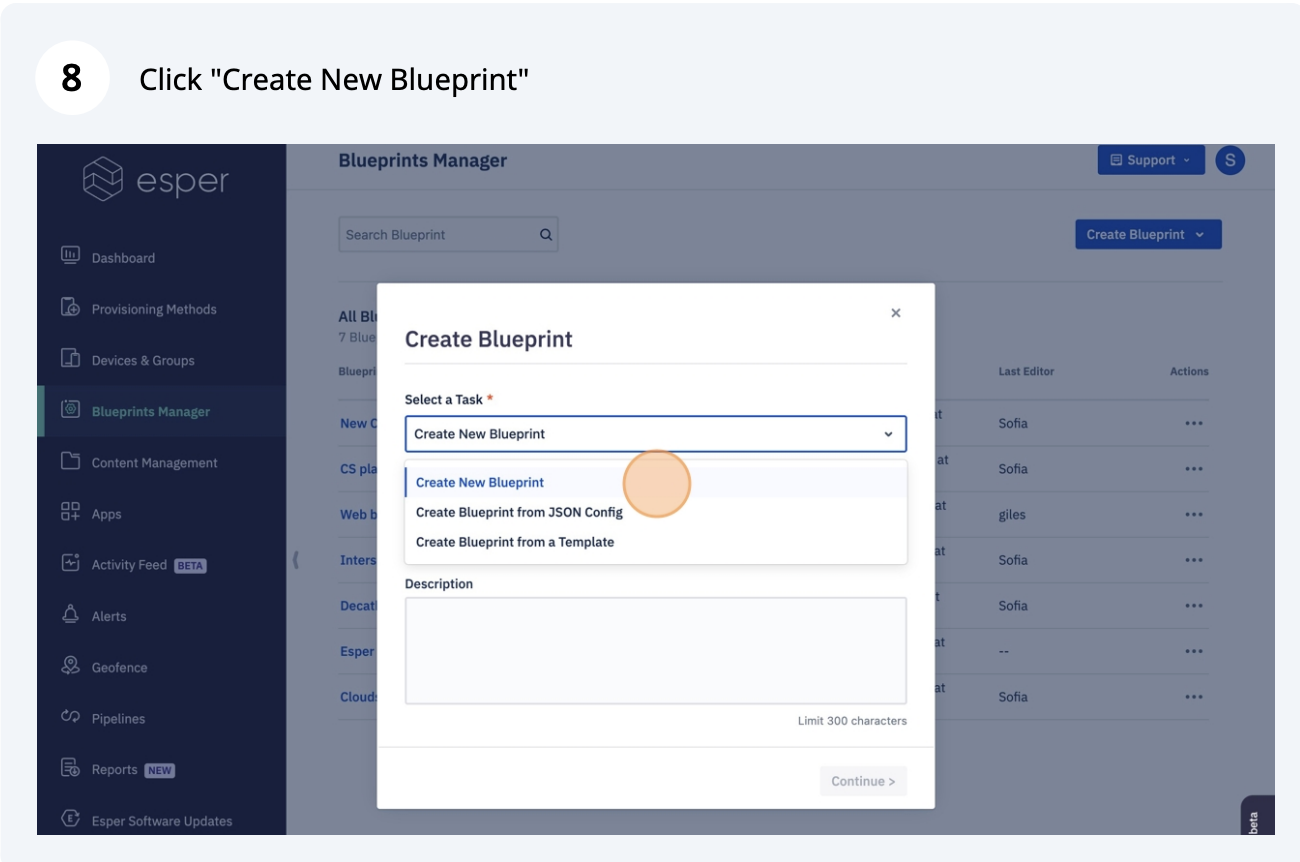
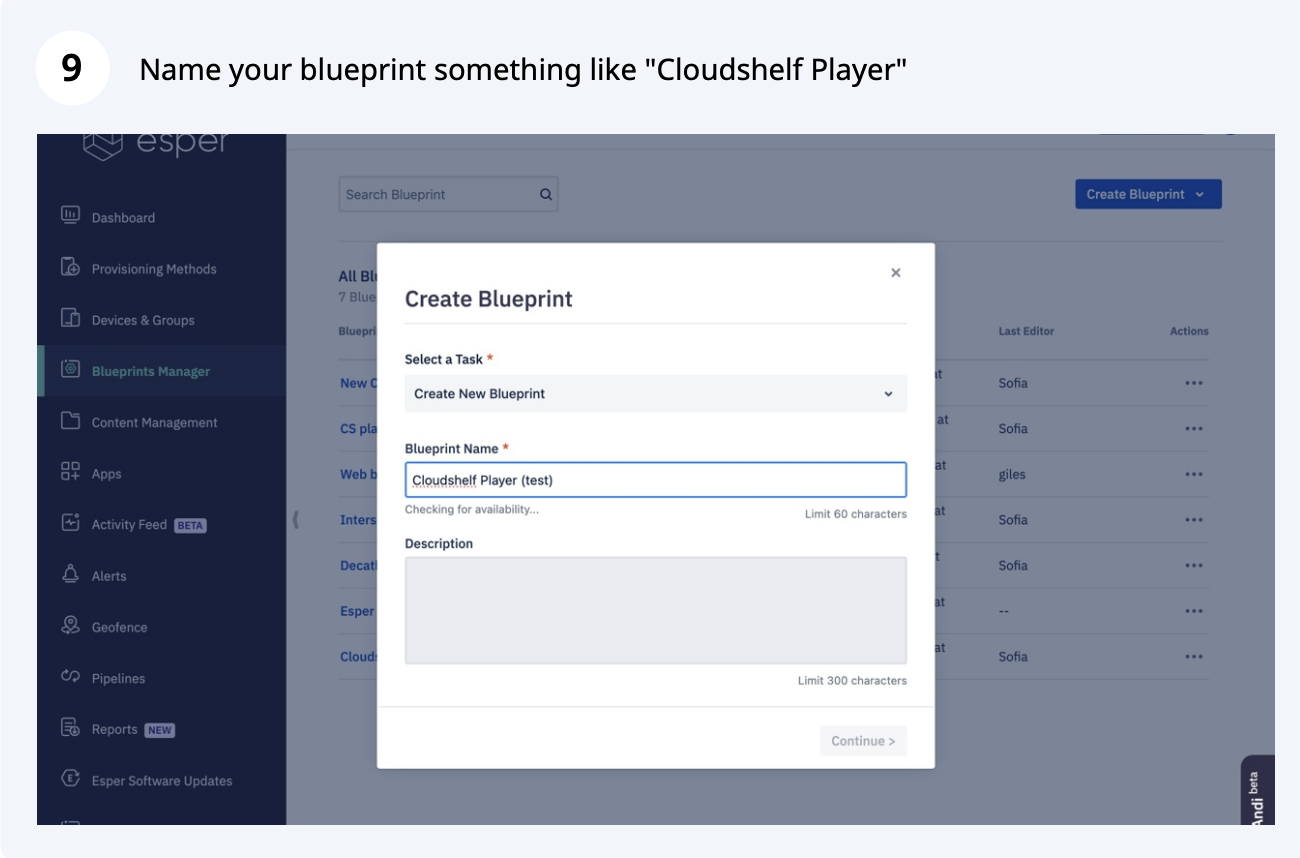
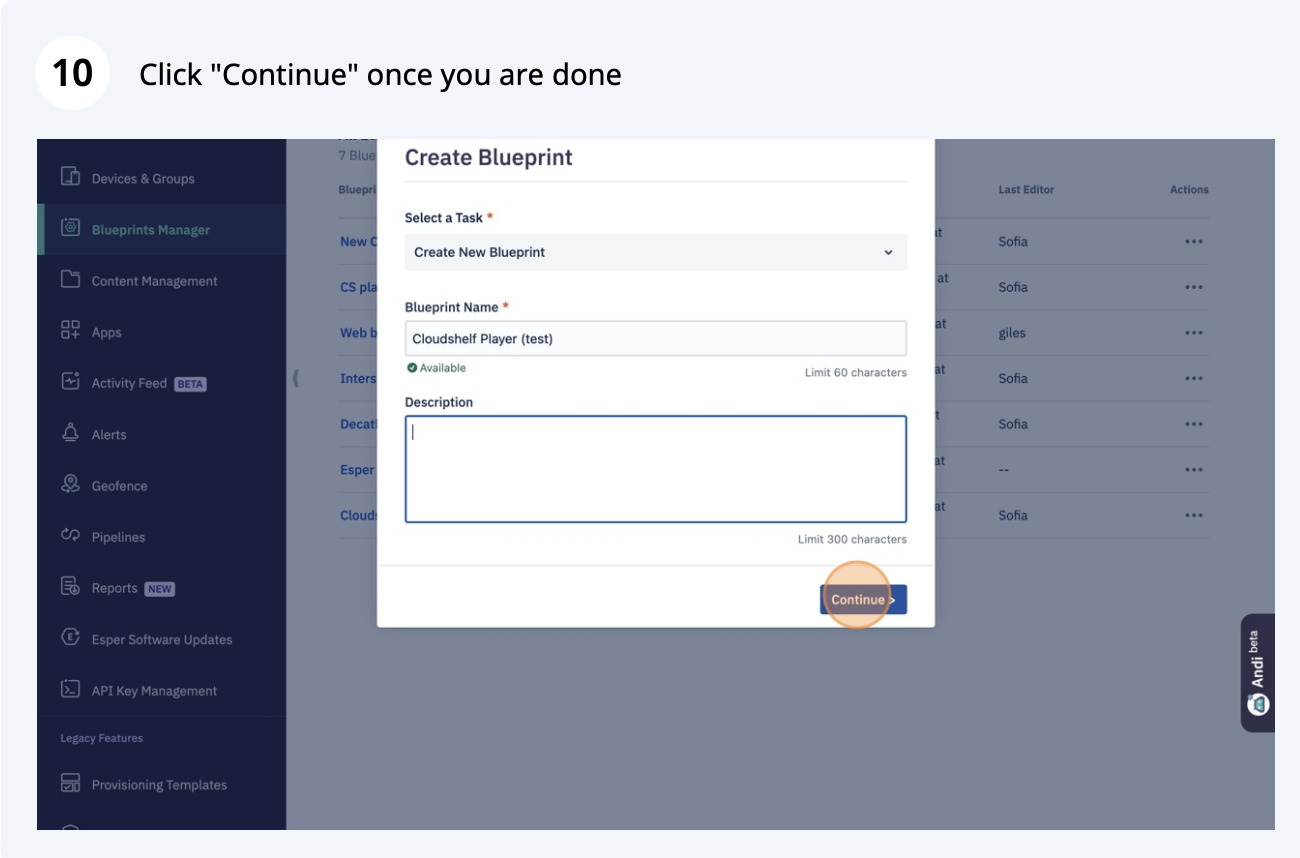
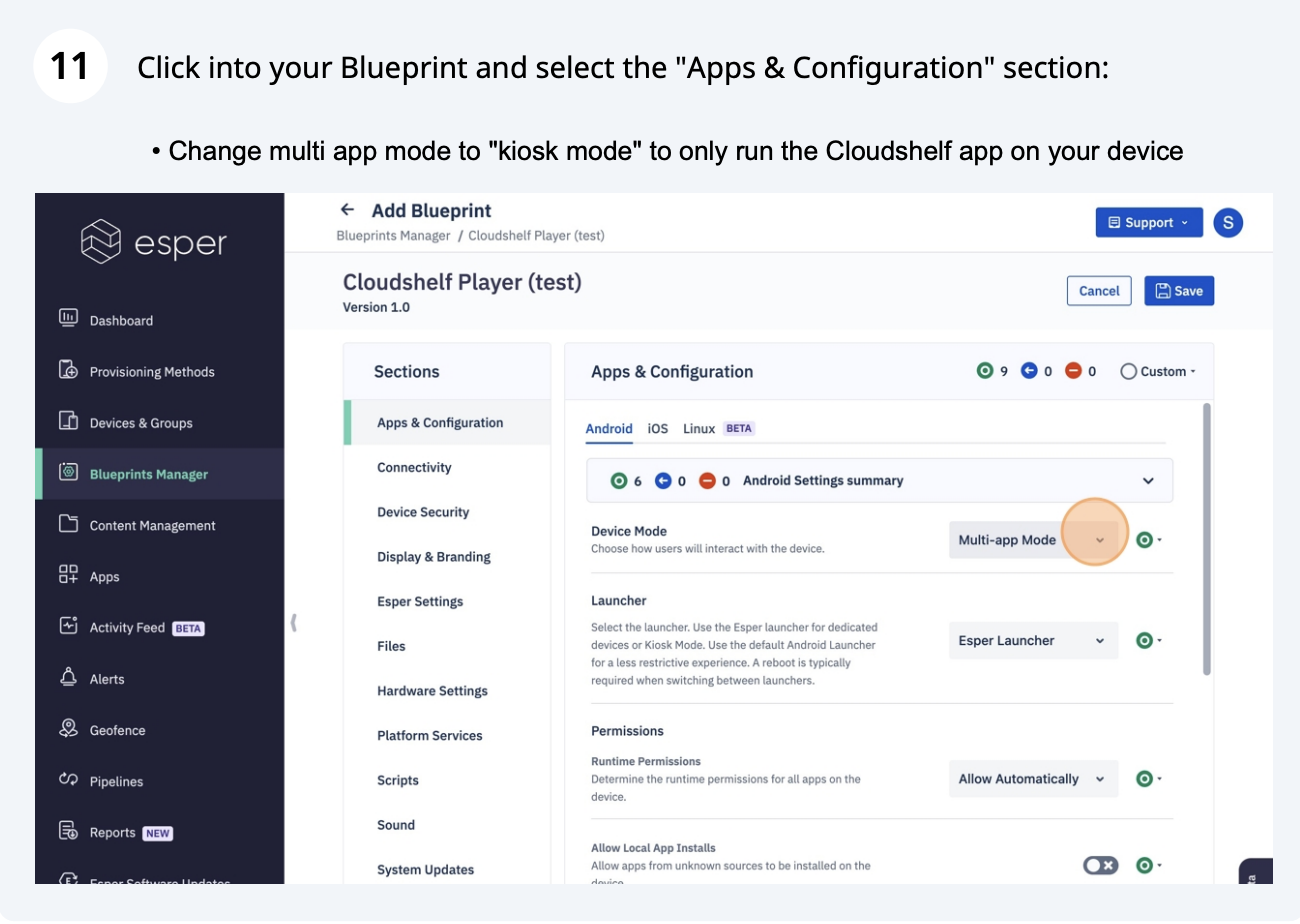
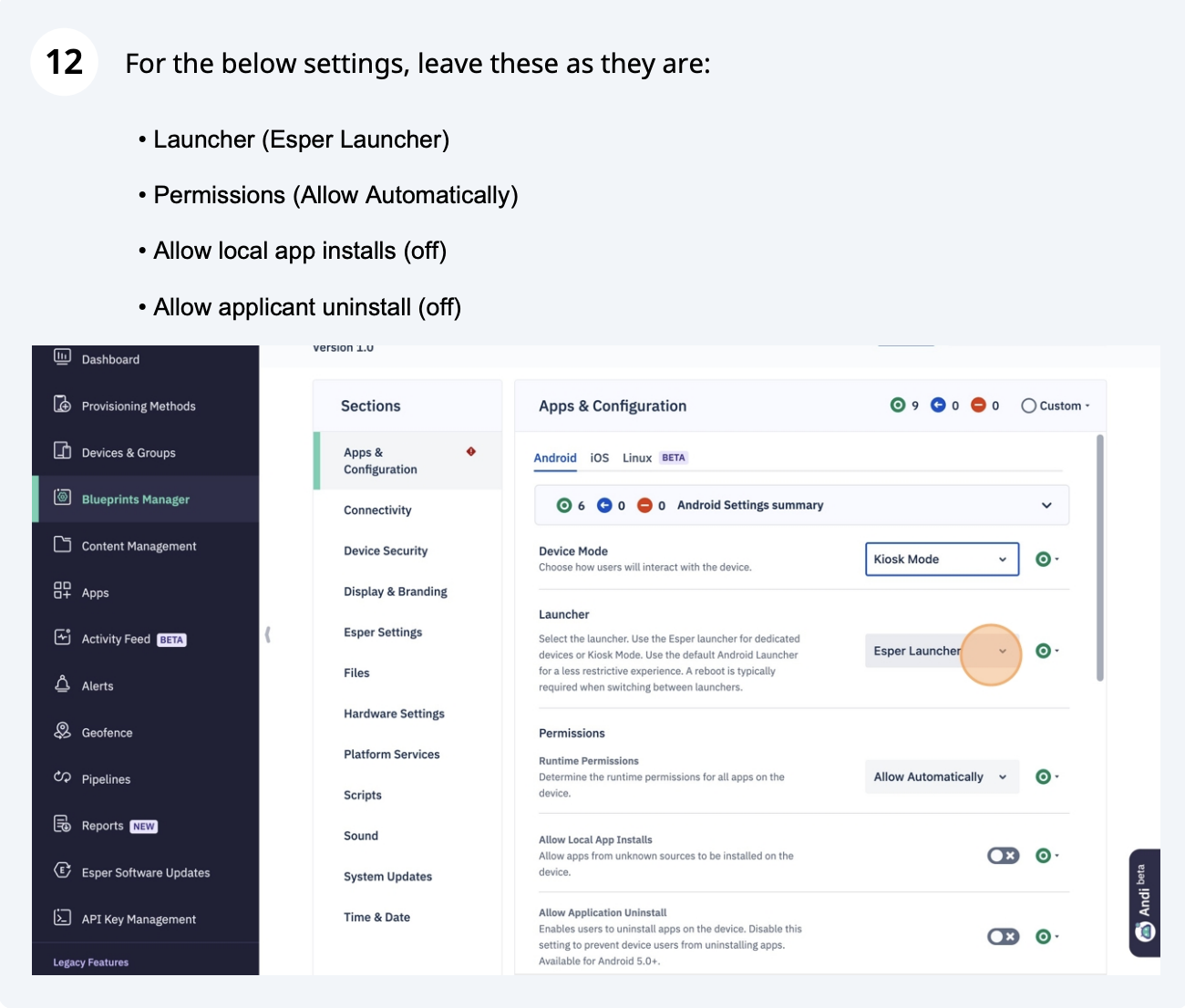
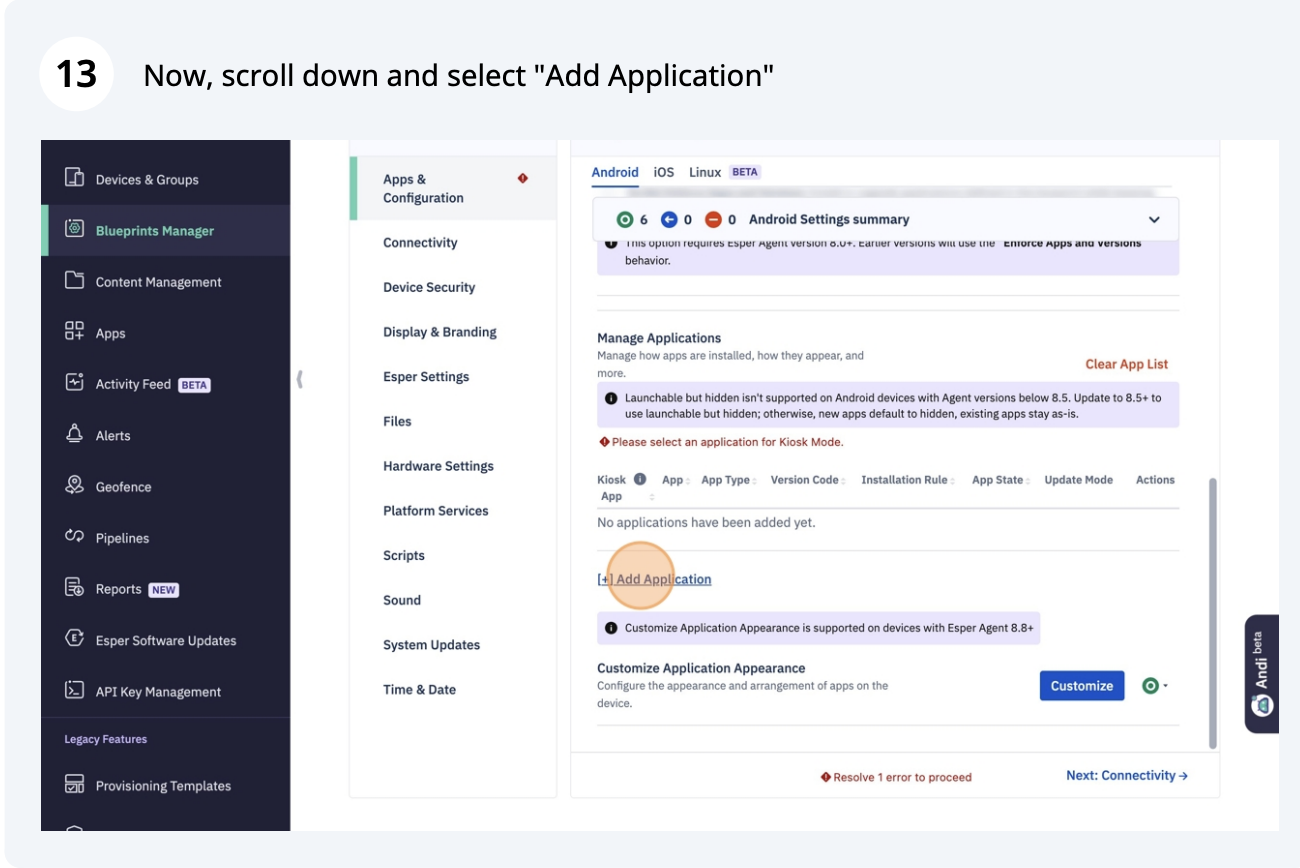
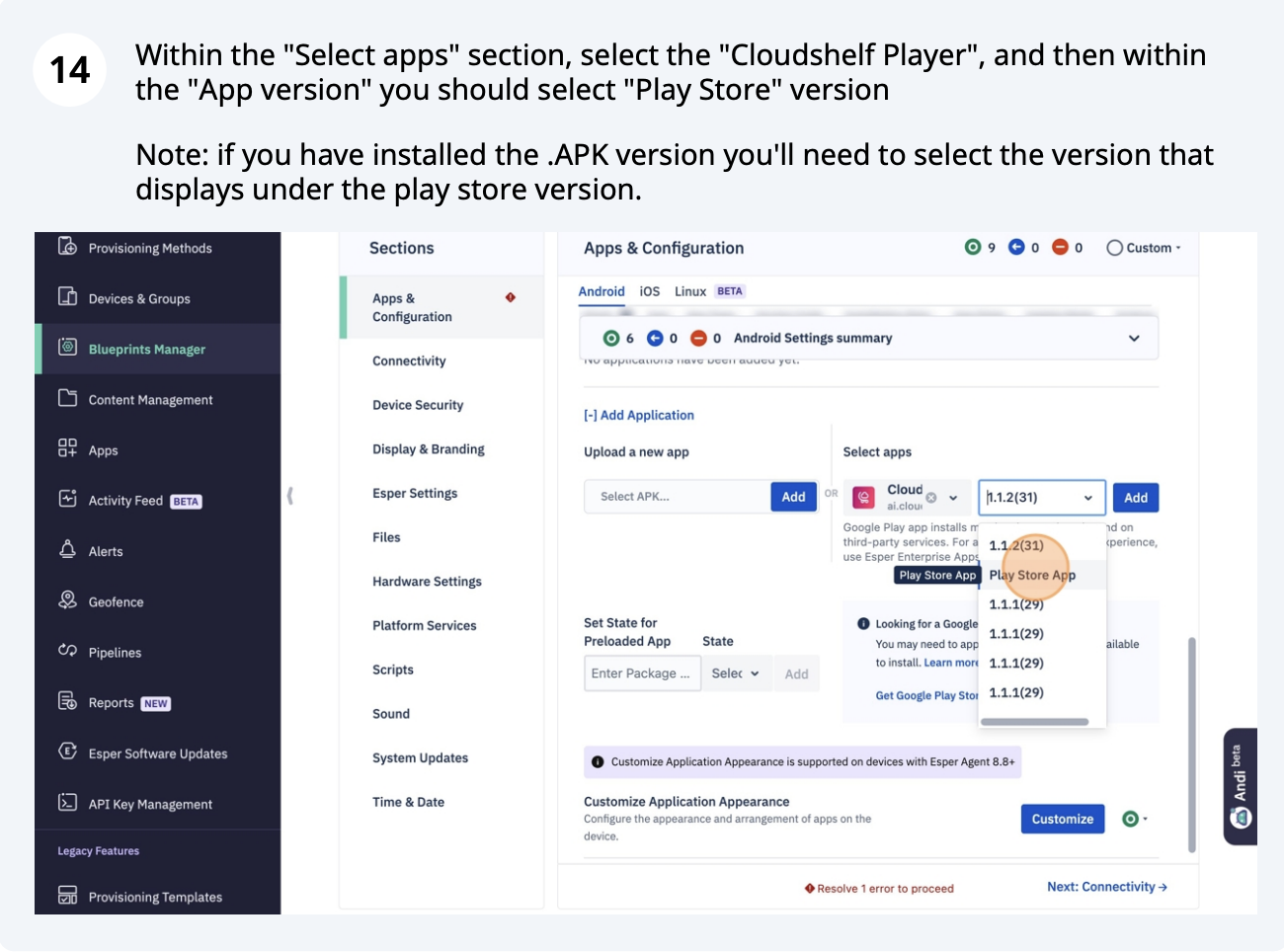
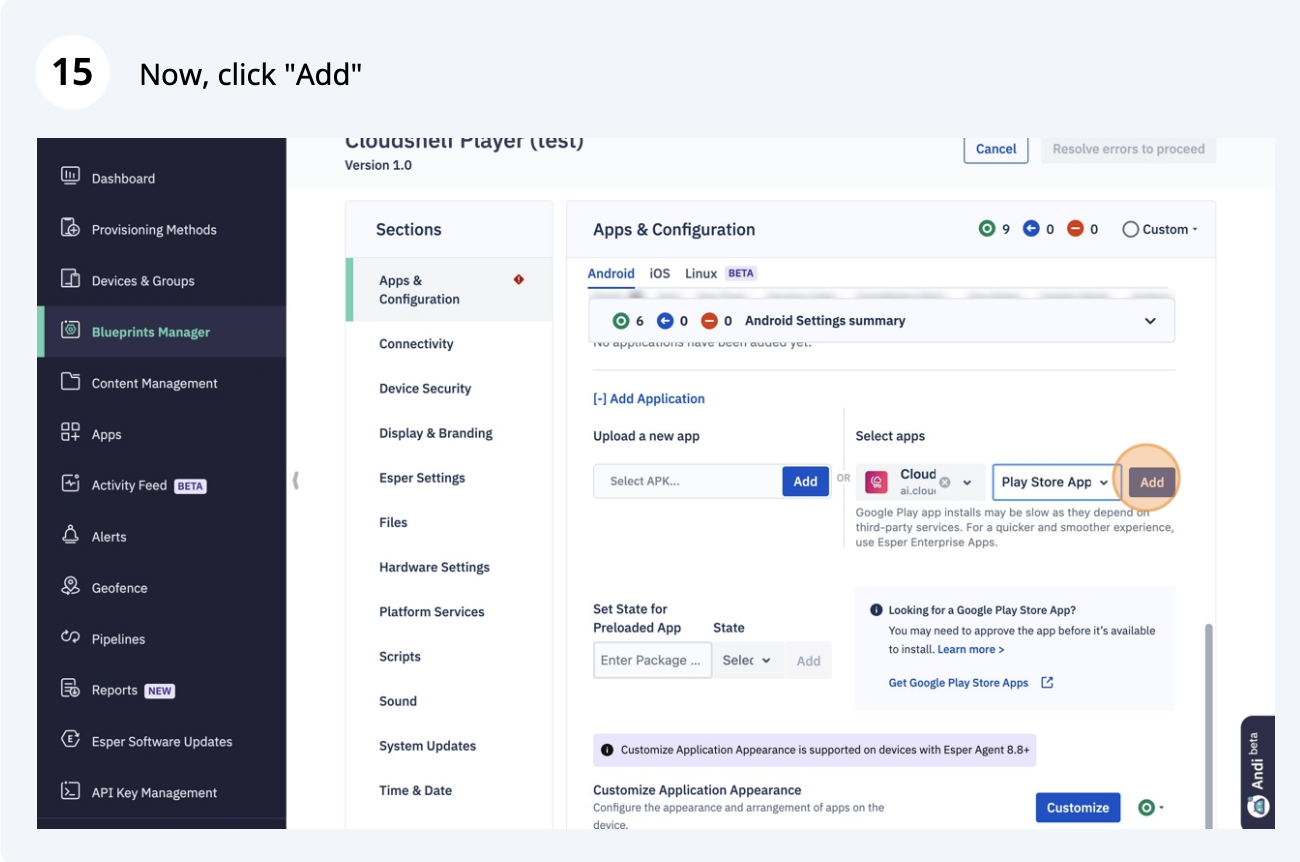
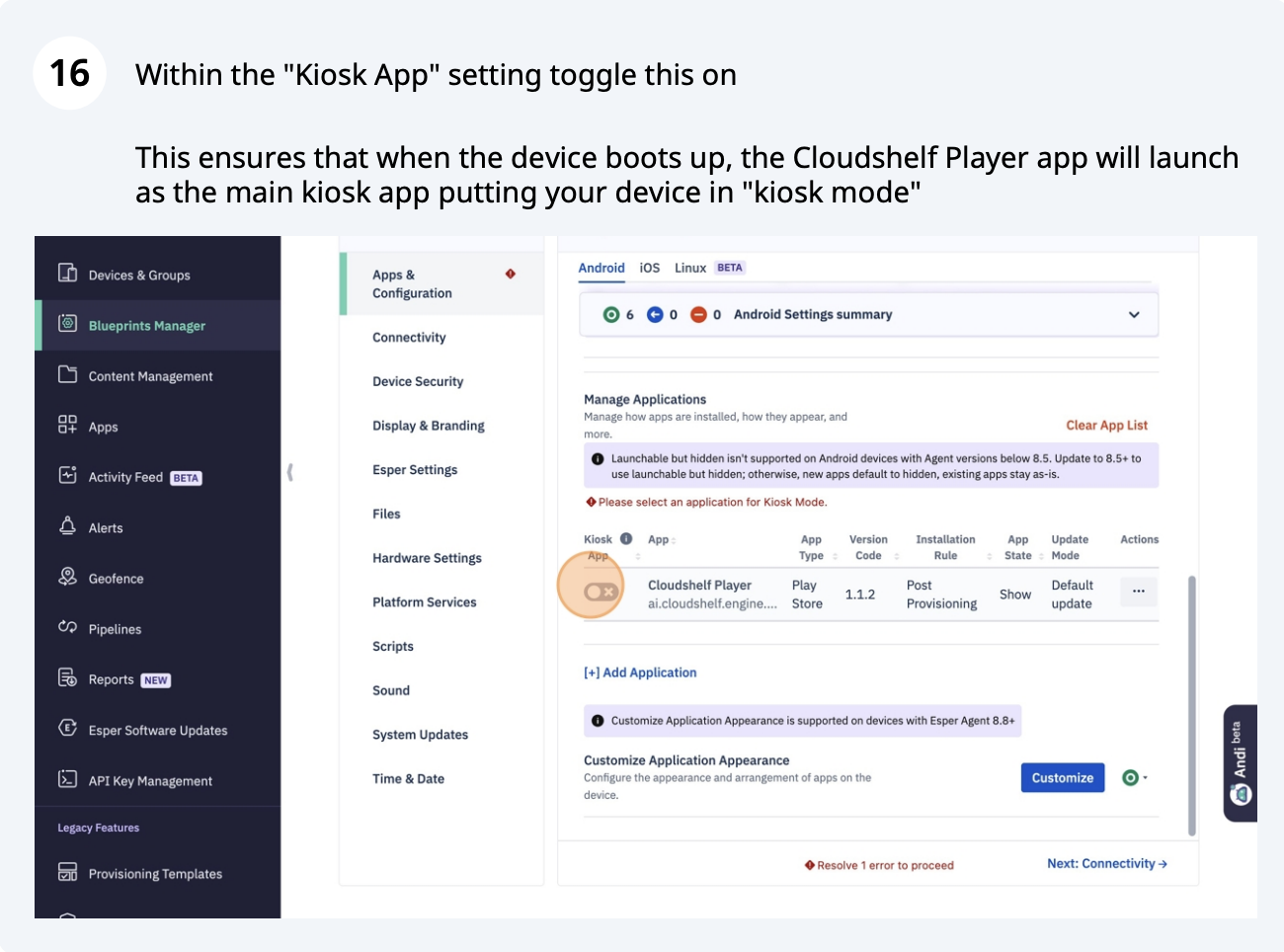
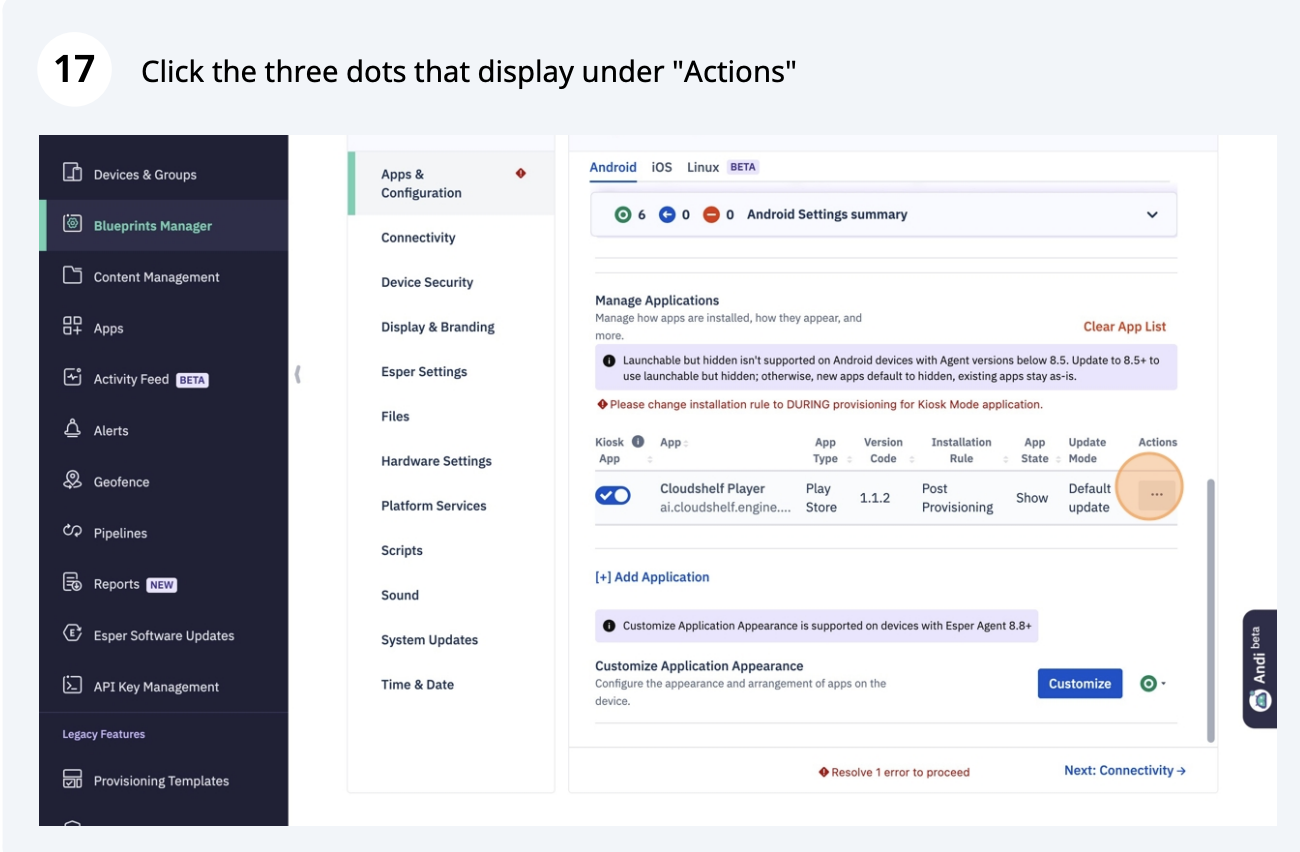
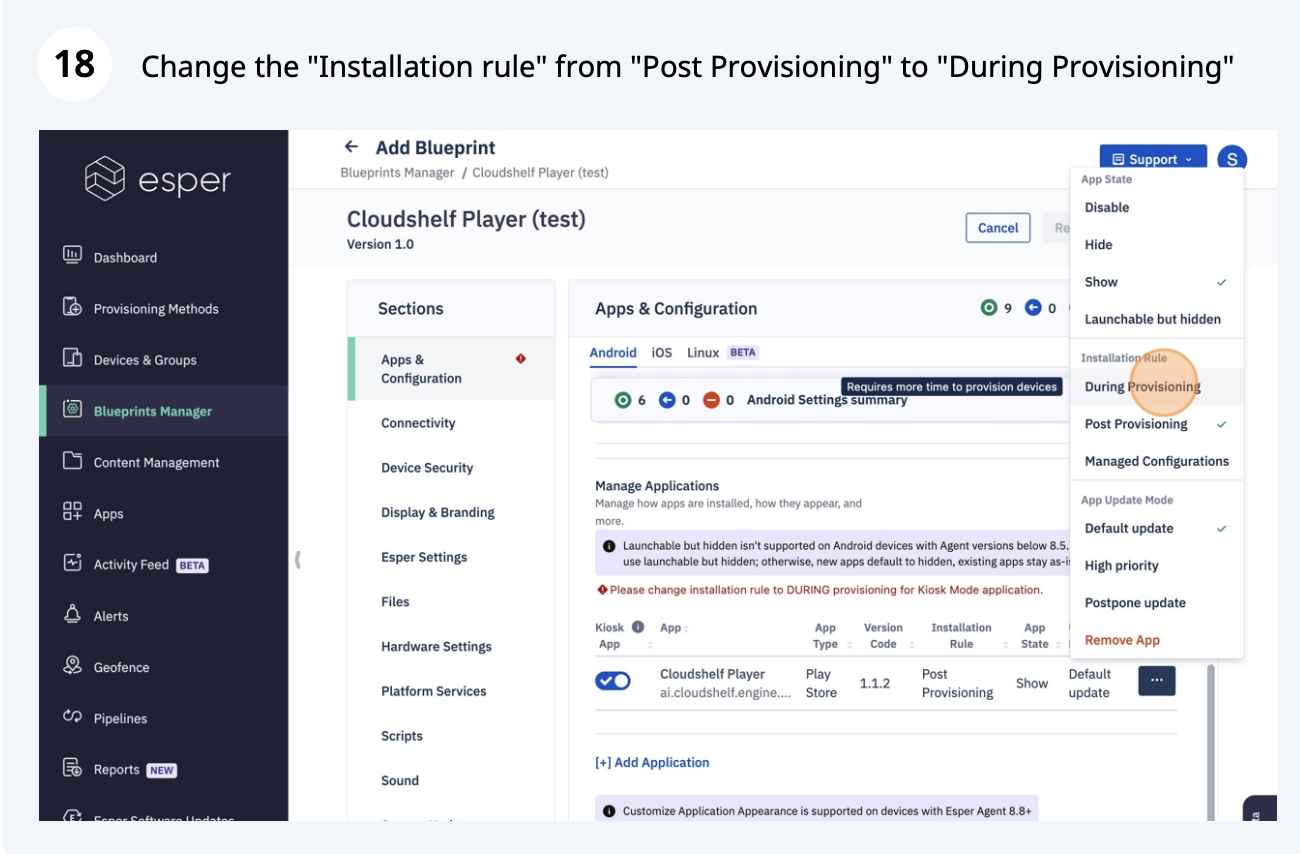
Here are the steps to set up your Cloudshelf device with the Esper MDM (mobile device management).

This locks your kiosk to the Cloudshelf experience, so your device shows your Cloudshelf the whole time during store opening hours. It stops children, for example, from closing the app and launching other apps such as YouTube.
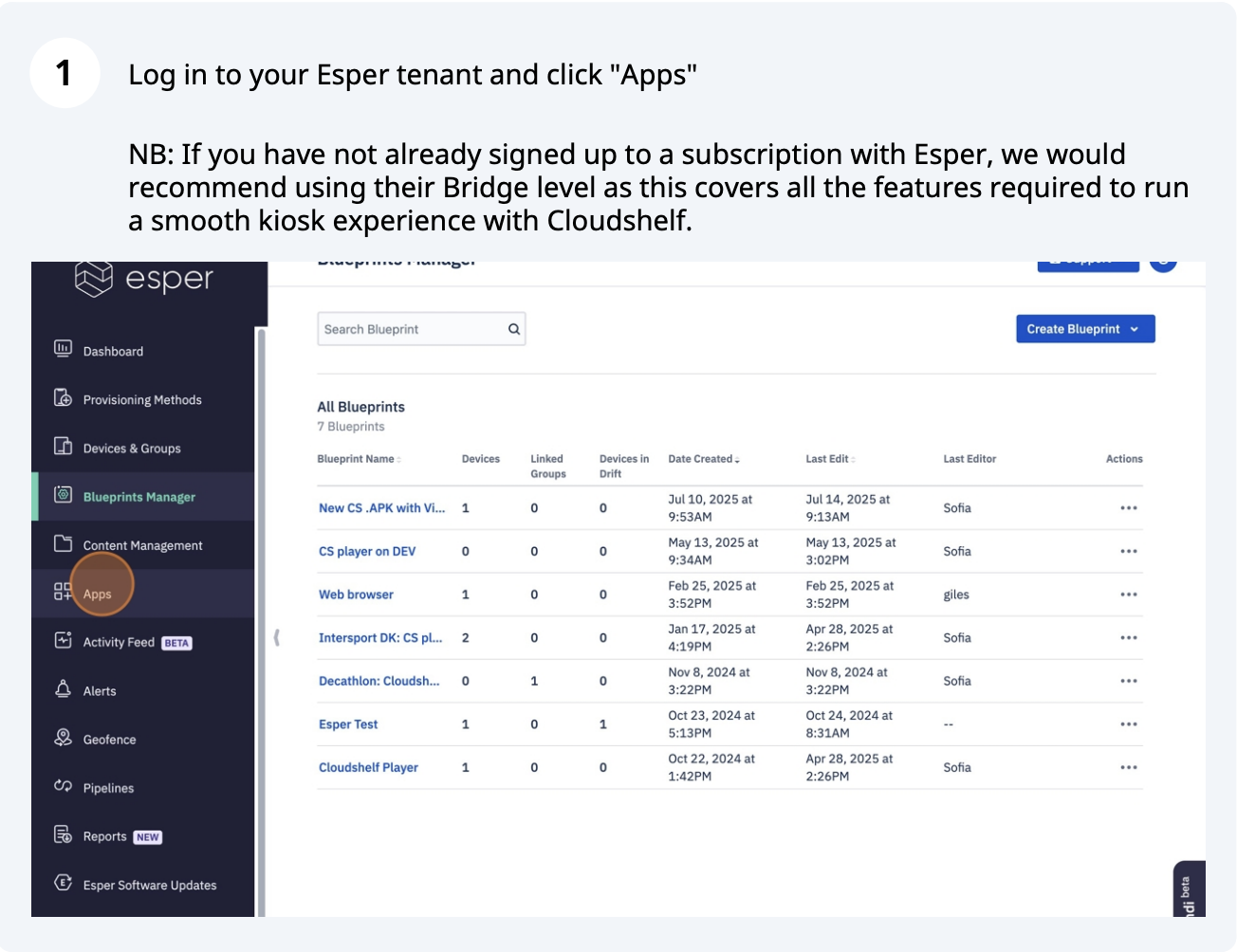
Esper setup, step 1 of 32
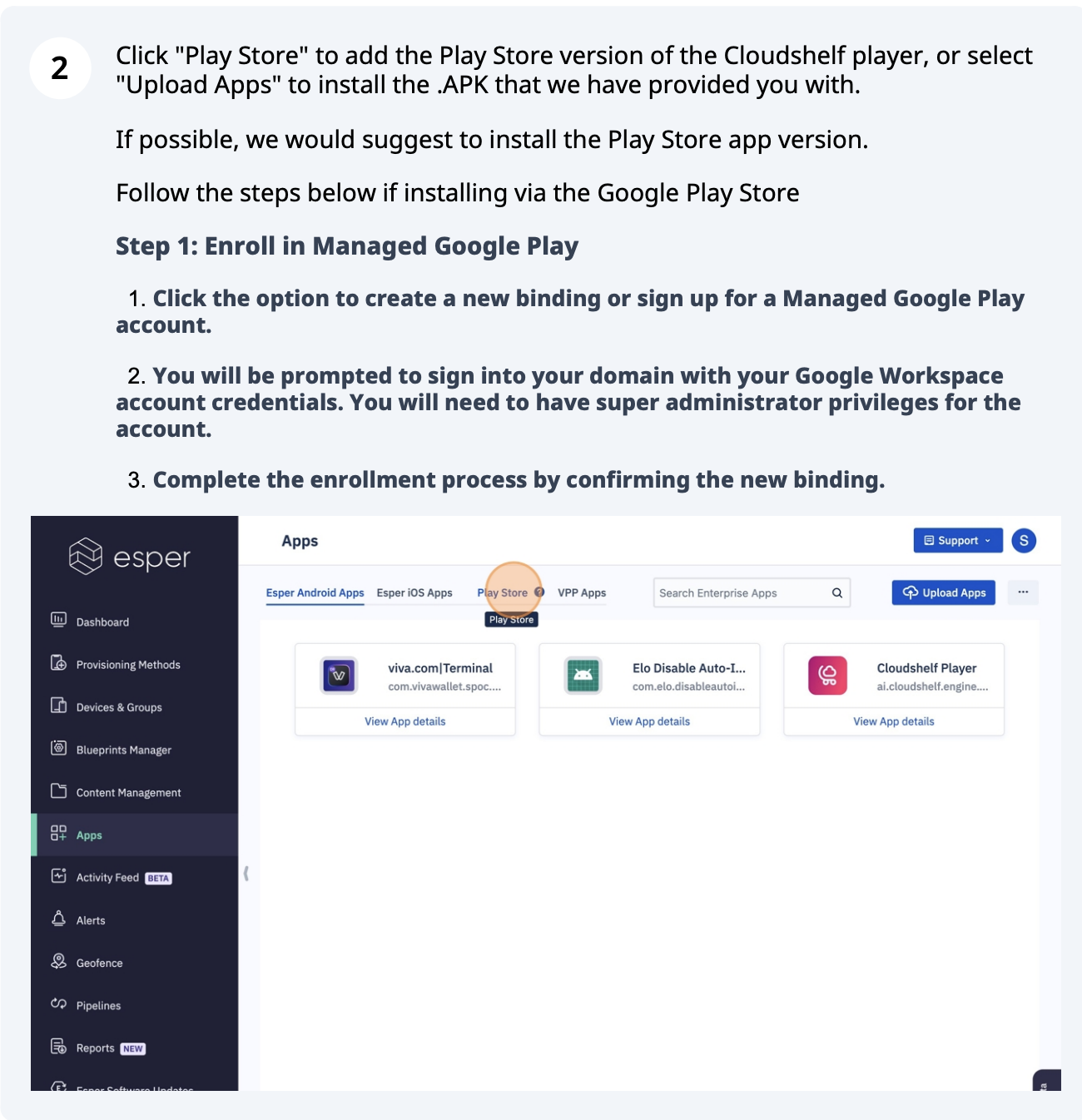
Esper setup, step 2 of 32
Esper setup, step 3 of 32
Esper setup, step 4 of 32
Esper setup, step 5 of 32
Esper setup, step 6 of 32
Esper setup, step 7 of 32
Esper setup, step 8 of 32
Esper setup, step 9 of 32
Esper setup, step 10 of 32
Esper setup, step 11 of 32
Esper setup, step 12 of 32
Esper setup, step 13 of 32
Esper setup, step 14 of 32
Esper setup, step 15 of 32
Esper setup, step 16 of 32
Esper setup, step 17 of 32
Esper setup, step 18 of 32
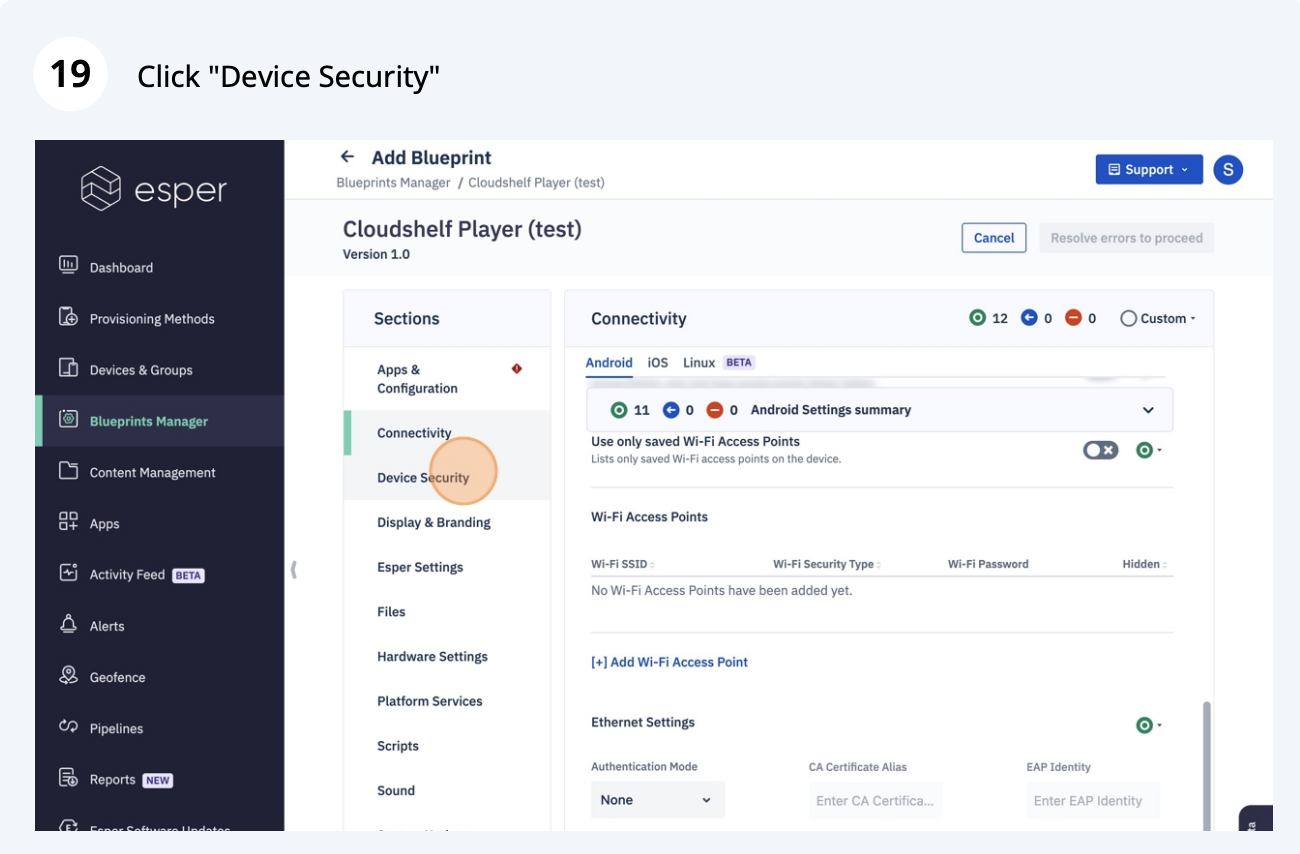
Esper setup, step 19 of 32
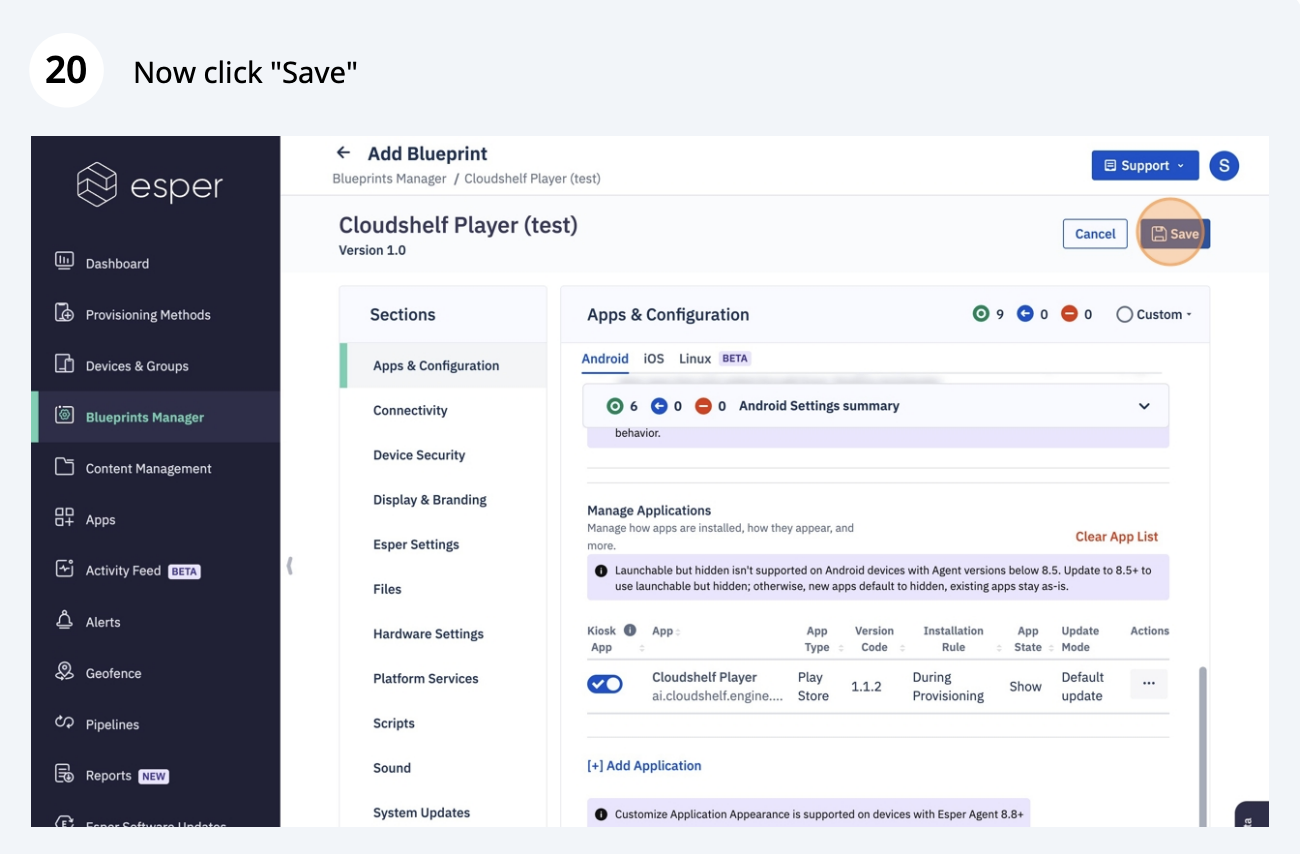
Esper setup, step 20 of 32
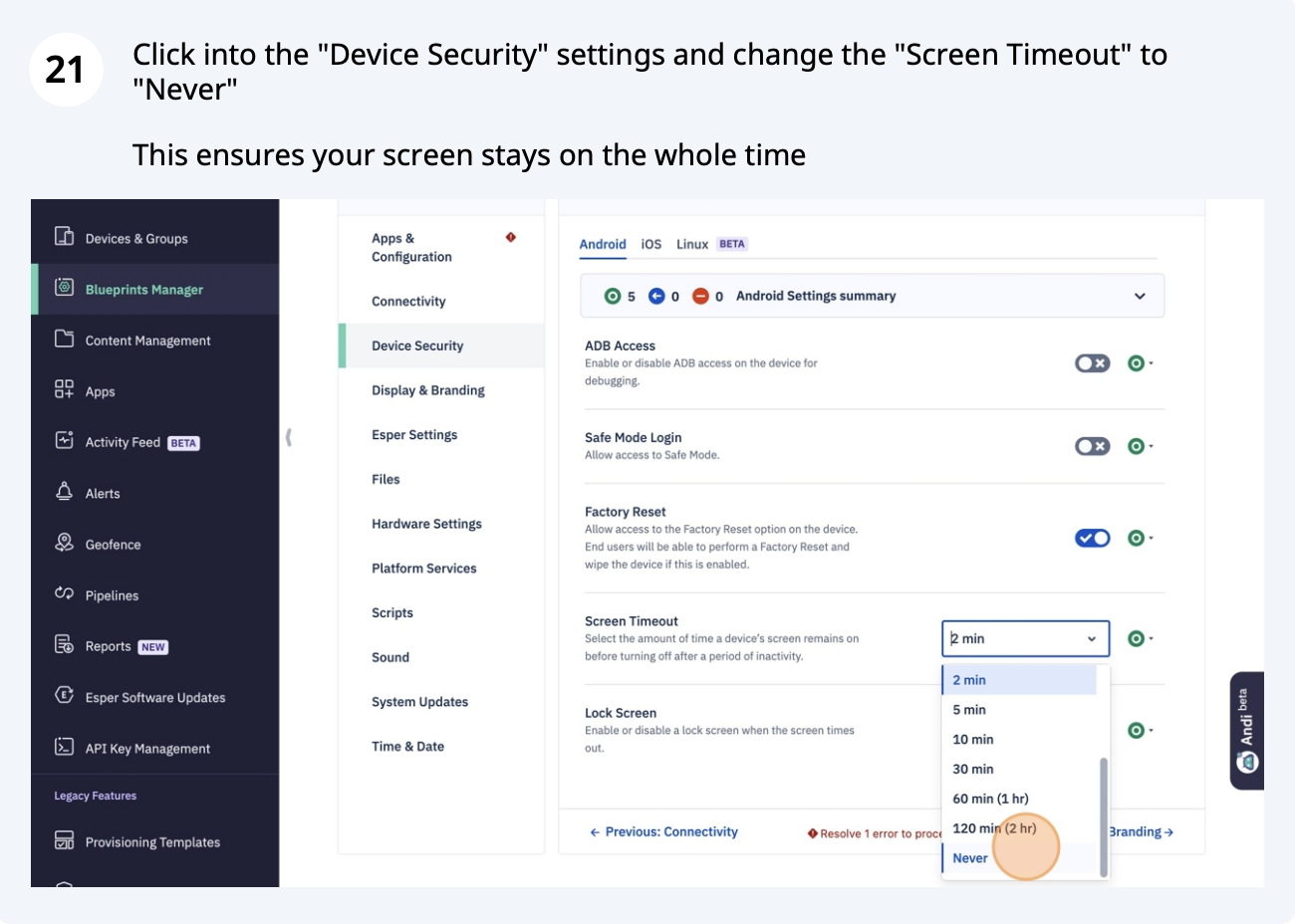
Esper setup, step 21 of 32
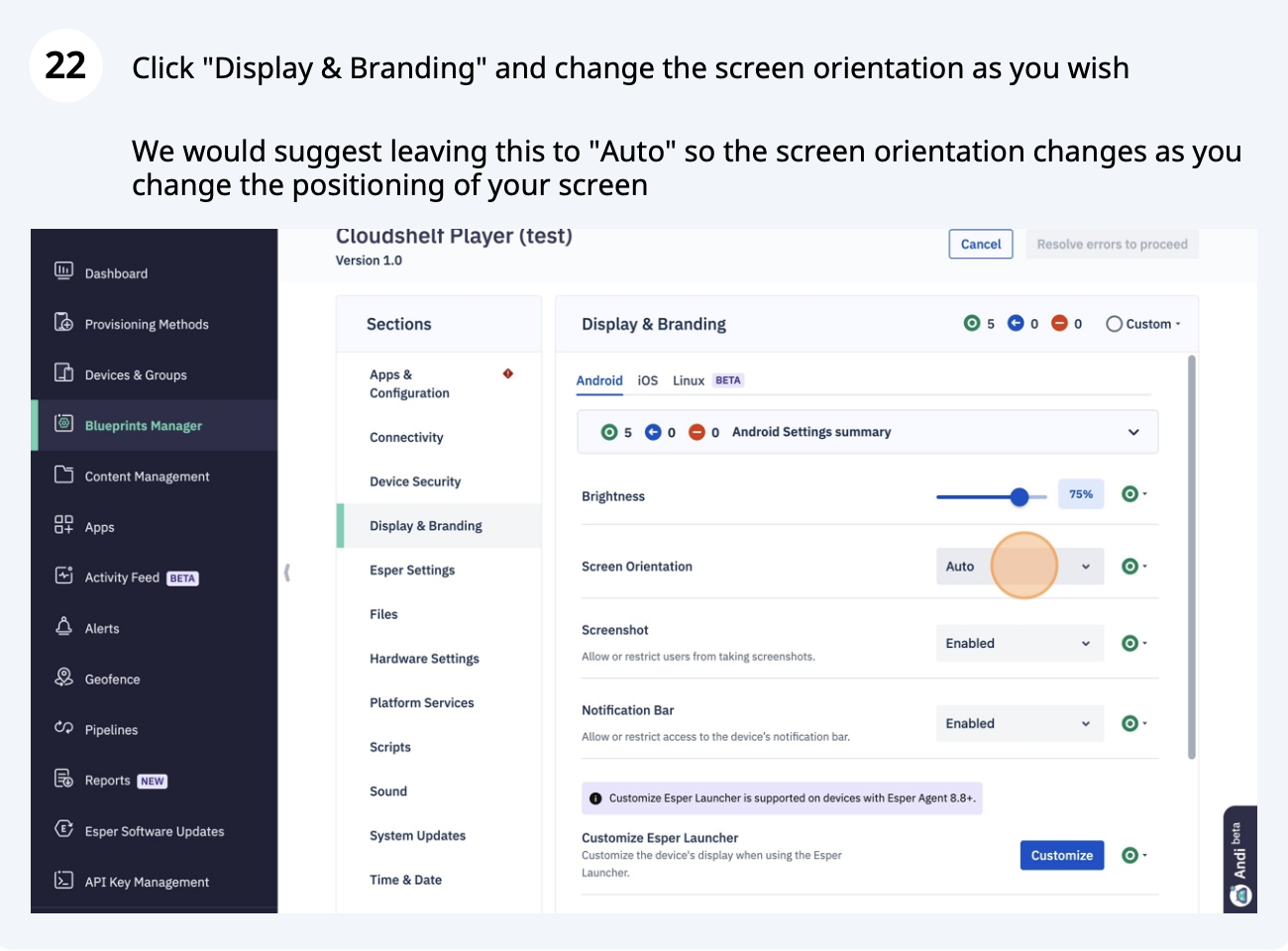
Esper setup, step 22 of 32
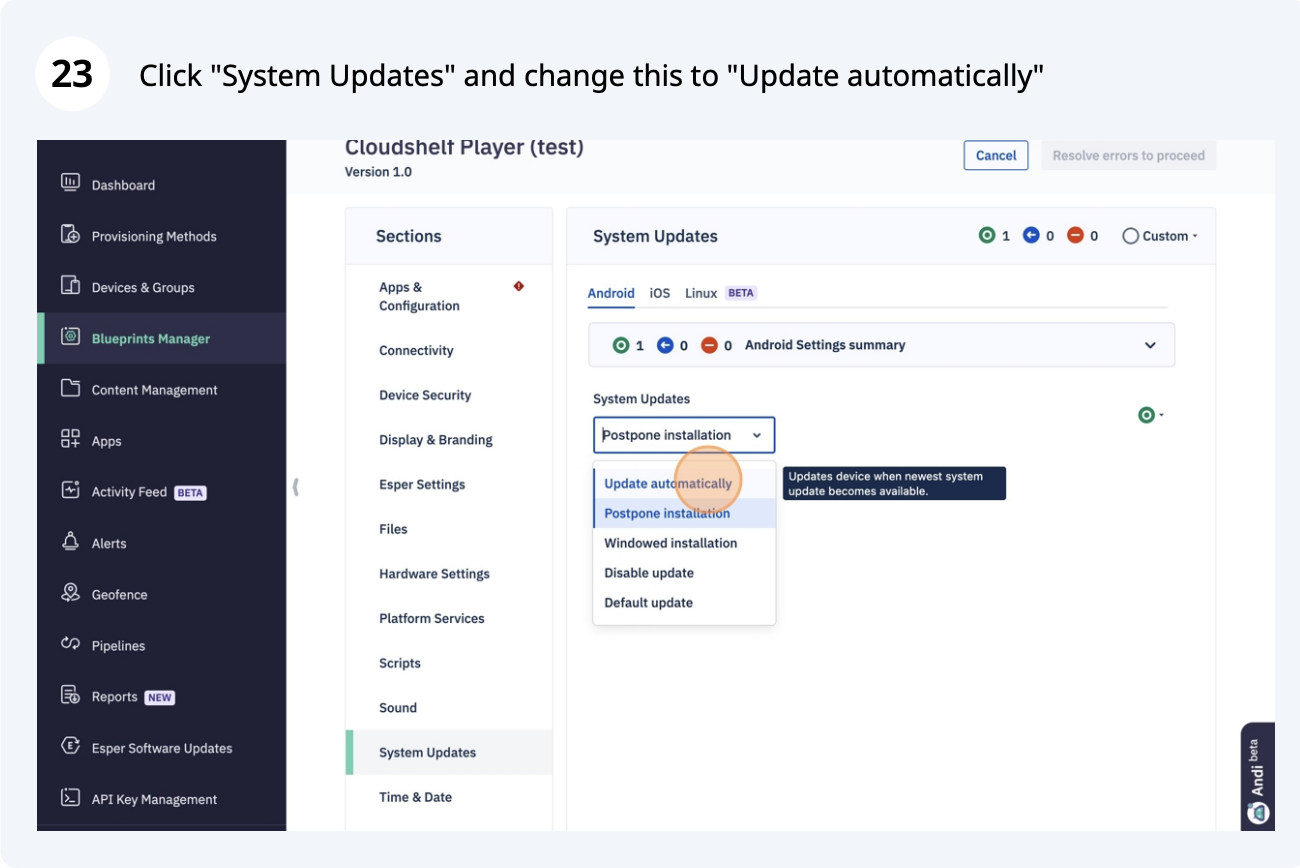
Esper setup, step 23 of 32
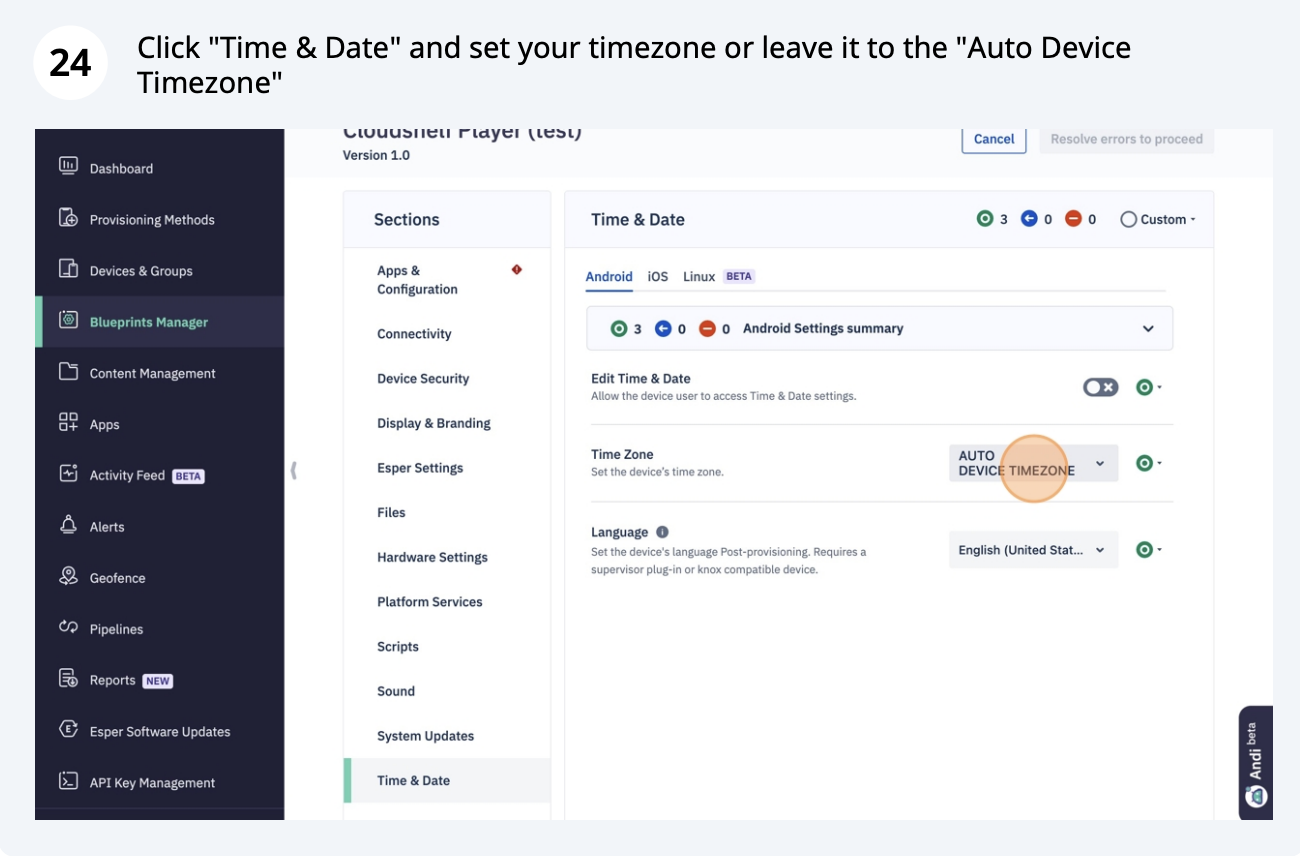
Esper setup, step 24 of 32
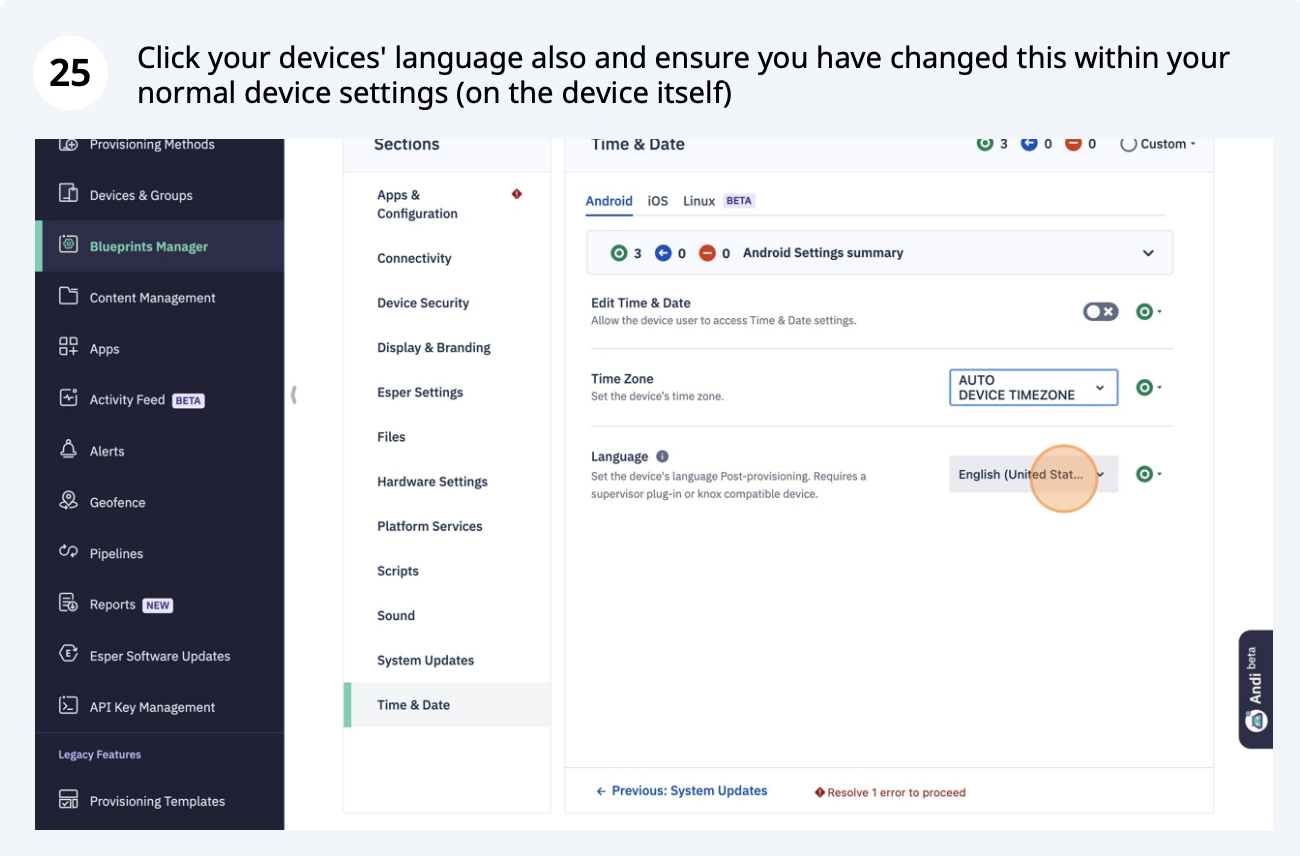
Esper setup, step 25 of 32
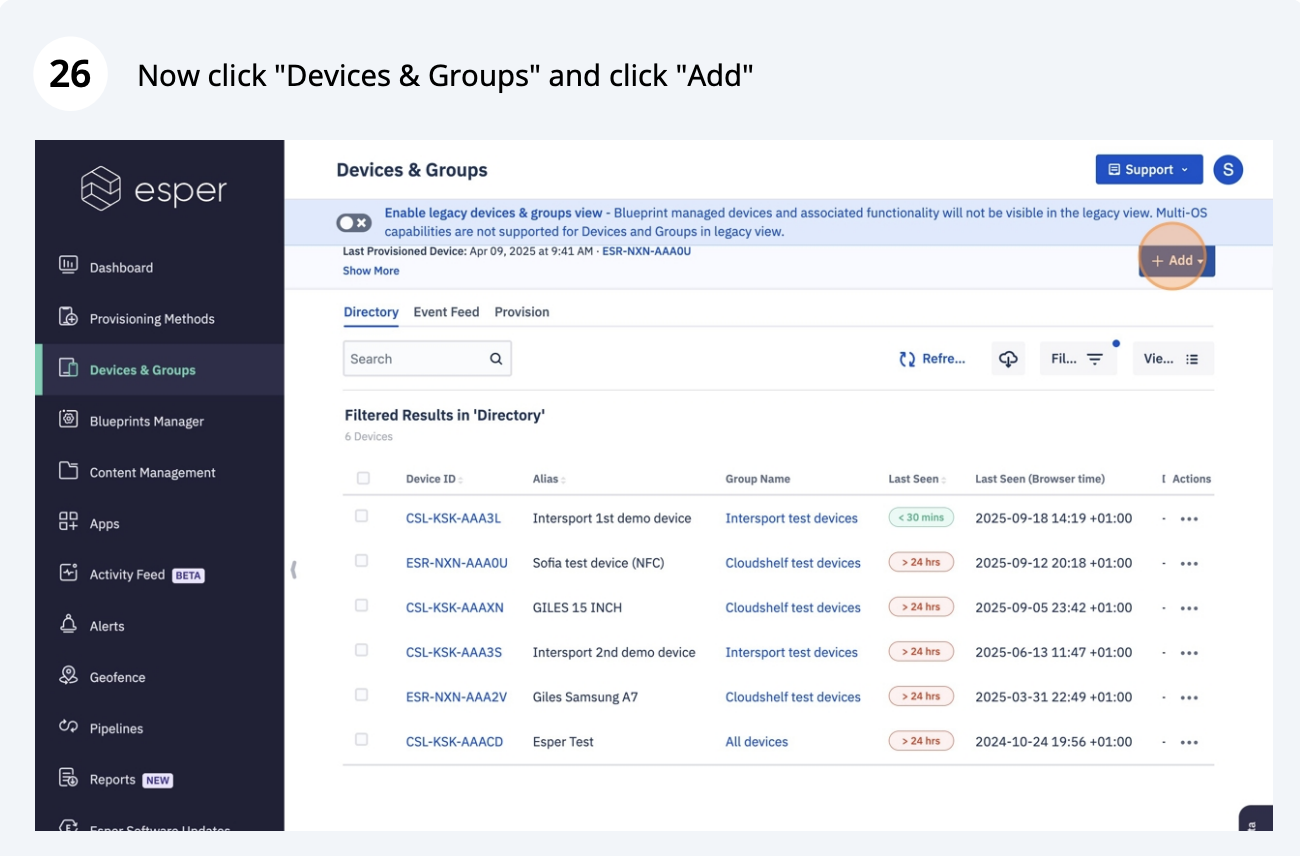
Esper setup, step 26 of 32
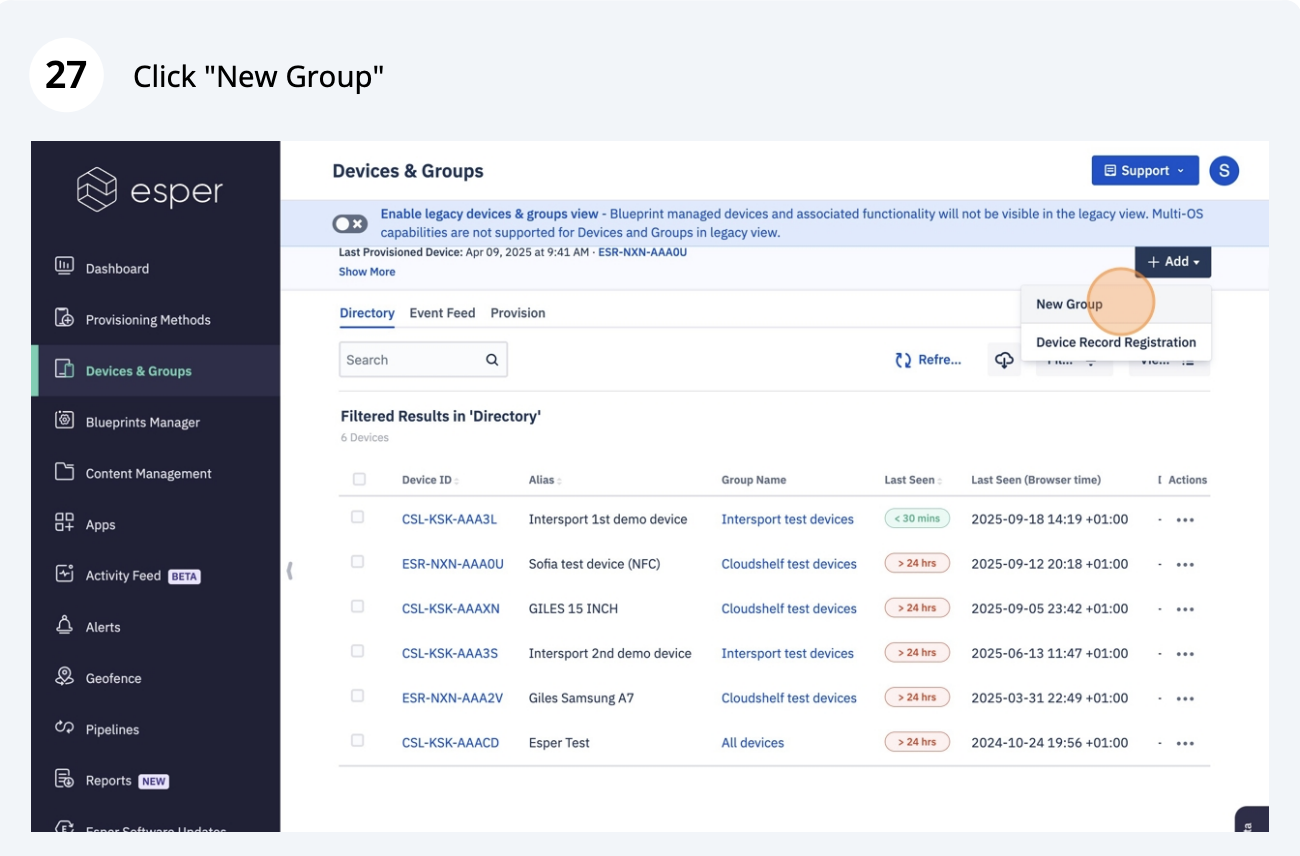
Esper setup, step 27 of 32
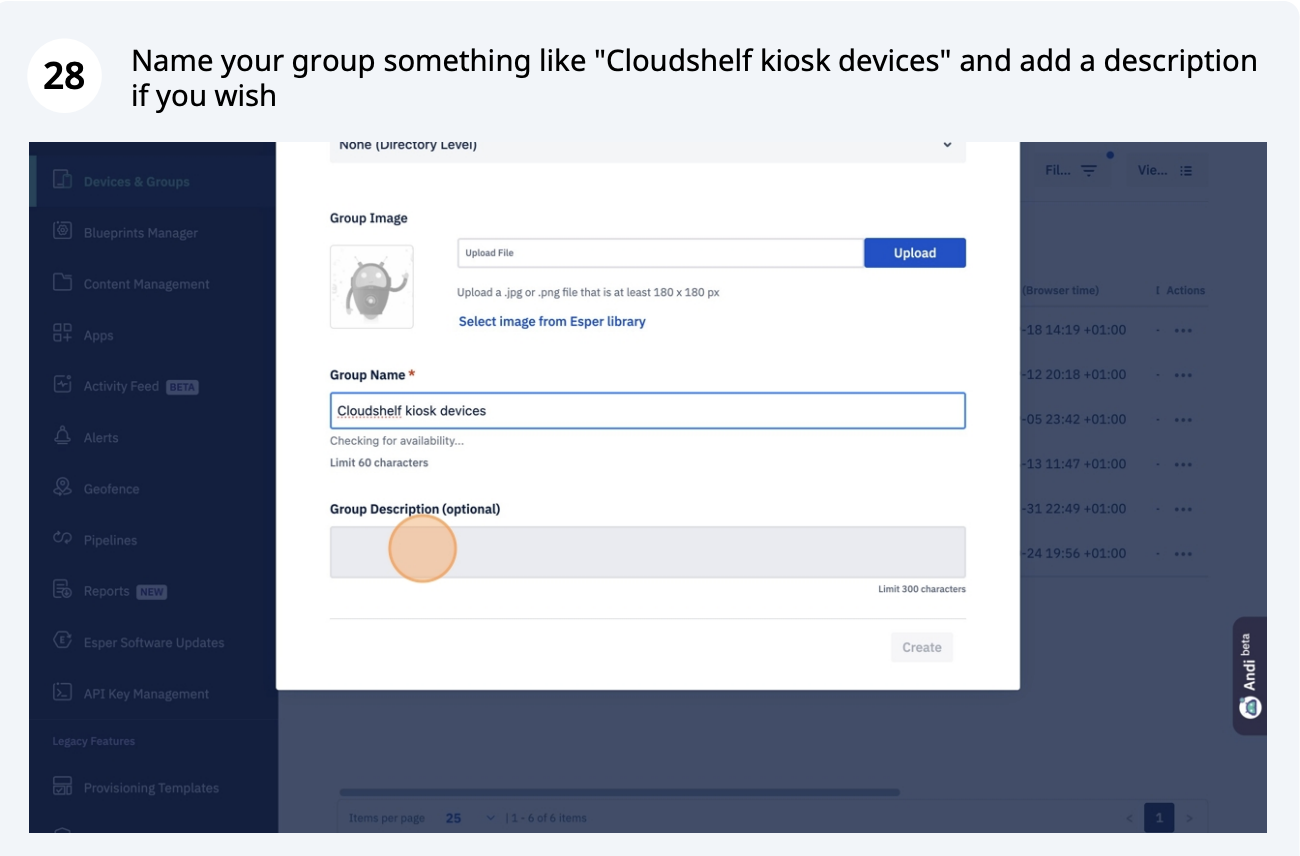
Esper setup, step 28 of 32
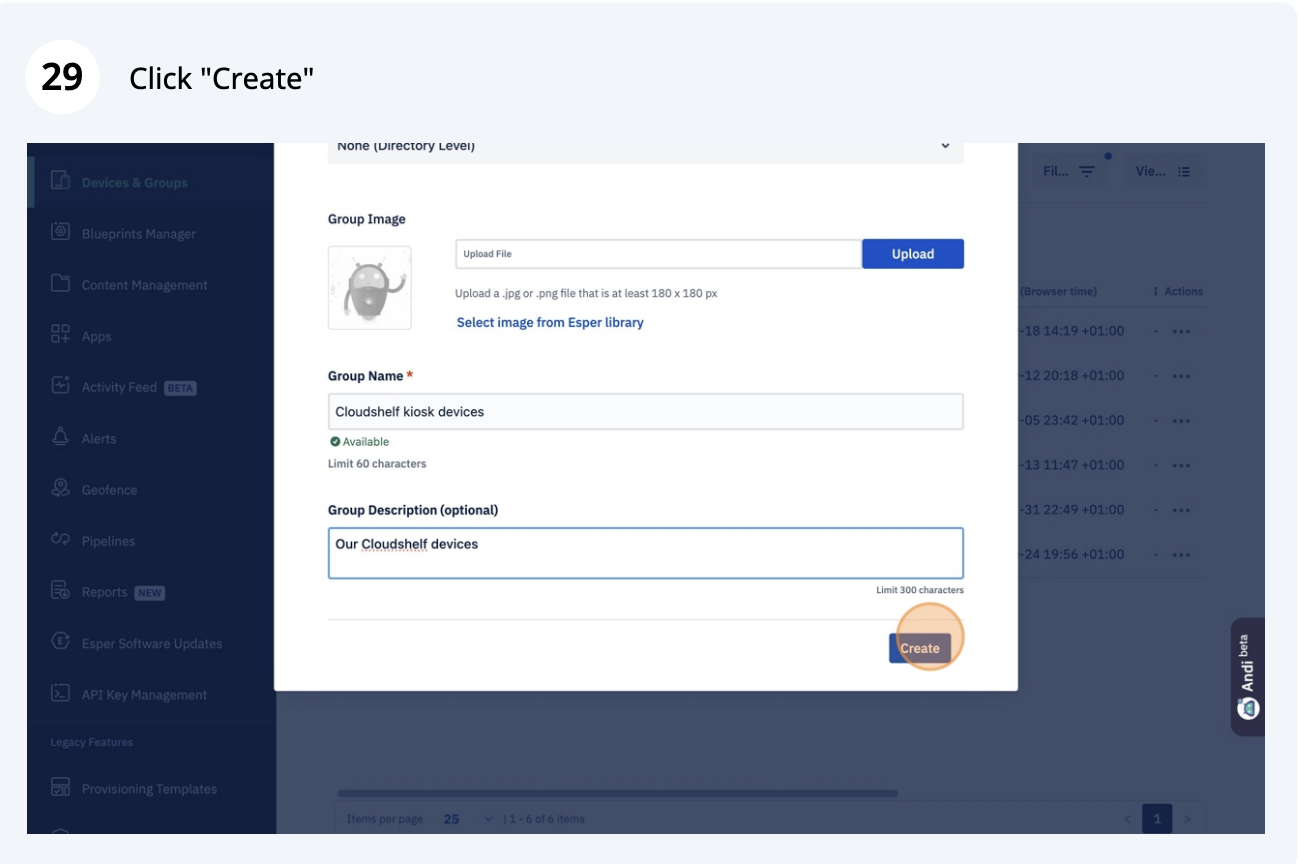
Esper setup, step 29 of 32
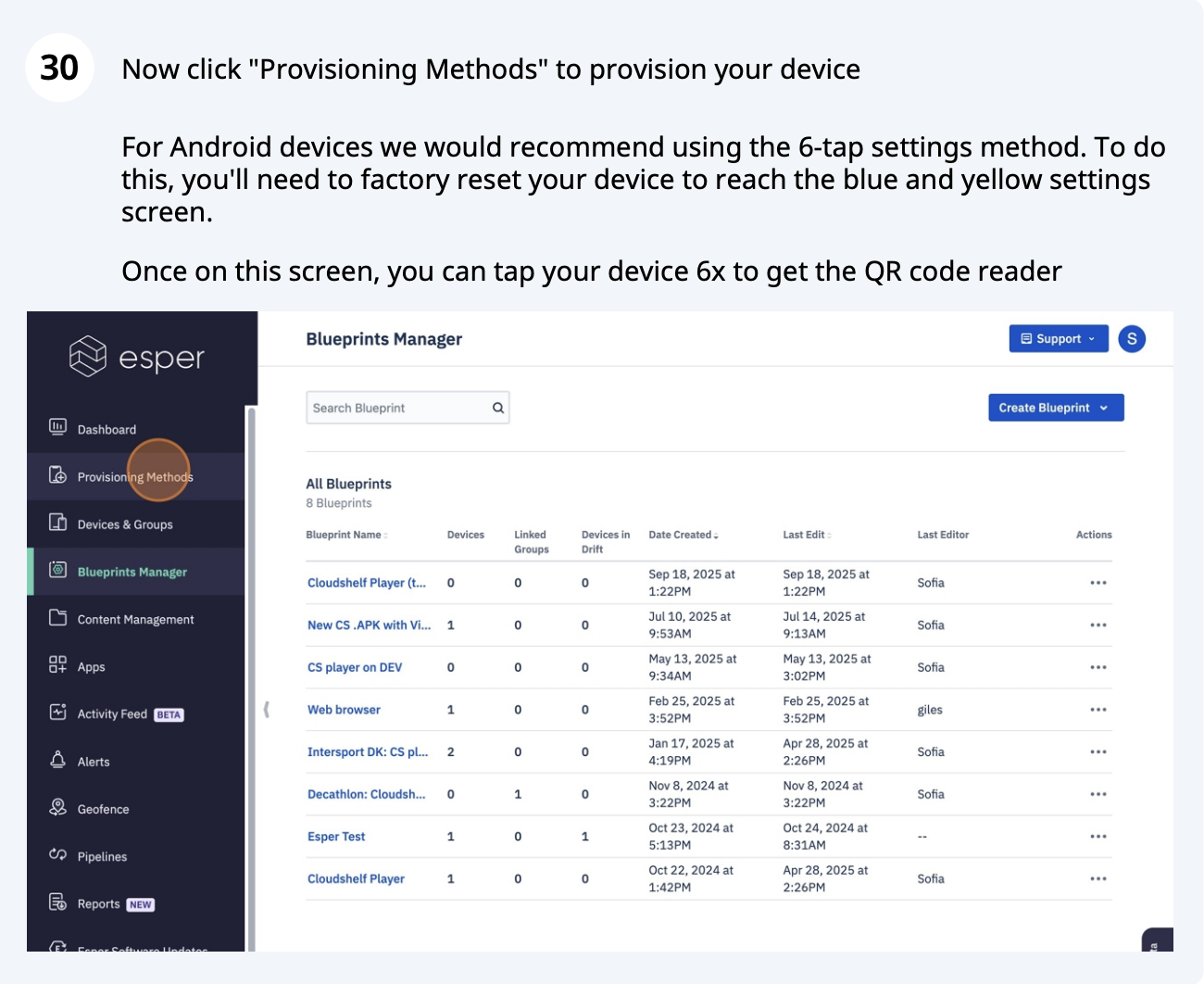
Esper setup, step 30 of 32
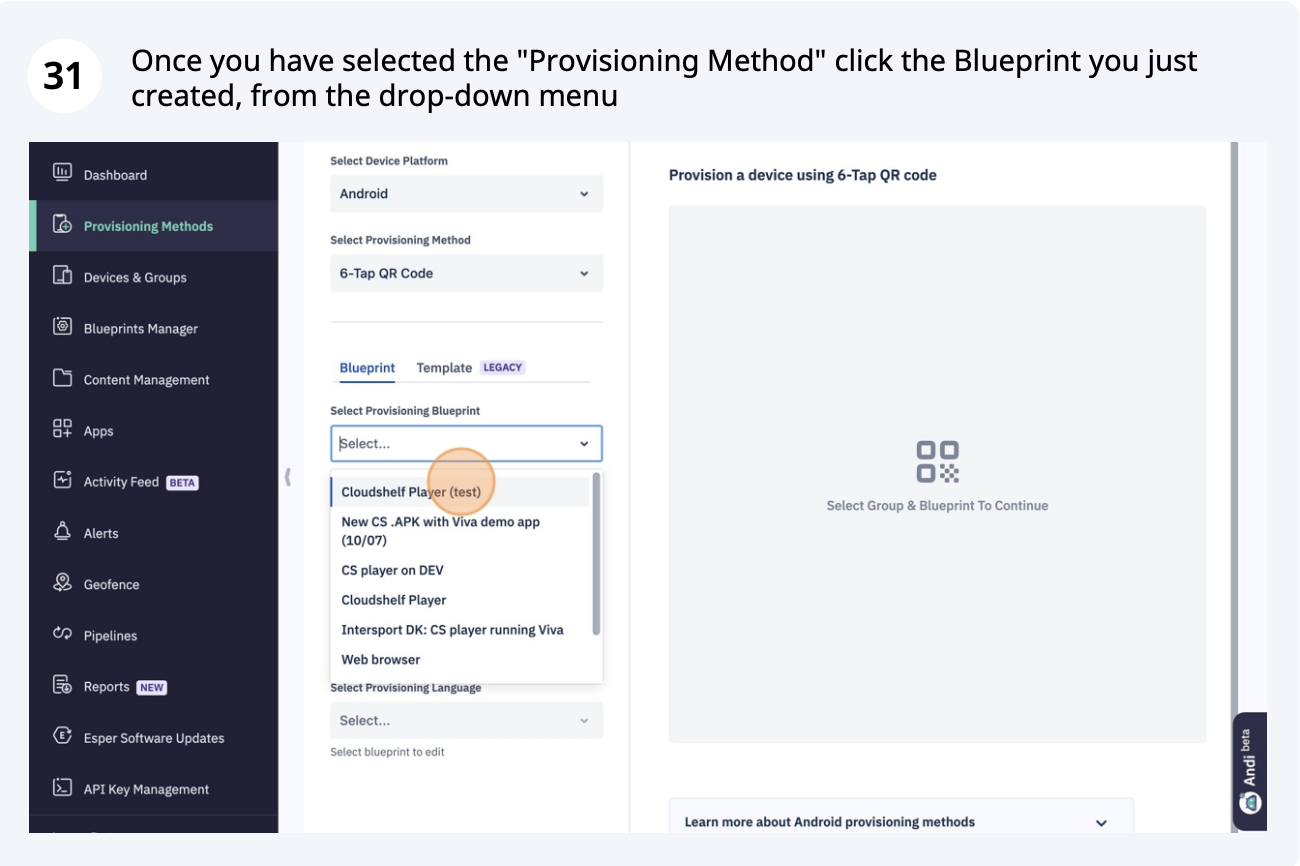
Esper setup, step 31 of 32
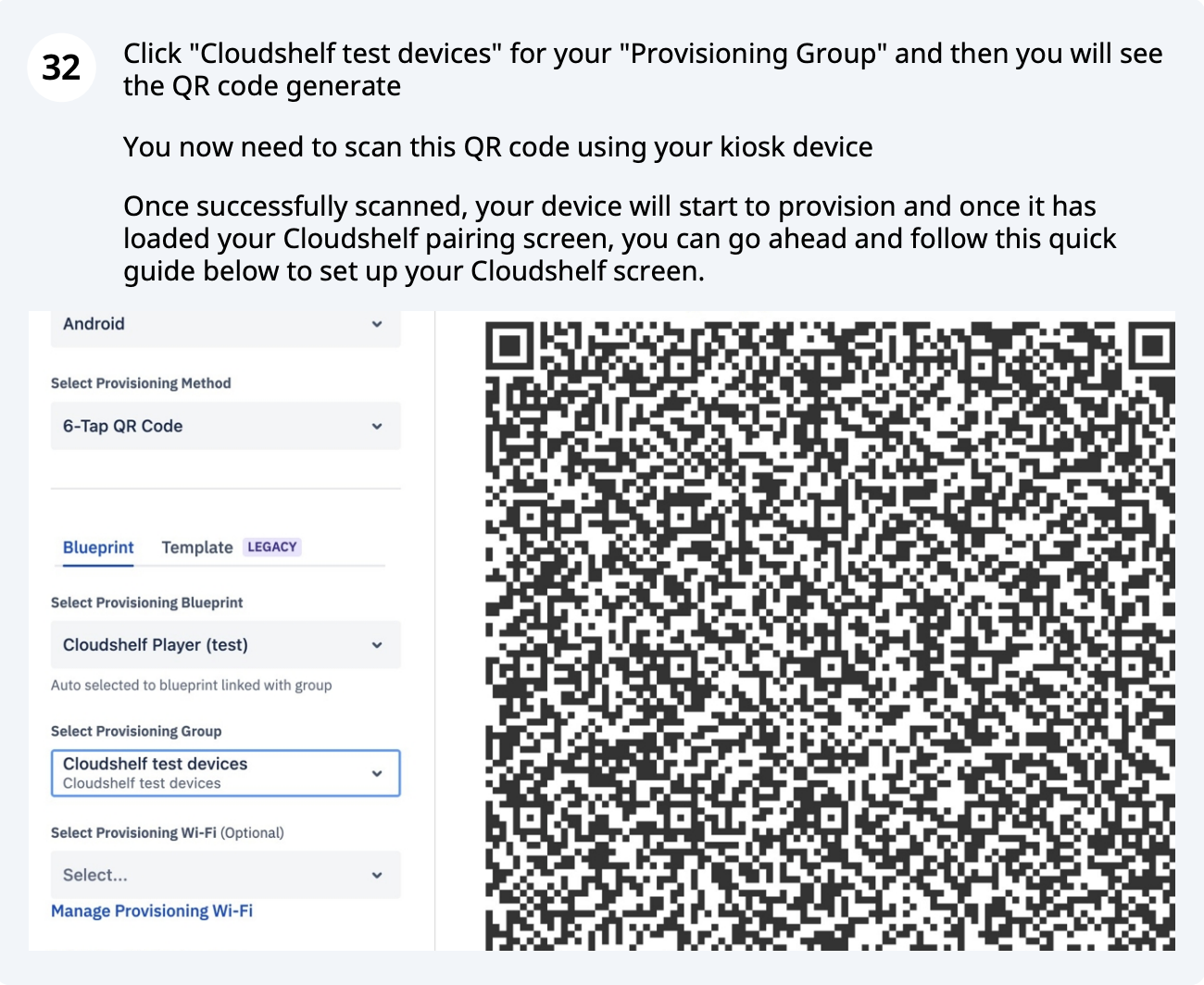
Esper setup, step 32 of 32

Guide to setting up the Cloudshelf Player app: Cloudshelf Player app setup guide

If you need any help with this, contact our support team on support@cloudshelf.ai.

Frequently asked questions

Why use Esper with Cloudshelf?
Esper locks the kiosk to your Cloudshelf during store opening hours, so shoppers (children included) can't close the app or open others such as YouTube.
Was this helpful?
Thanks for the feedback.
Still stuck?
Tell us the device and what you see on screen. We usually reply within one working day.