
How to put your iPad into kiosk mode

Use Guided Access to lock an iPad to the Cloudshelf app, and how to start and stop it.

Last updated
January 15, 2022

Kiosk mode (Apple calls it Guided Access) locks a screen into one app, so users can't go to other apps or websites. This keeps Cloudshelf on screen the whole time.

Set up on an iPad

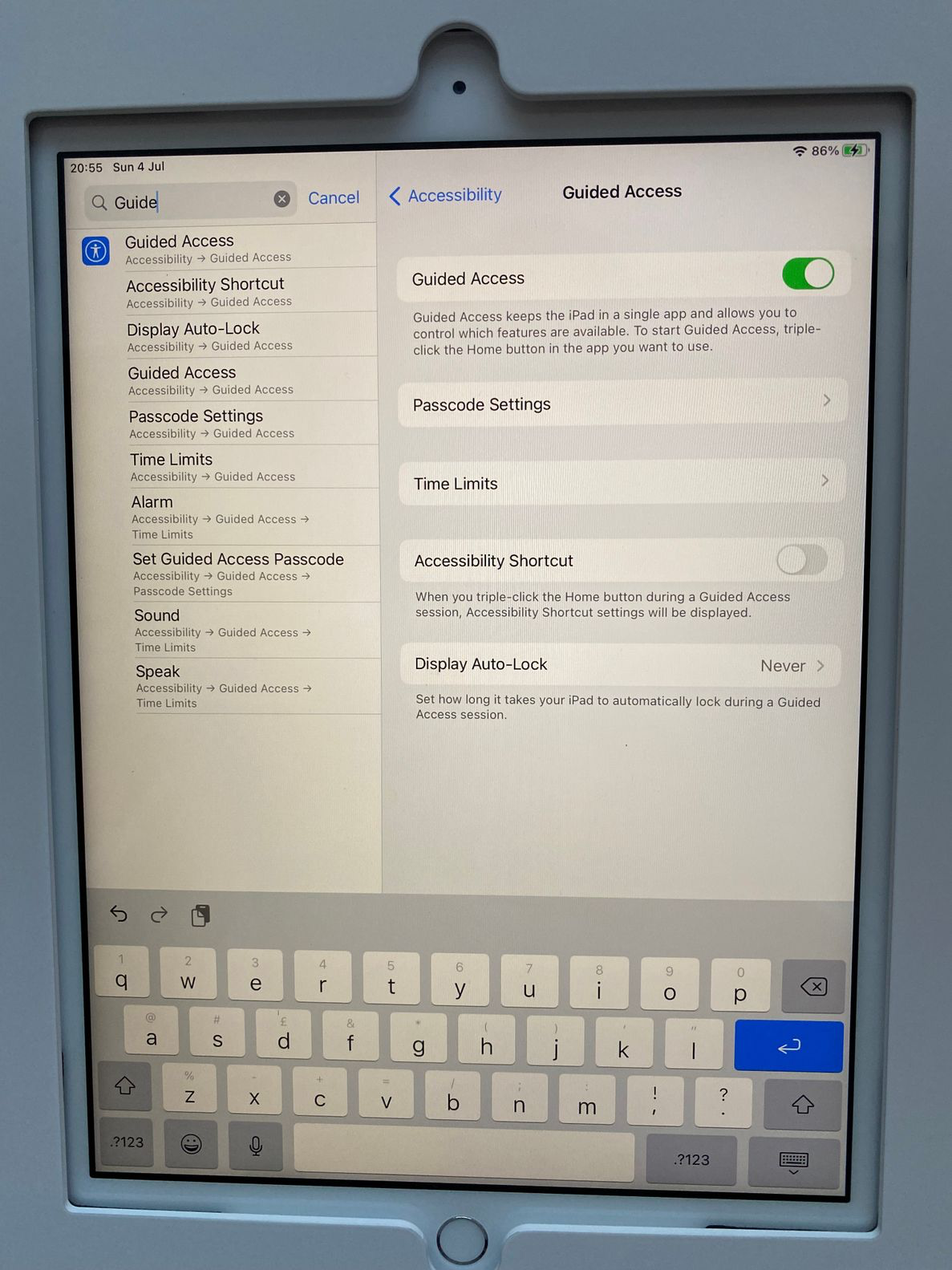
Go to Settings → Accessibility → Guided Access.
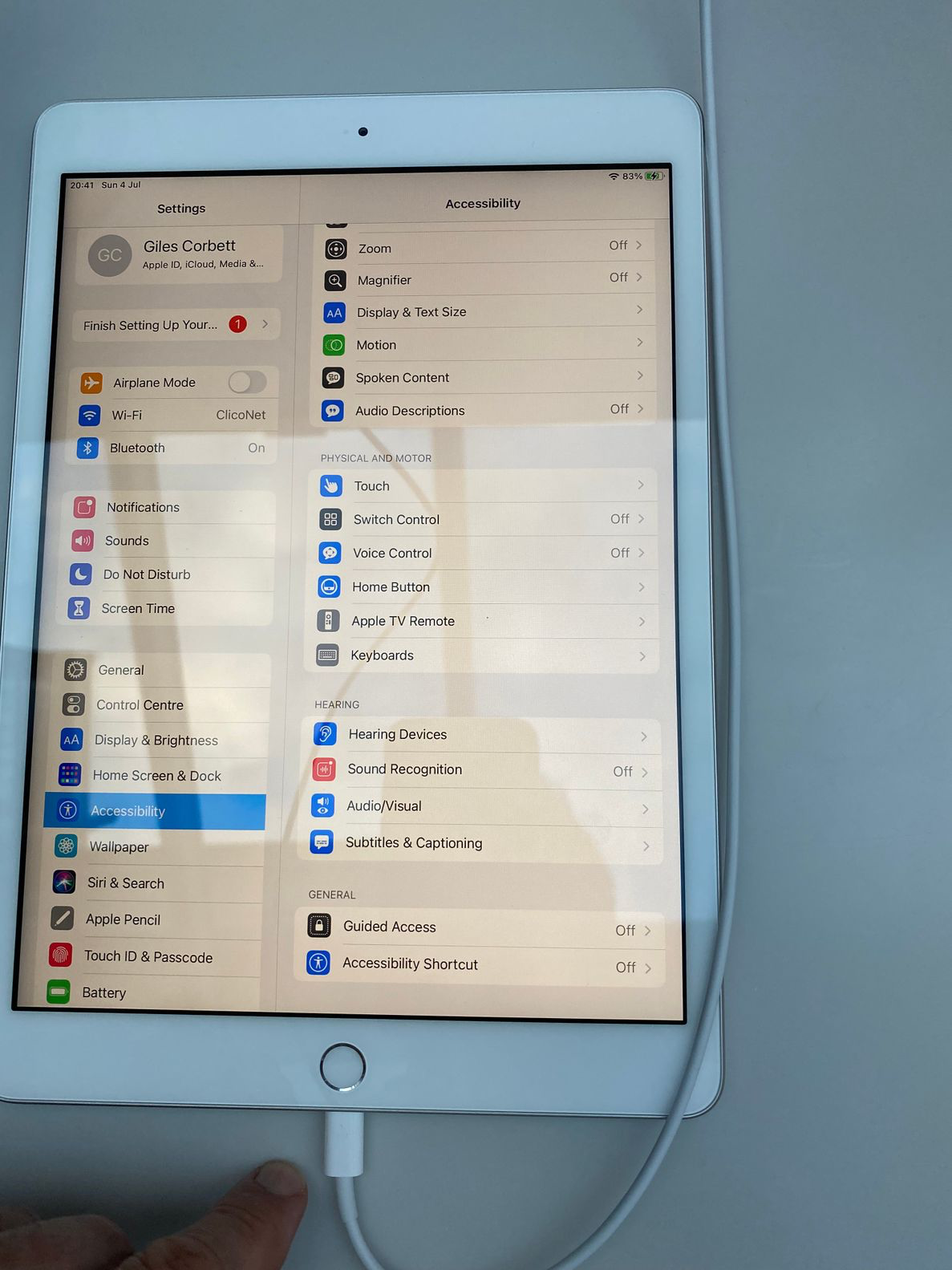
iPad Settings, Accessibility, Guided Access
  • Set a passcode
  • Set Display Auto-Lock to Never
Guided Access passcode and auto-lock settings

Start Guided Access

Launch your Cloudshelf app. Then press the power or home button (if your device has one) 3 times and follow the on-screen instructions.

Stop Guided Access

Press the power or home button 3 times, then select the on-screen option to end Guided Access.

Frequently asked questions

How do I start kiosk mode on an iPad?|How do I stop kiosk mode on an iPad?
Turn on Guided Access in Settings → Accessibility, open the Cloudshelf app, then press the power or home button 3 times and follow the on-screen instructions.|Press the power or home button 3 times, then choose the on-screen option to end Guided Access.
Was this helpful?
Thanks for the feedback.
Still stuck?
Tell us the device and what you see on screen. We usually reply within one working day.