

Your product details, working on the shop floor
Metadata is the extra information you already keep about each product: fabric, dimensions, care, warranty, pet friendly. Your ecommerce platform may call these metafields, custom attributes or product attributes. Cloudshelf takes the ones you choose and uses them all over the kiosk.
Enter a fact once, where you already manage your products. It can then appear on the product page, become a filter, fill a comparison table, trigger a label and build a collection.

What counts as metadata
Everything that doesn't fit in title, price and description
Cloudshelf already uses the standard product fields. Metadata covers the rest: the spec-sheet details shoppers ask staff about.

How it gets onto the kiosk

What shoppers see: seven places it shows up
These screens use an example sofa shop. Each one shows the screen, how it is set up in the Manager, and the data behind it.
Product page: Turn spec sheets into tidy product pages
Each metadata field can become its own section on the product page. You choose the heading, the order, and whether it is always open or tucked away behind a tap.

- Dimensions come from one field holding width, depth and height, shown as a neat table.
- Fabric & durability is an open section. Rub count is the detail people usually have to find a member of staff to ask about.
- Care is collapsed so long text doesn't push the Add to basket button off the screen.
Set it up: Experience → Products → Details → Add block → custom.dimensions (Metadata)
Display options: Static, Collapsible, or Expandable (open, closed or reduced height).

Variant swatches: Show the real fabric, not the word "Moss"
Shoppers choosing a fabric want to see it. If each variant has a swatch image in its metadata, Cloudshelf uses that image for the option button instead of the name.


It also works with a colour (a hex code like #7D8A6A) or a short label.
Set it up: Experience → Products → Details → Variants block → Fabric → Rendering: Metadata

Filters: Let shoppers narrow down by what matters to them
Any metadata field with short, consistent values can become a filter. Cloudshelf collects every value across your catalogue and turns each one into an option. You don't type the options in.

- Material: one value per product.
- Pet friendly: a simple Yes or No.
- Seats: a product can carry a list (for example a modular sofa that comes as "2" and "3"), and it appears under each.
Set it up: Catalog → Filters → add a Metadata filter → pick the field
You can rename the filter, rename or merge options, and hide ones you don't want.

Product comparison: Answer "what's the difference?" without a member of staff
Shoppers pick up to three products and see them side by side. Every row below Price is a metadata field you chose. Pictures (the fabric row) and ticks and crosses (pet friendly) work too.
One field can also fill several rows. Dimensions is stored as one value on the product, and Cloudshelf splits it into separate Width, Depth and Height rows.
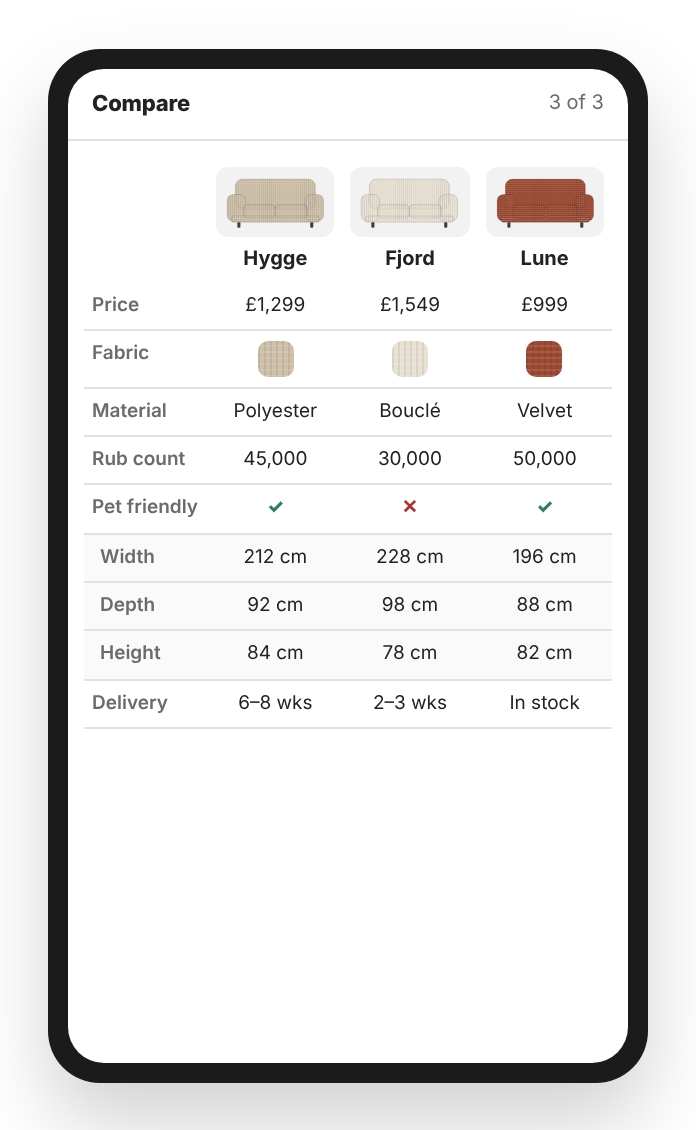
Set it up: Experience → Discovery → Compare → Enable Product Comparison → Add Comparison Field
For each field, pick a View (one row) or a Split (several rows).

Labels: Badges that put themselves on the right products
Write a rule once, such as "if pet friendly is Yes, show a Pet friendly label". Every matching product gets the badge on its tile and its product page. New products pick it up on the next sync, and nobody has to tag them by hand.
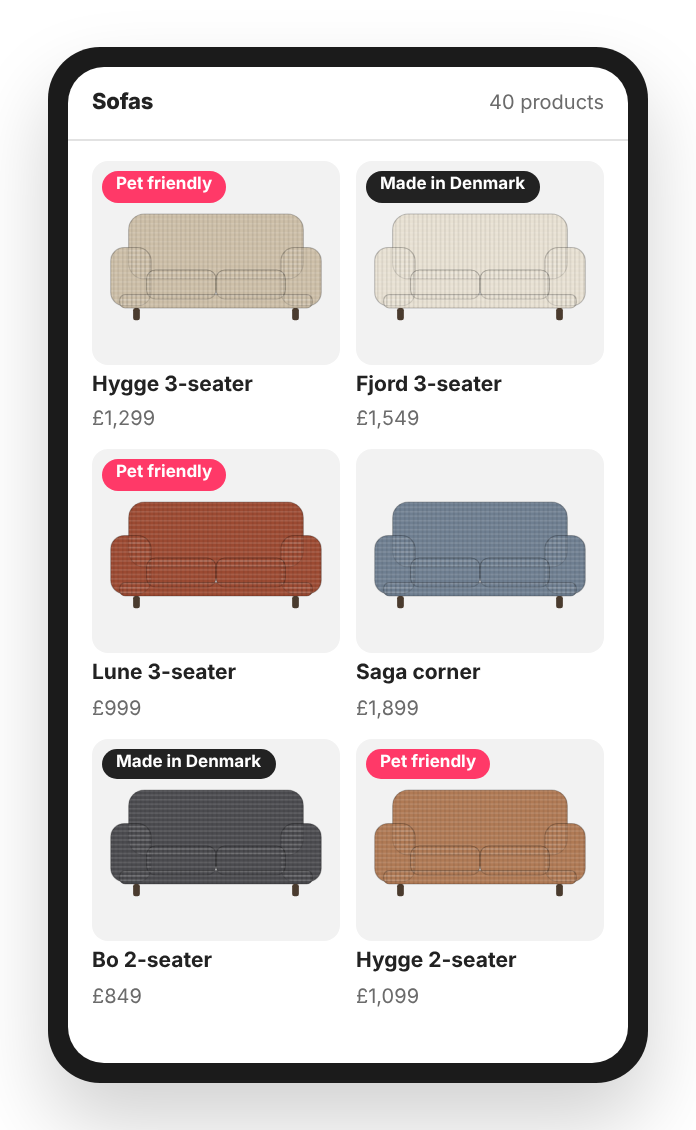
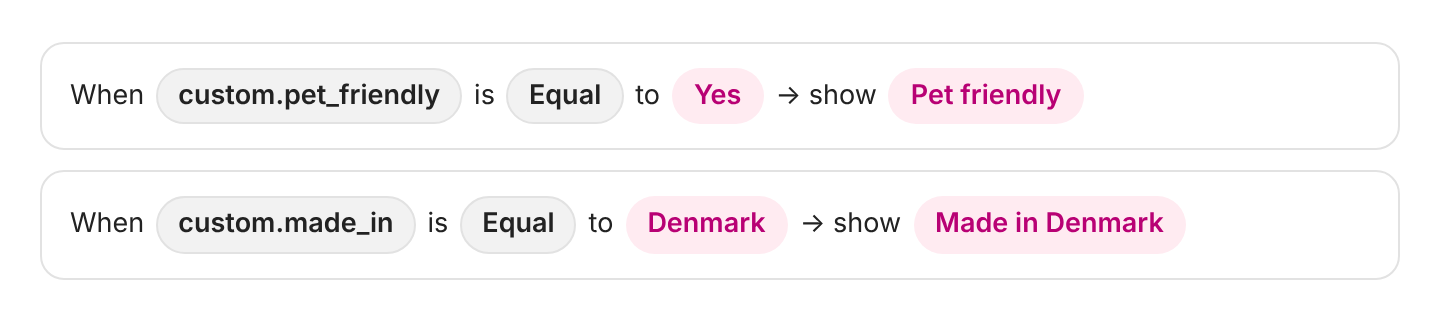
Set it up: Themes → Label Rules → Add Label Rule → type Metadata
Checks available: Exists, Not Exists, Equal, Not Equal.
Smart groups & suggestions: Collections and "goes with" lists that keep themselves up to date
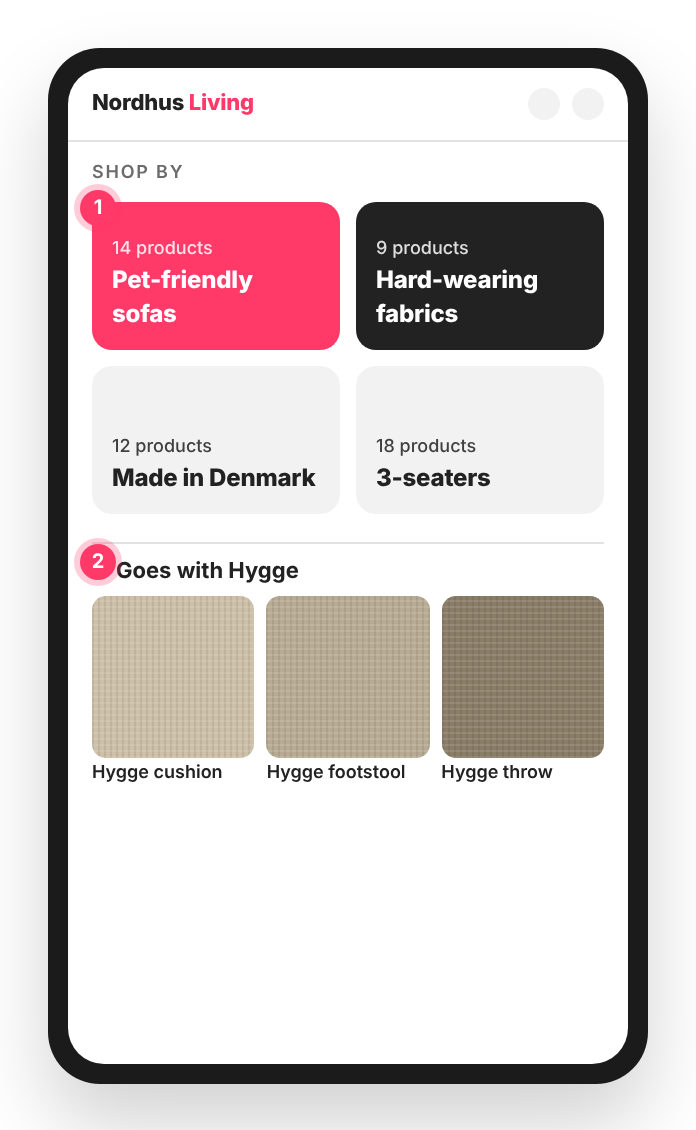
- Smart groups are kiosk collections made from rules. "Pet-friendly sofas" contains every product where the pet friendly field is Yes. Nothing is created in your online store, and the group changes as your products do.
- Suggest other items on the product page can match on a metadata field, for example everything in the same range.
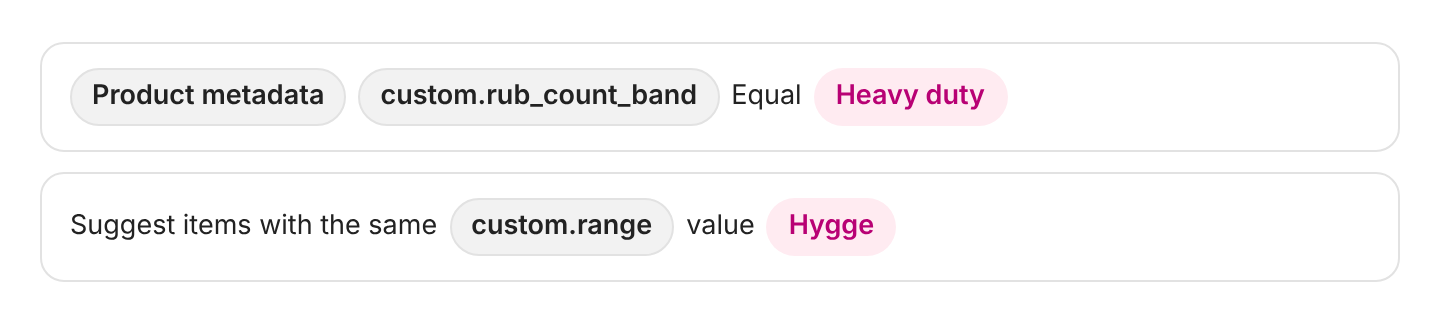
Set it up: Experience → Homescreen → Tiles → New smart group → Conditions → product or variant field
Set it up: Experience → Discovery → Recommendations → Suggest other items → product or variant field
Use * as a wildcard, for example Hygge*.
Search: Find products by the words shoppers actually use
"Fjord 3-seater" doesn't say bouclé anywhere in its name. With metadata search on, a shopper who types "boucle" still finds it, because the material field says so.

Set it up: Experience → Discovery → Search → fields checked by text search → Metadata
Views: how raw data becomes something shoppers can read
Product systems often store this data in a form meant for computers. A view is a small recipe that turns that into something tidy for the screen. You set it up once per field and reuse it on the product page and in compare.
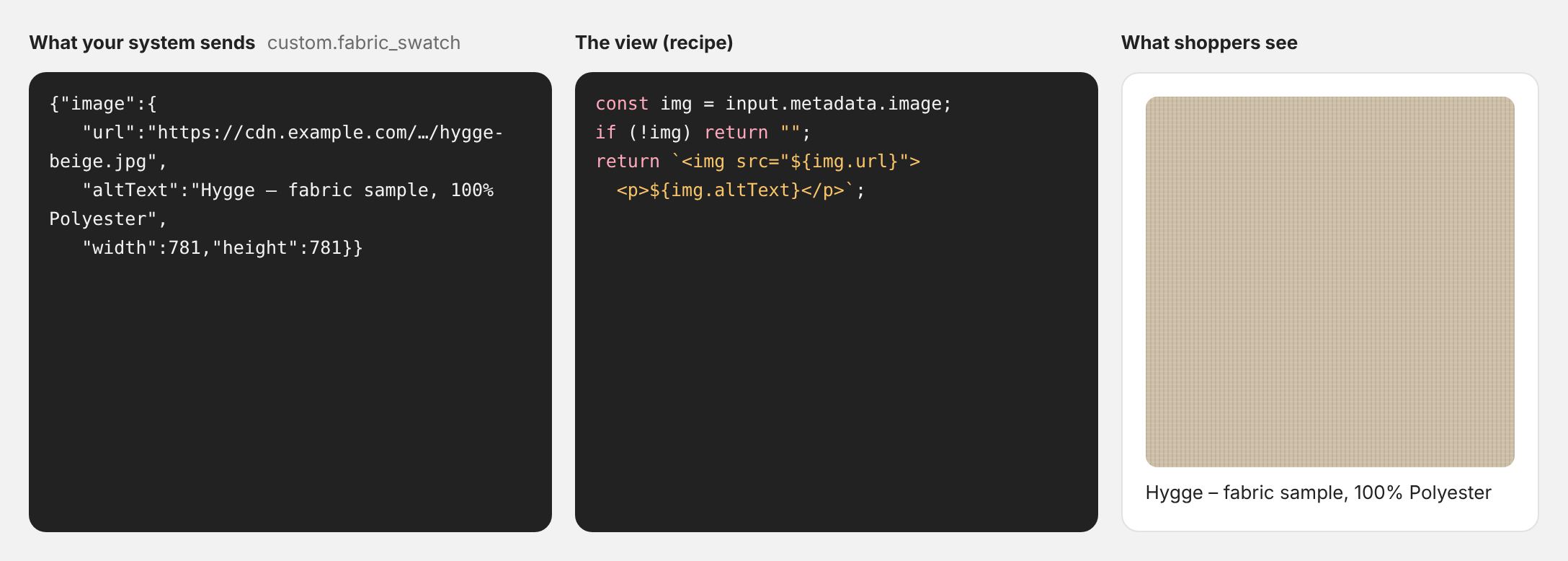
AI Generate: Nobody needs to write the recipe. In the View Editor, press AI Generate and describe the result in a sentence, such as "Show the fabric photo with its name underneath". The editor previews the result against up to five real values from your catalogue before you save.
Plain text fields need no recipe. Each field comes with a ready-made Raw view that shows the text as it is.
Getting your data ready
- Start with the questions shoppers ask staff. Size, material, care, compatibility, warranty. Each answer is a good metadata field.
- For filters, keep values short and consistent. Use "Yes" everywhere, not a mix of "Yes", "yes" and "Y". Use one word or a list of words, not a sentence. Paragraphs, HTML and JSON objects are left out of filters.
- For the product page and compare, anything goes. Rich text, images, files and structured values all work. A view formats them.
- Put it on the variant when it varies. If the swatch or the dimensions change by option, store them on each variant. Cloudshelf uses the variant's value when it has one.
Good to know
- Only the fields you add in Catalog → Metadata are brought across. Adding one takes effect on the next sync.
- Filters list values as options, in alphabetical order. Sliders and ranges are for price only today.
- Products can't be sorted by a metadata field yet.
Nordhus Living and its products are made up for these examples. Screens are simplified mock-ups of the Cloudshelf kiosk.
Find out more
If you need any support or would like to find out more about Cloudshelf Metadata, please email us on support@cloudshelf.ai.