

Here are 3 quick steps to pin your Cloudshelf app to the screen of your Android or Samsung device:
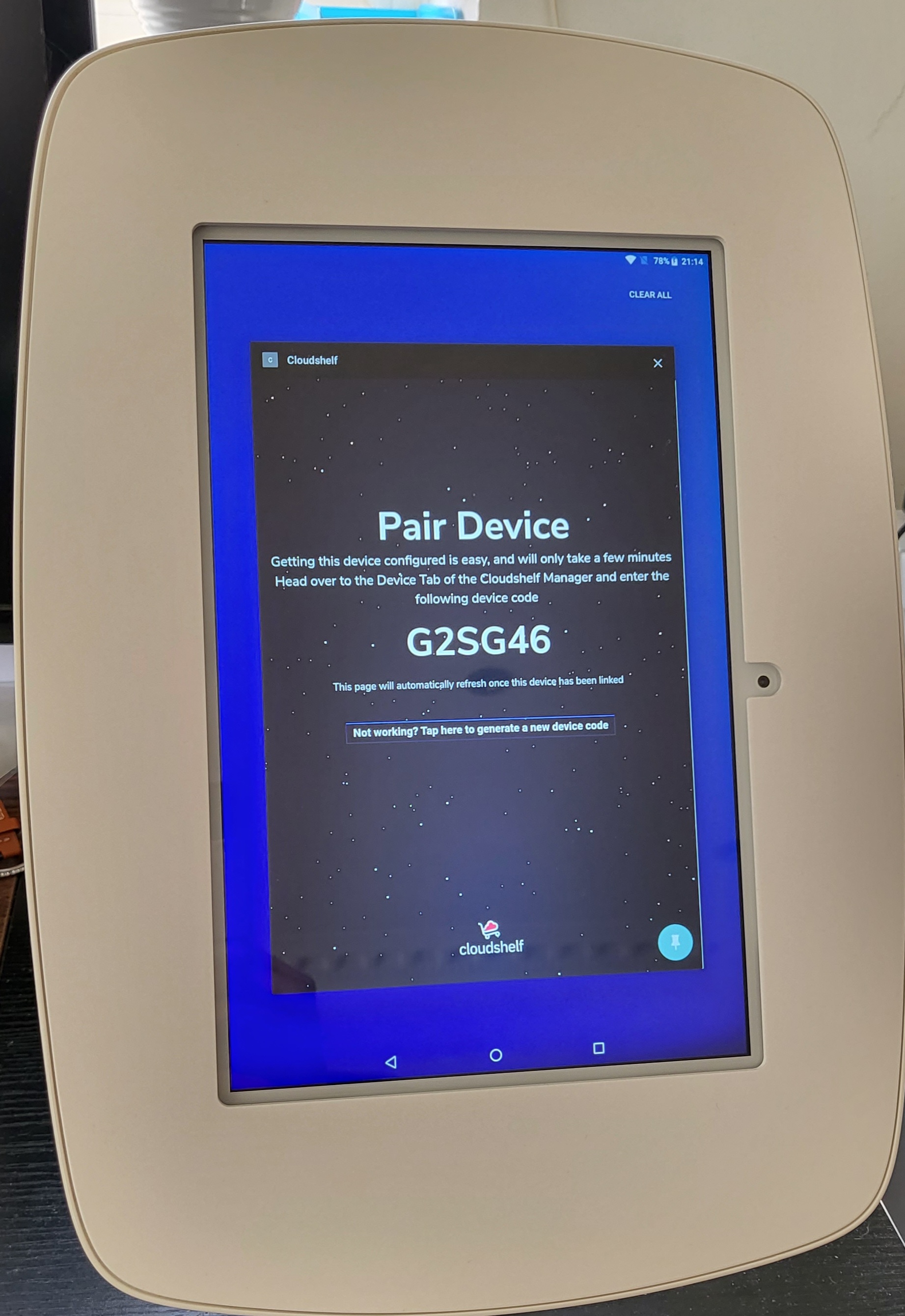
1. Pin the app
Select the square icon at the bottom of the screen to minimise the app window. Then select the pin icon in the bottom right-hand corner of the Cloudshelf app window.
2. Unpin the app
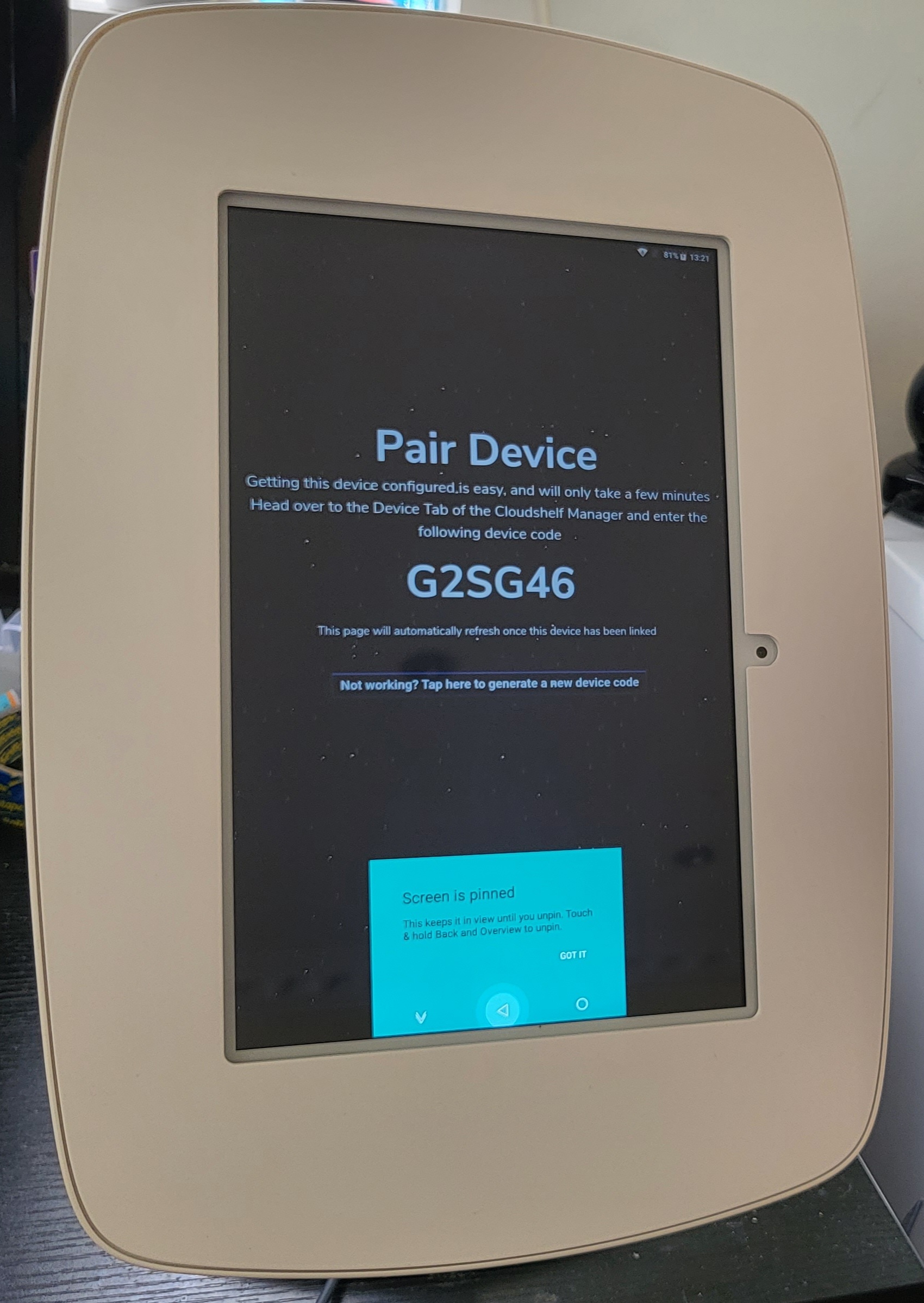
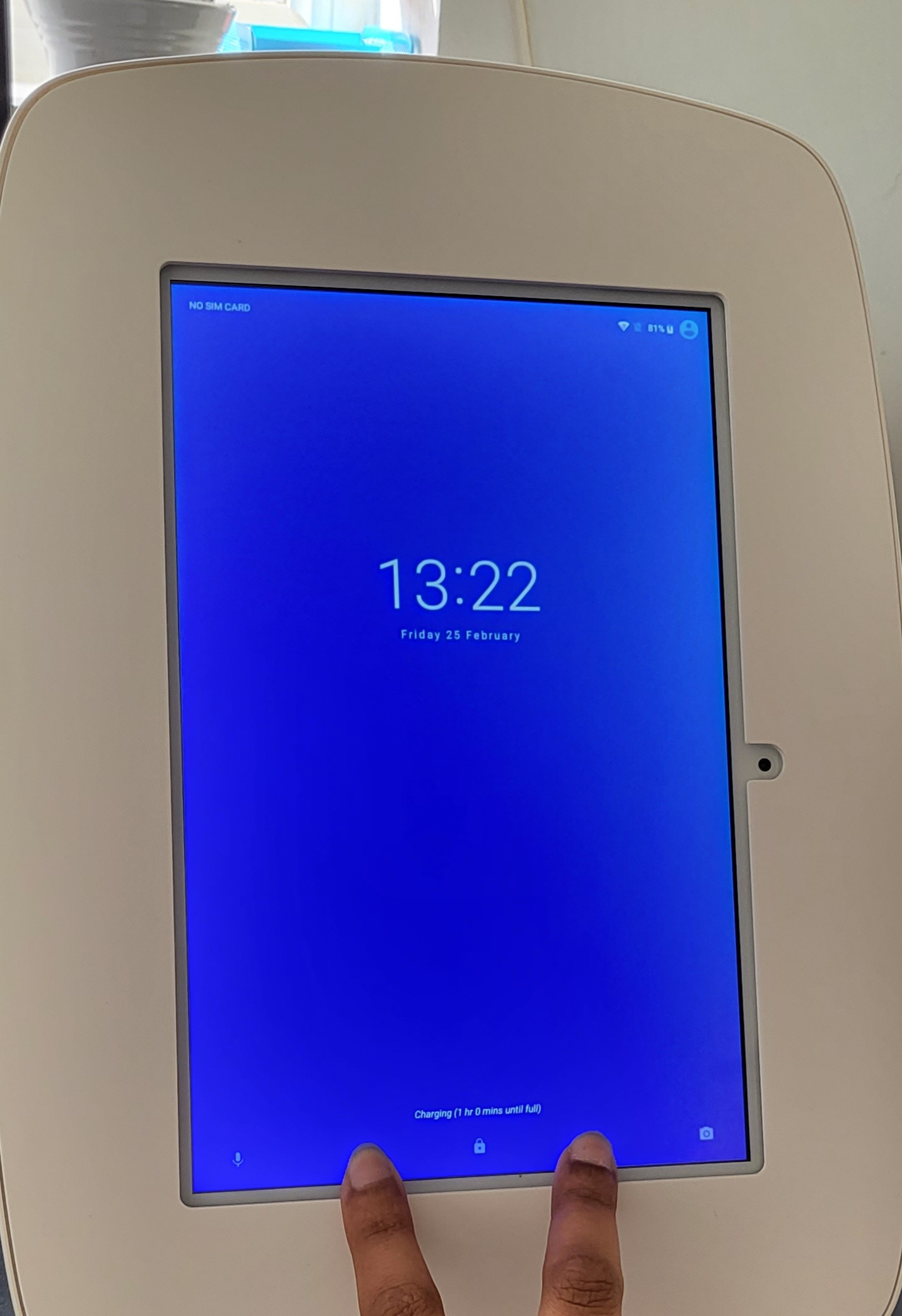
The screen is now pinned. To unpin the app, hold down the square and arrow icons at the bottom of the screen. This takes you to the unlock screen.
3. Re-launch
Once you have unpinned the app, enter the device PIN to re-launch it. Email support@cloudshelf.ai if you have forgotten the PIN.
If you need any further help, email our support team on support@cloudshelf.ai.