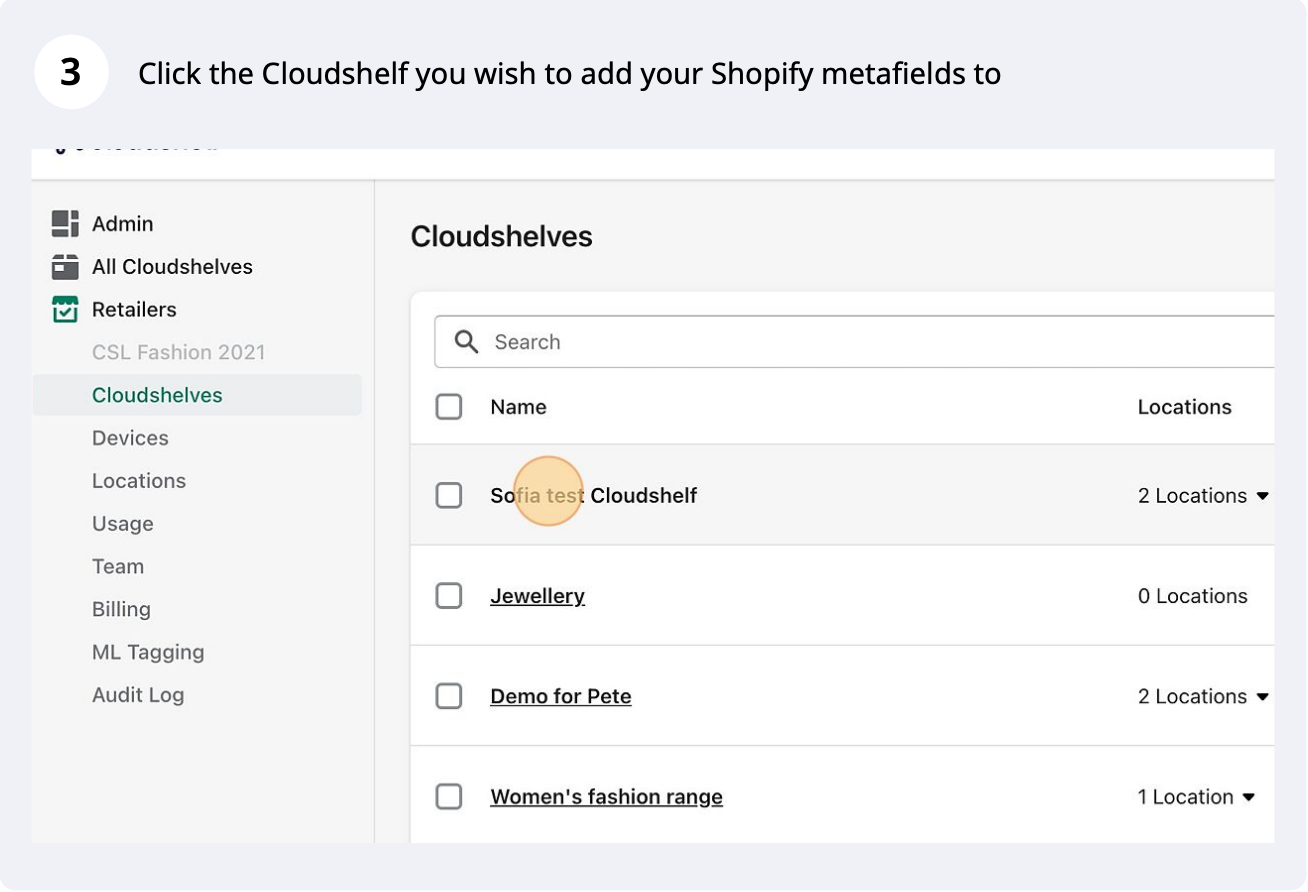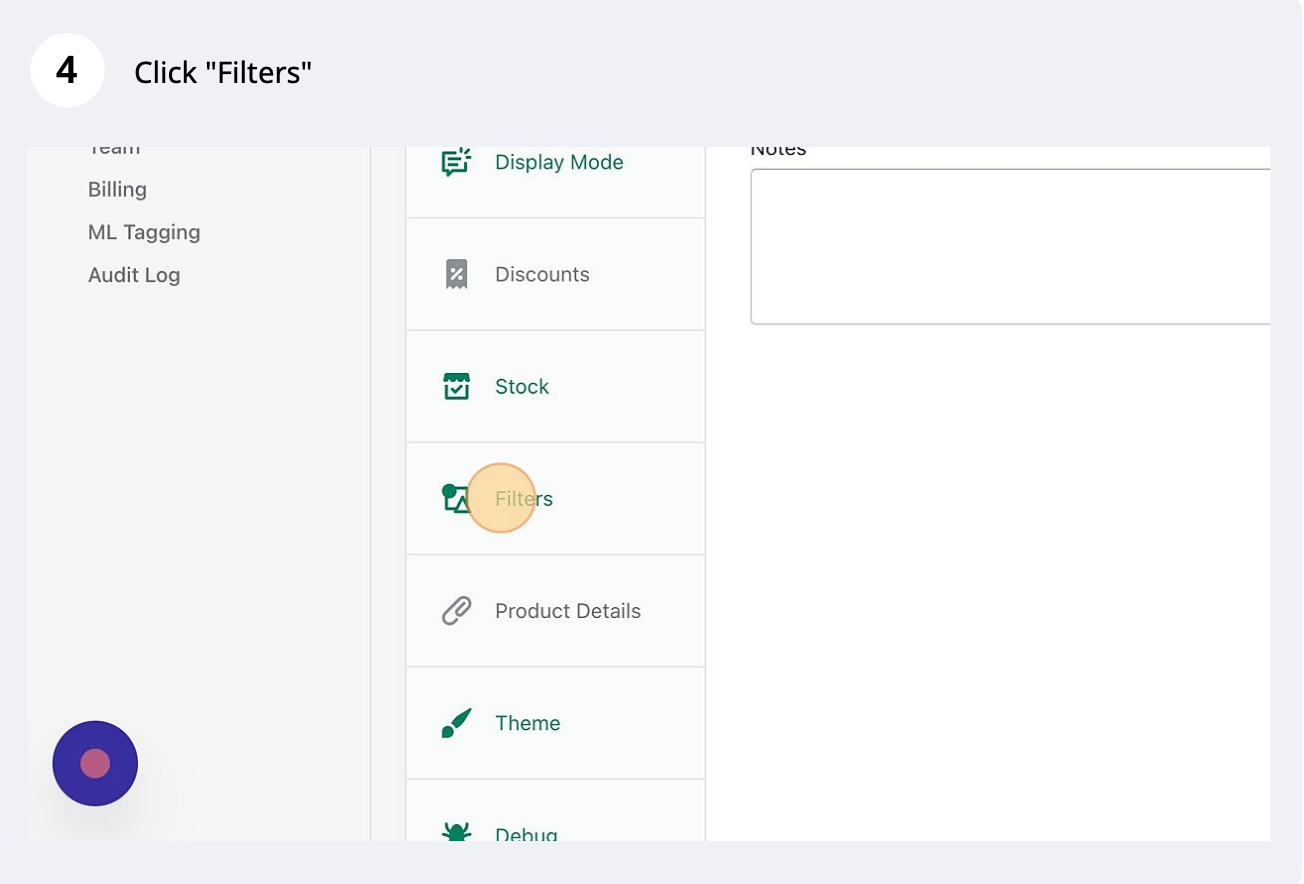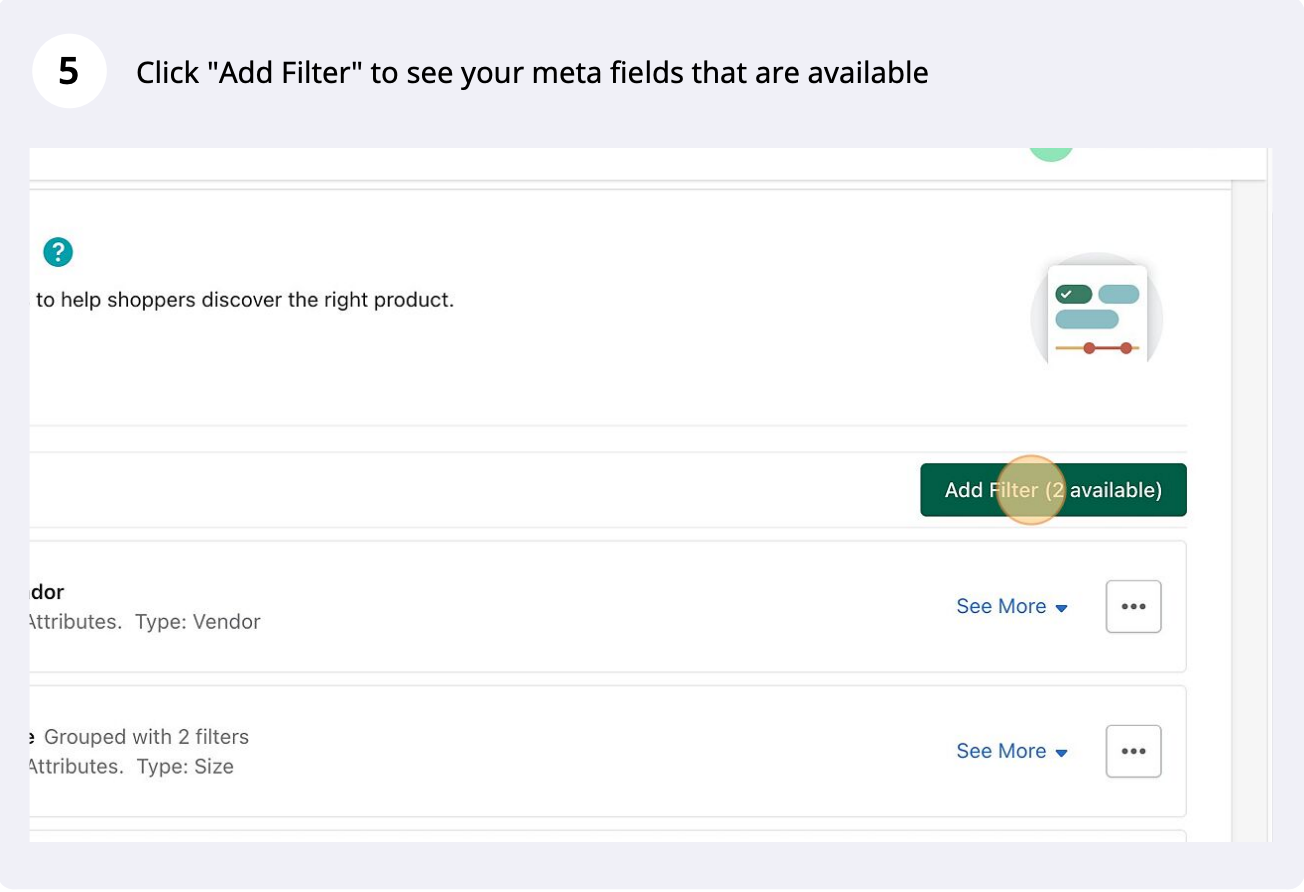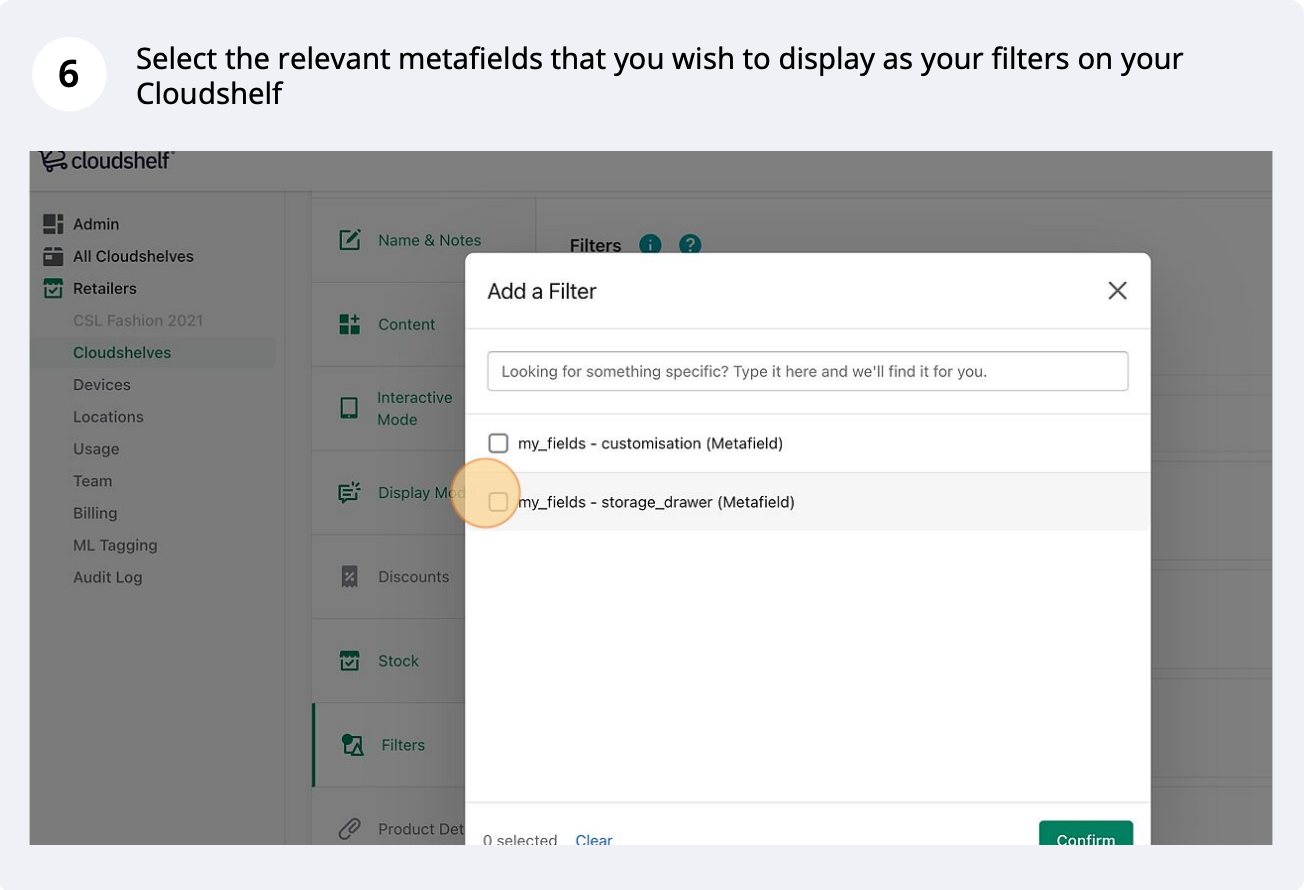

How to add your Shopify metafields to your Cloudshelf display

Use your Shopify metafields as extra filters and show them in the product details on your Cloudshelf.

Last updated
March 10, 2023

Here are the steps to add your Shopify metafields to your Cloudshelves in-store.

Add extra filters to your Cloudshelf using your metafields

Metafields as filters, step 1 of 12
Metafields as filters, step 2 of 12
Metafields as filters, step 3 of 12
Metafields as filters, step 4 of 12
Metafields as filters, step 5 of 12
Metafields as filters, step 6 of 12
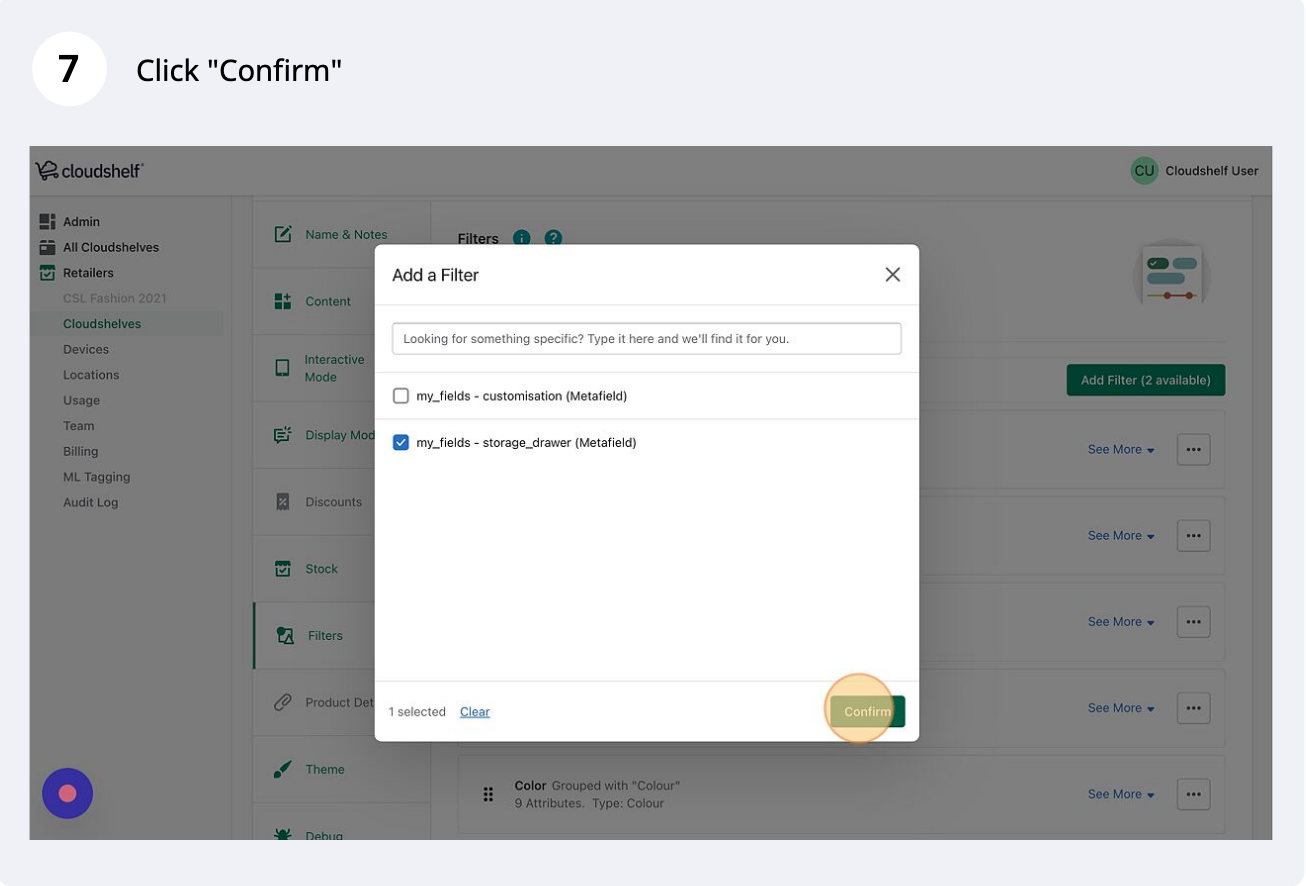
Metafields as filters, step 7 of 12
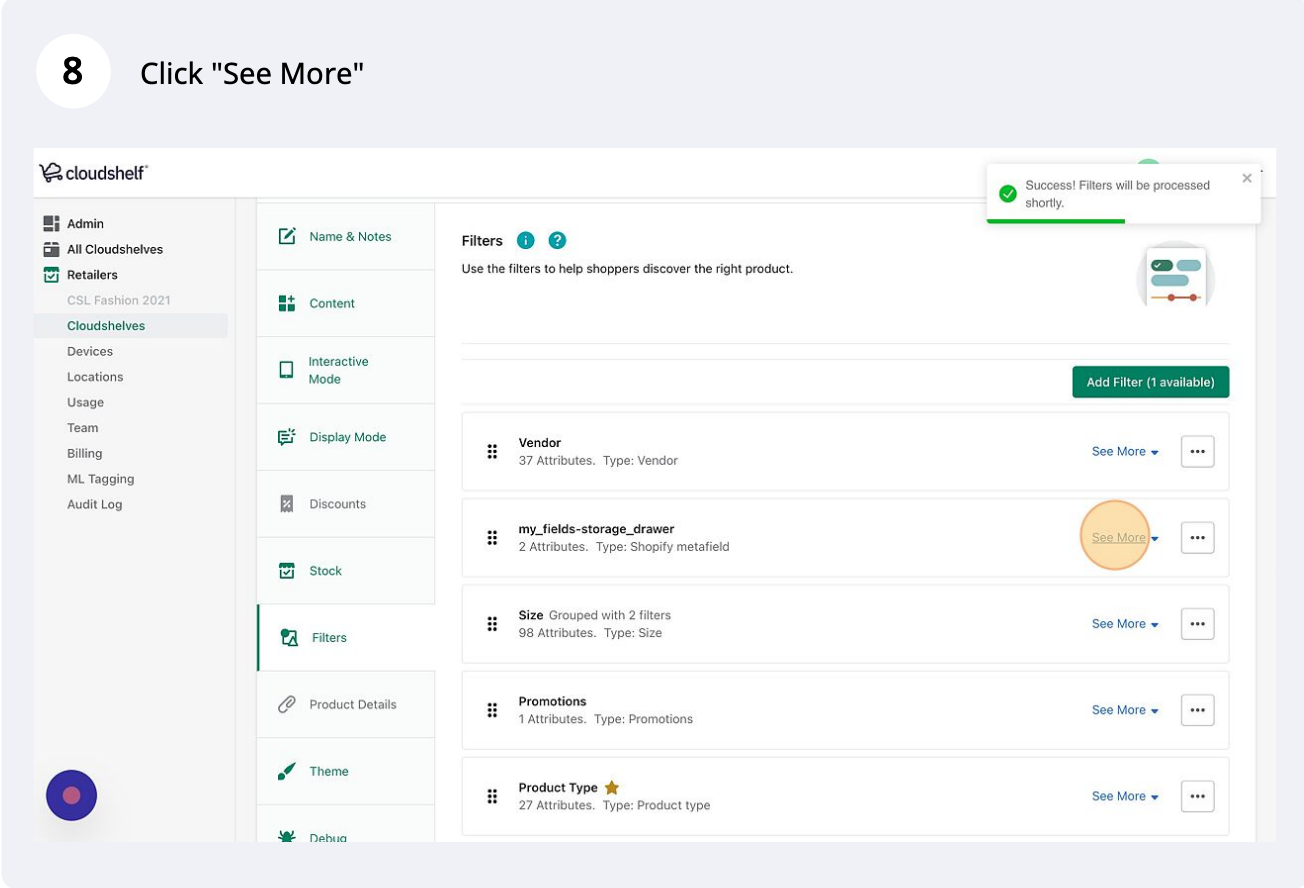
Metafields as filters, step 8 of 12
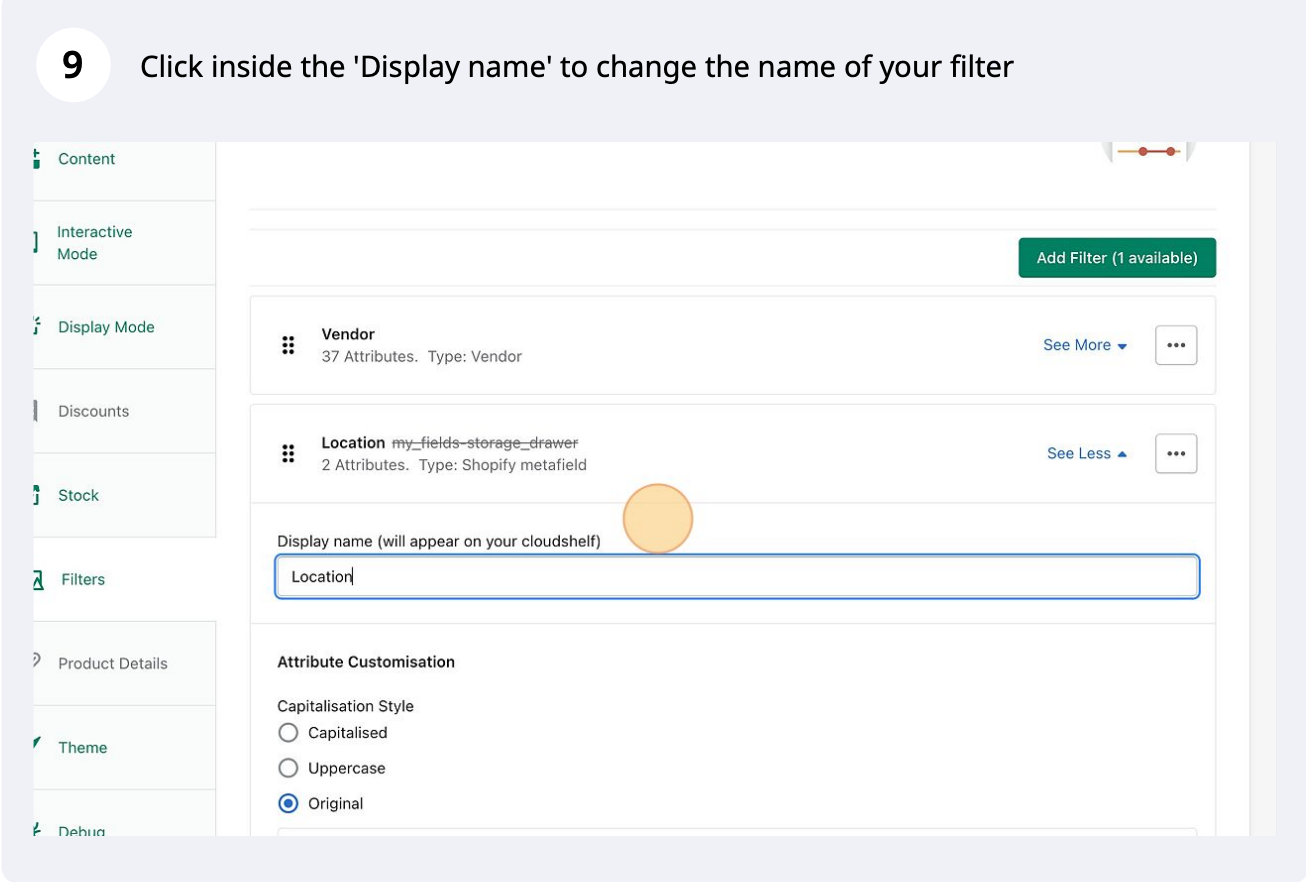
Metafields as filters, step 9 of 12
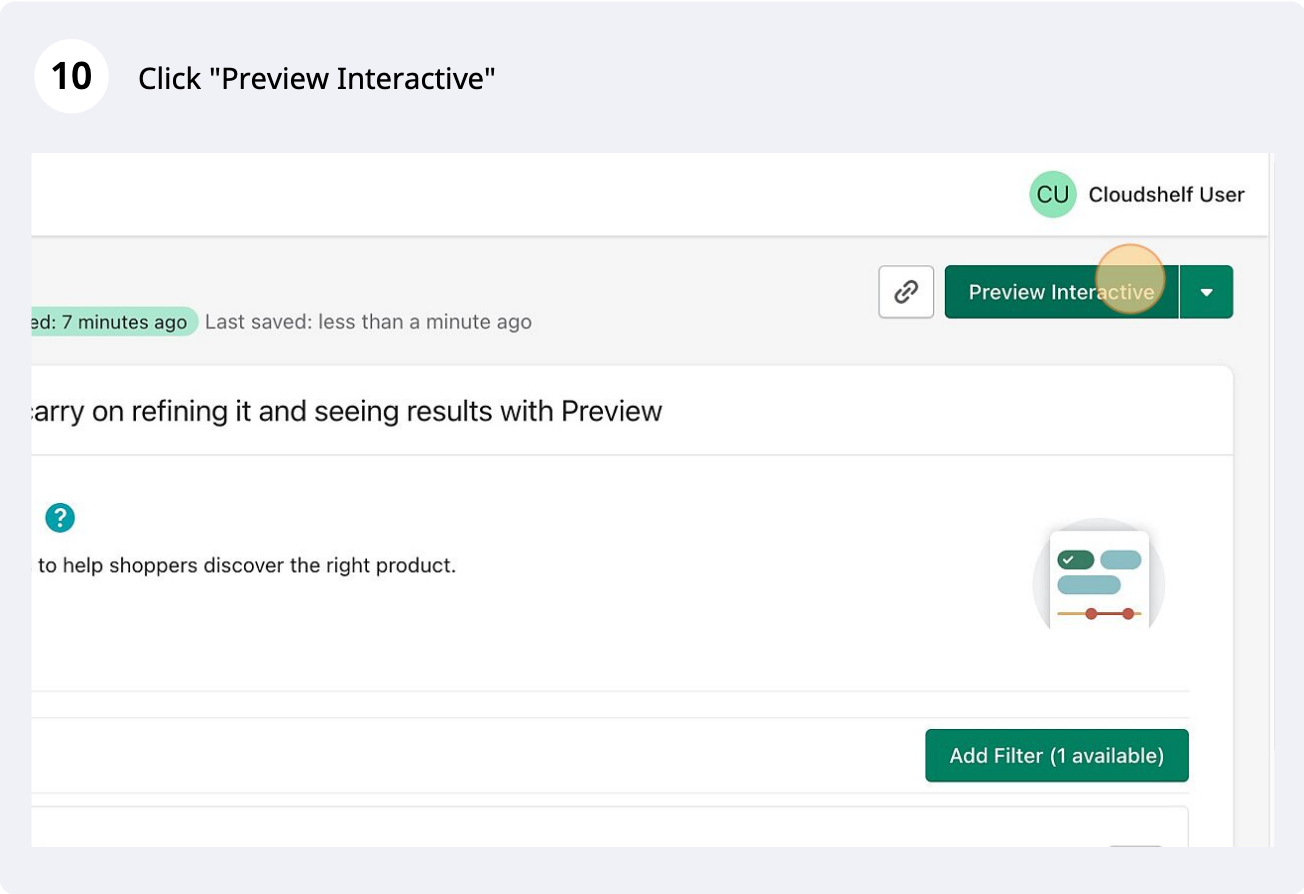
Metafields as filters, step 10 of 12
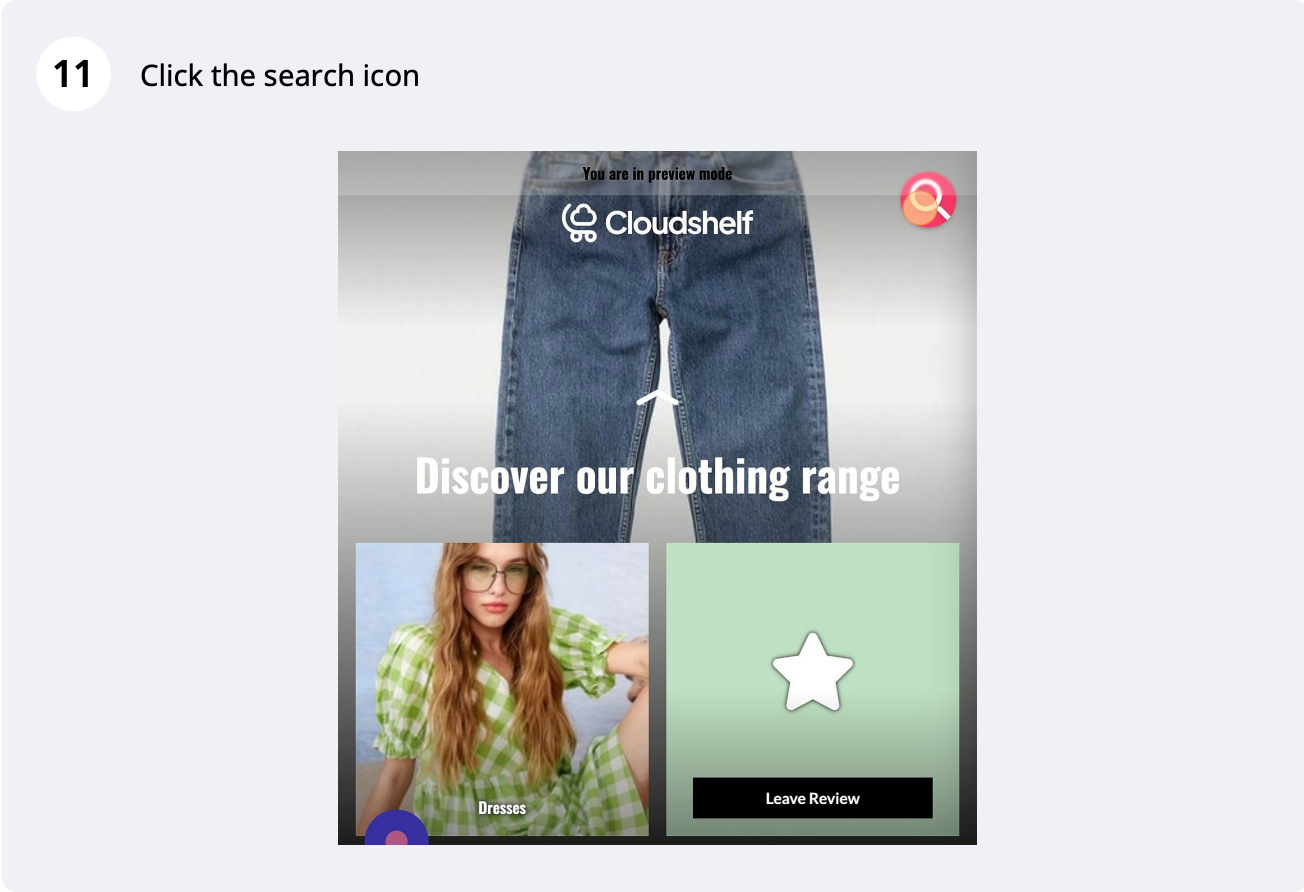
Metafields as filters, step 11 of 12
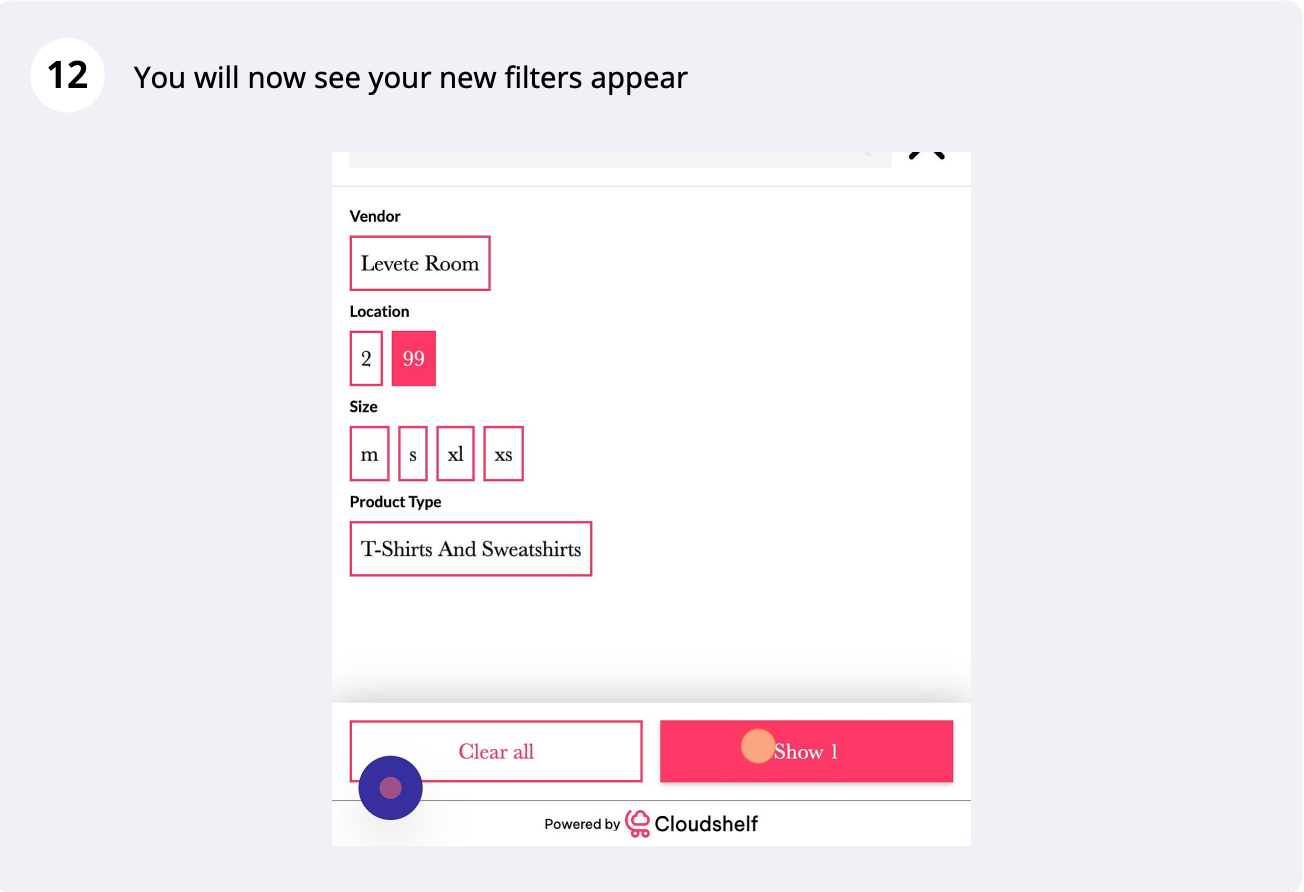
Metafields as filters, step 12 of 12

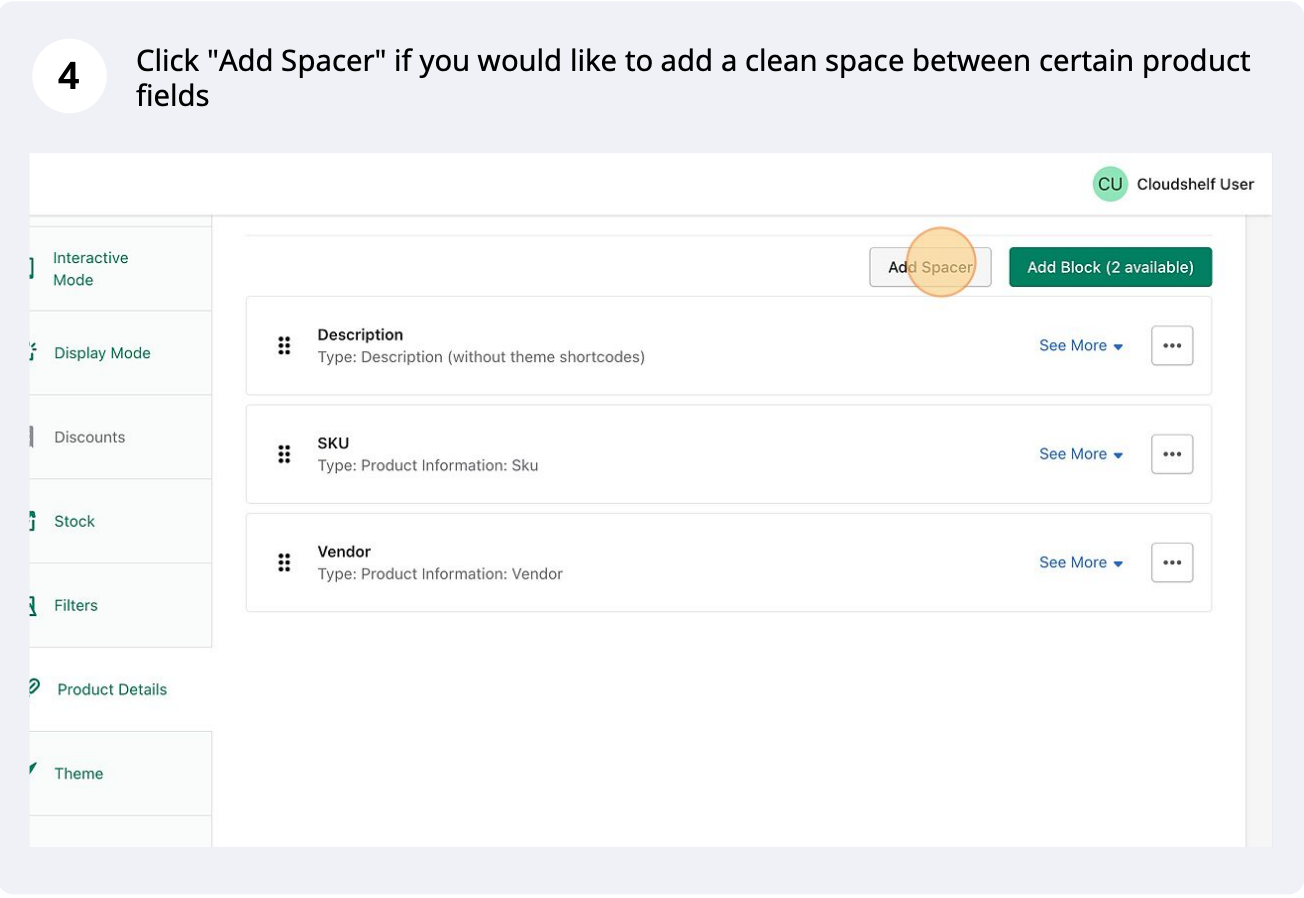
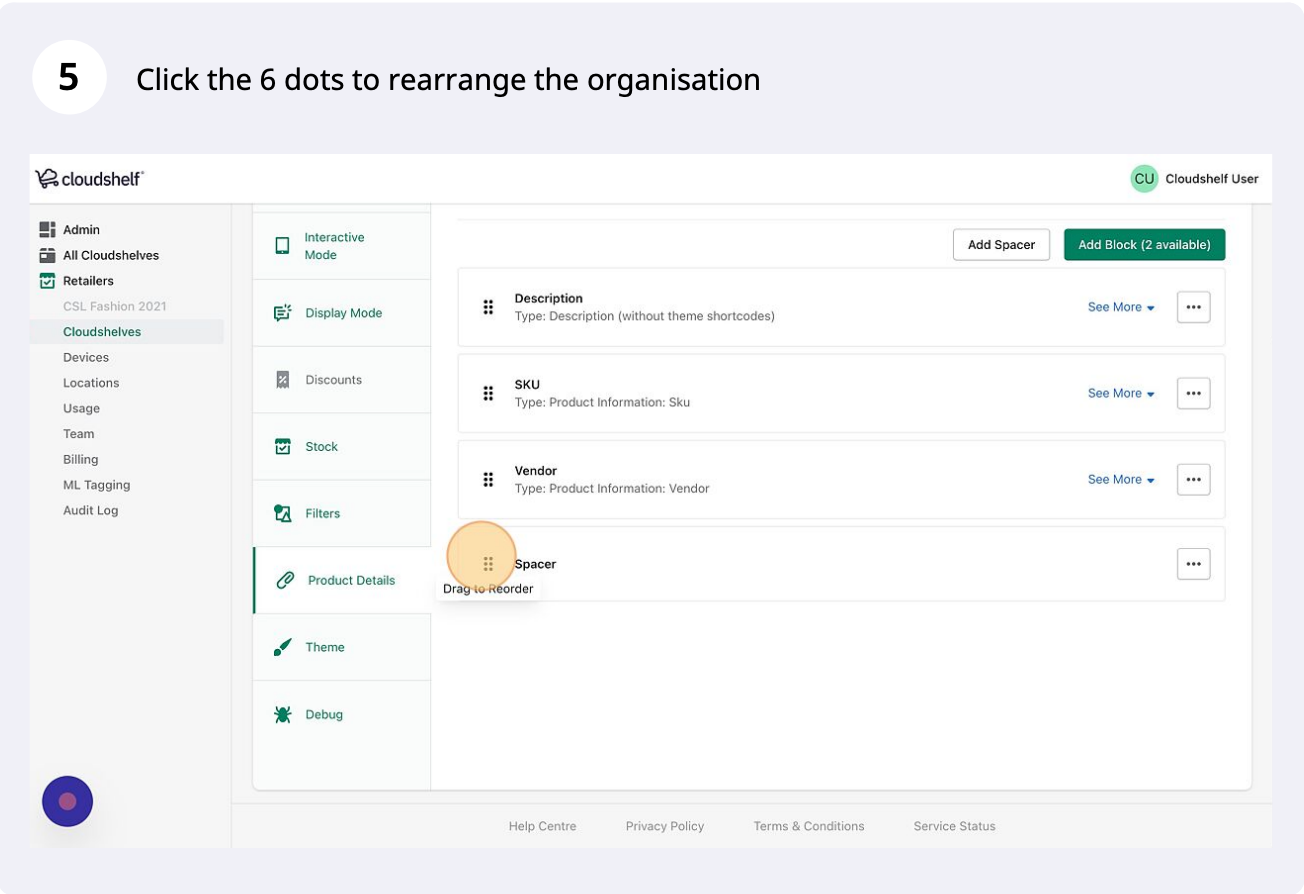
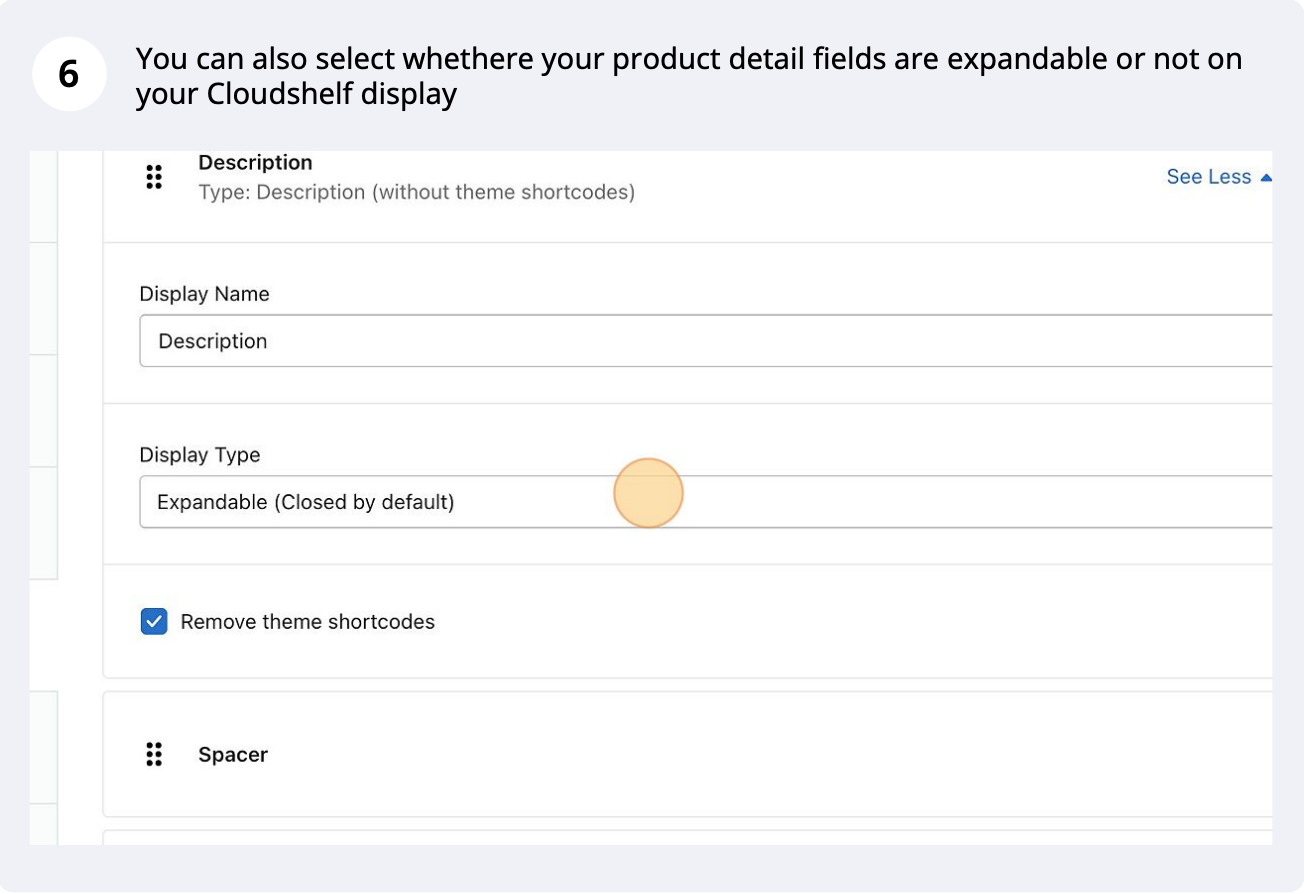
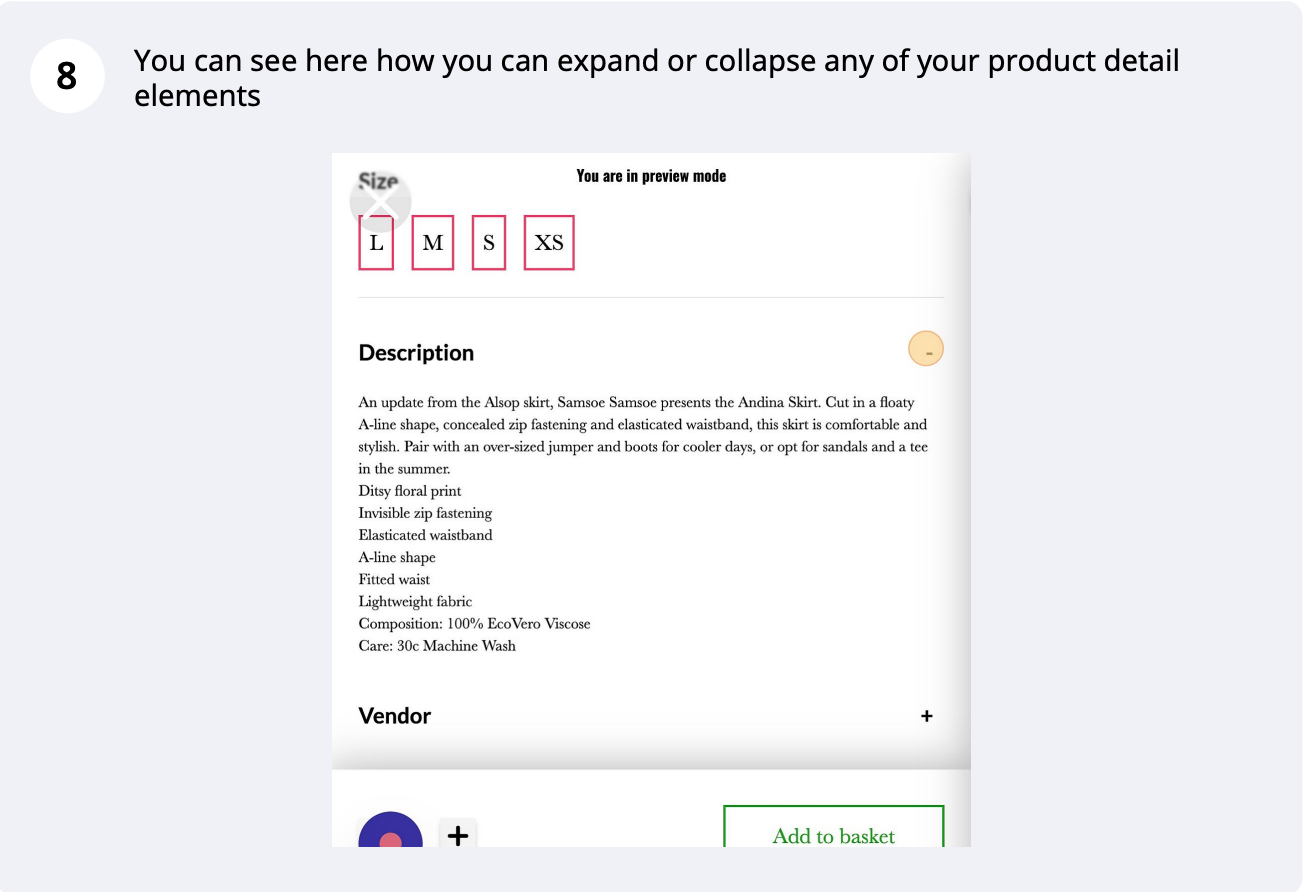
Add your metafields to the product details section of your Cloudshelf
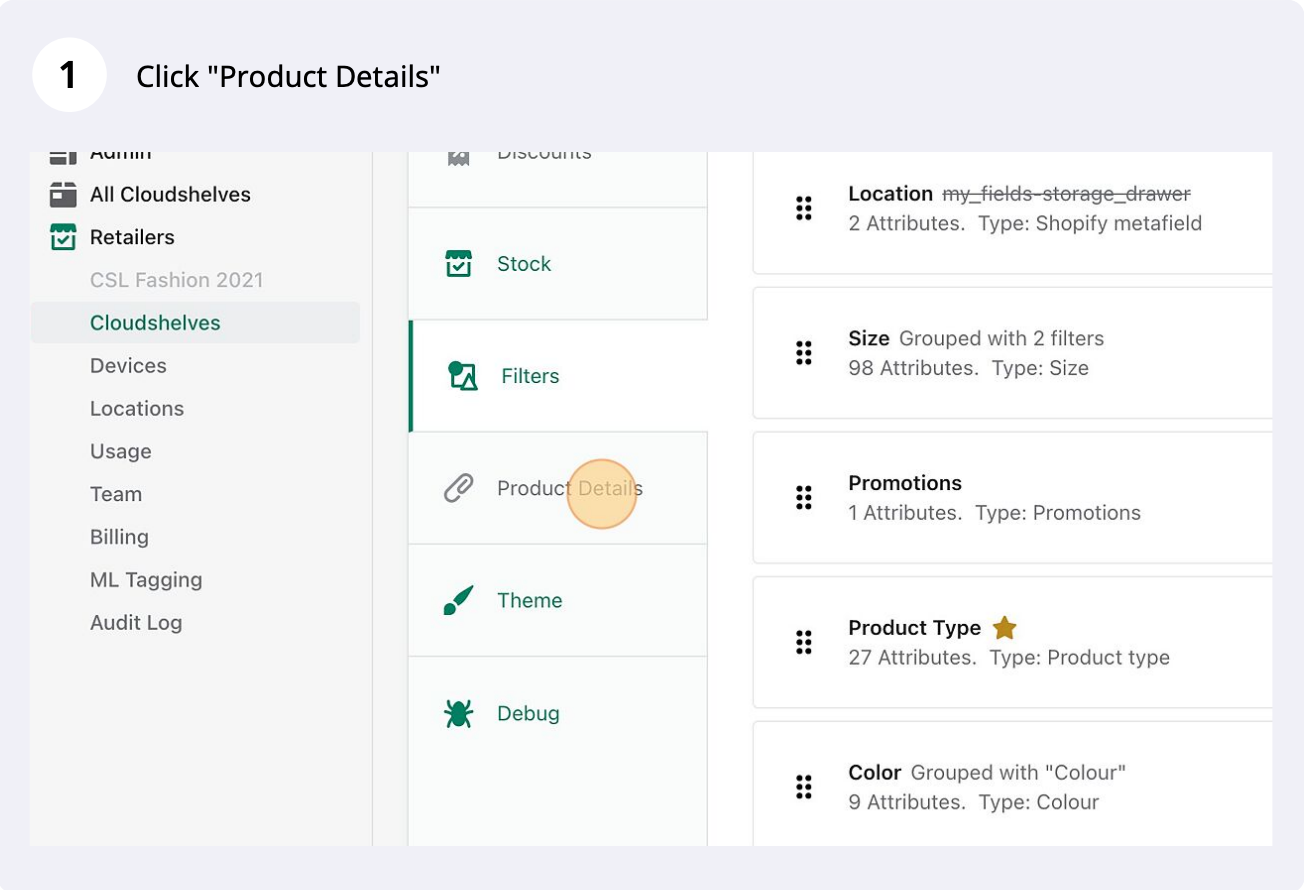
Metafields in product details, step 1 of 9
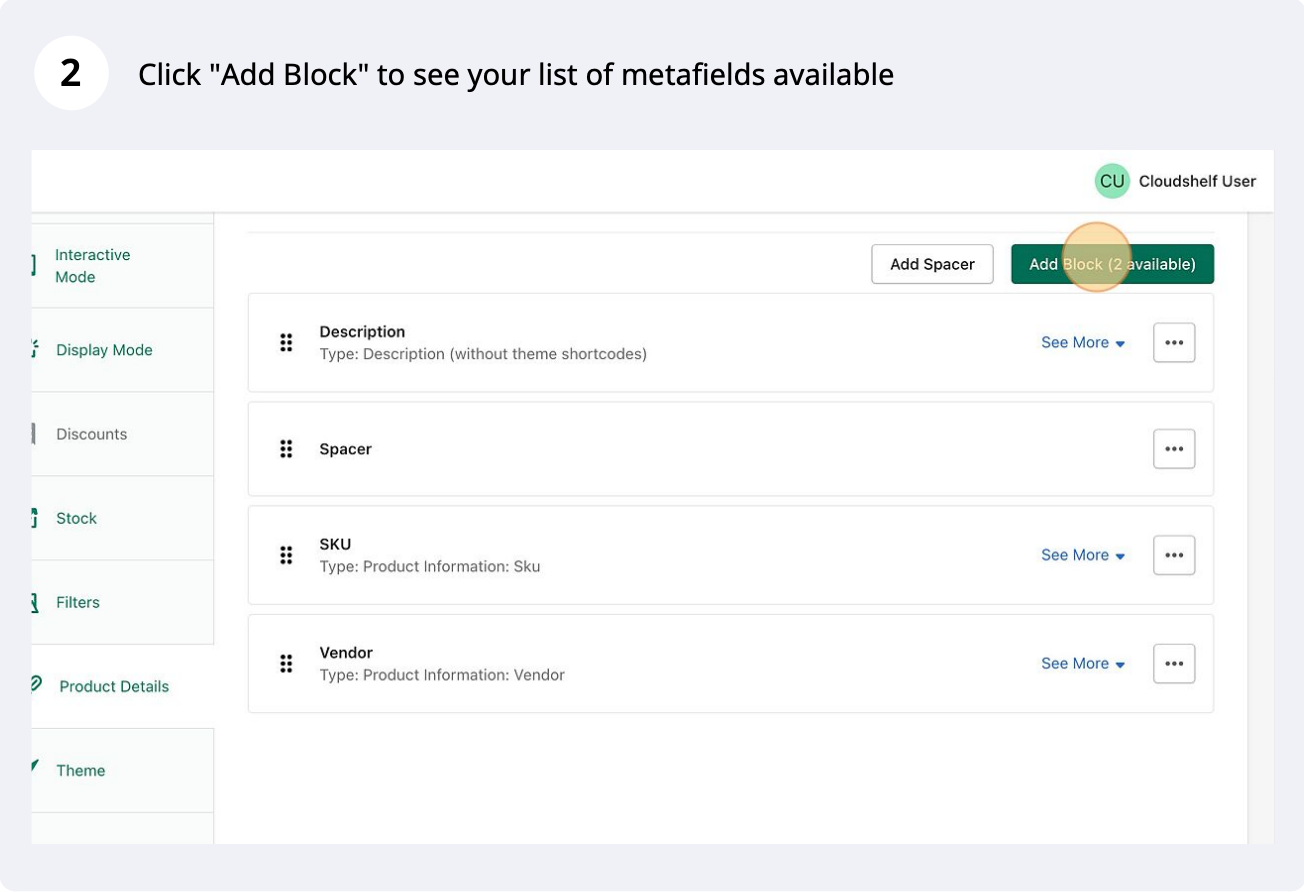
Metafields in product details, step 2 of 9
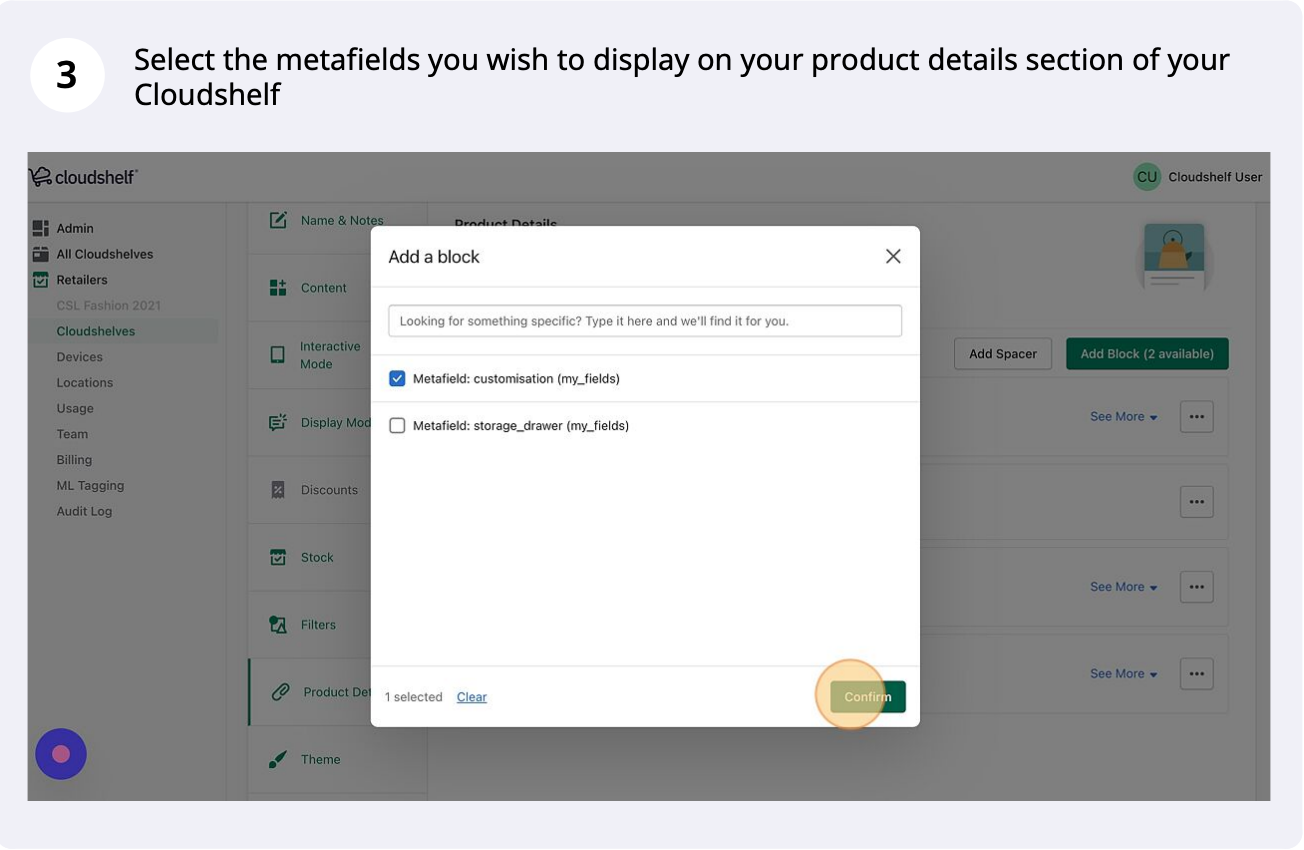
Metafields in product details, step 3 of 9
Metafields in product details, step 4 of 9
Metafields in product details, step 5 of 9
Metafields in product details, step 6 of 9
Metafields in product details, step 7 of 9
Metafields in product details, step 8 of 9
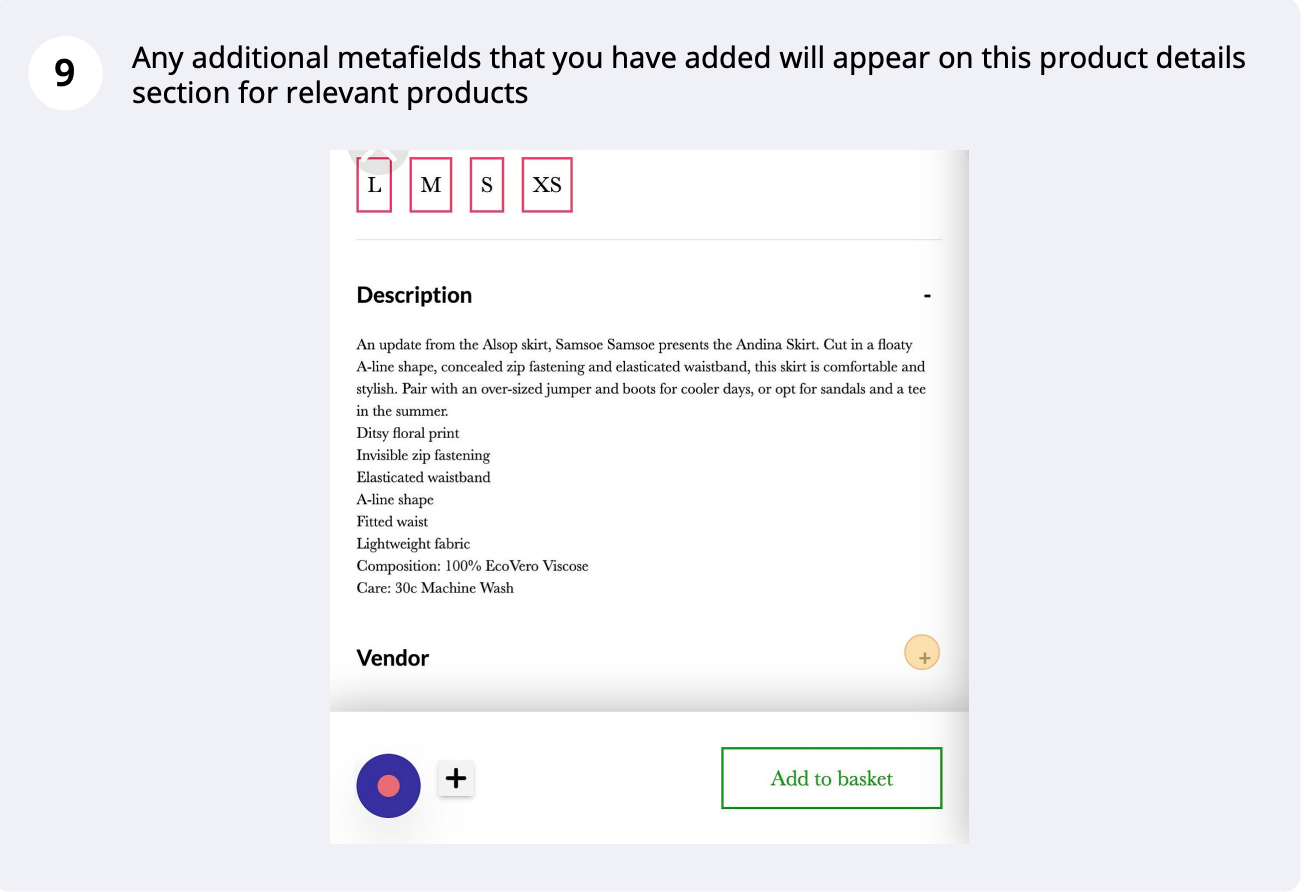
Metafields in product details, step 9 of 9

If you need any help with this, contact our support team on support@cloudshelf.ai.

Frequently asked questions

Was this helpful?
Thanks for the feedback.
Still stuck?
Tell us the device and what you see on screen. We usually reply within one working day.