

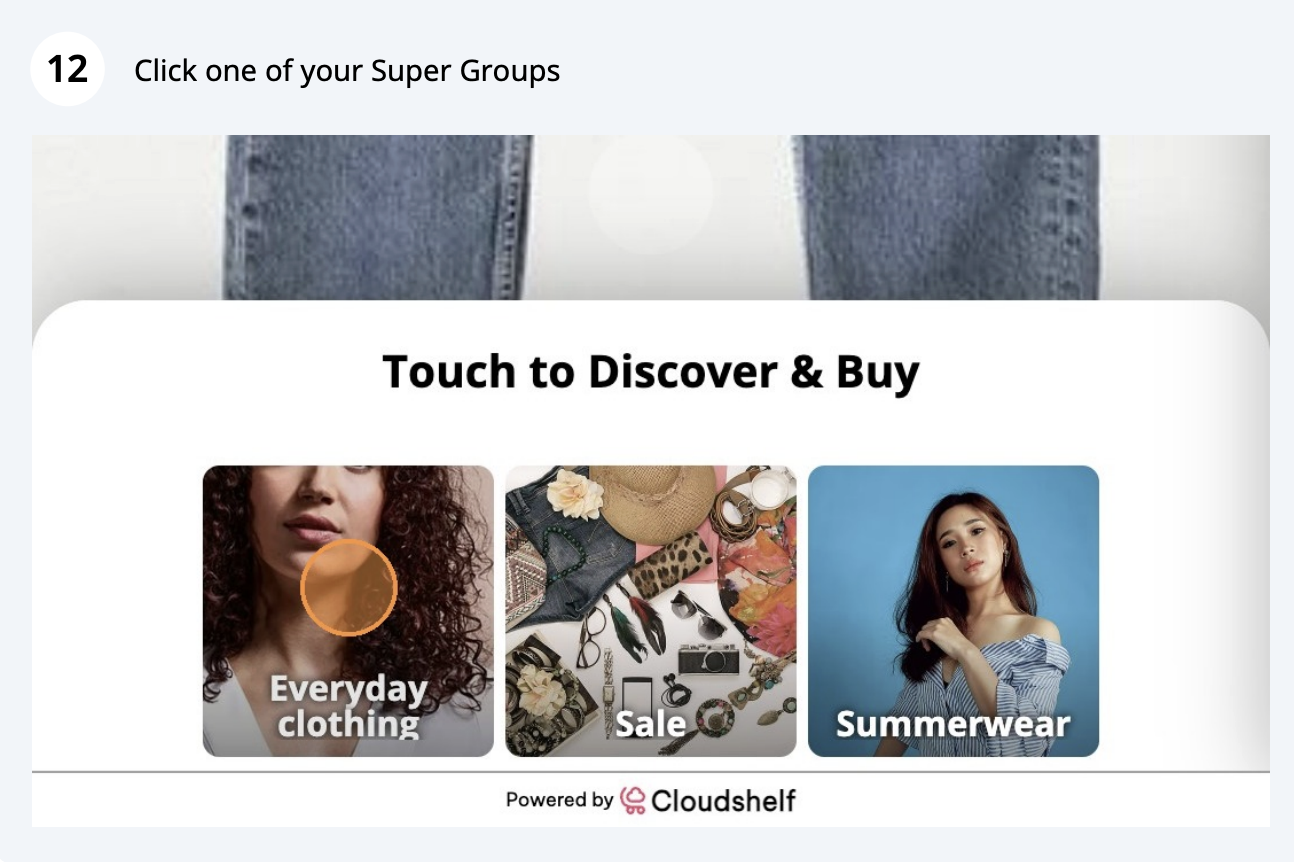
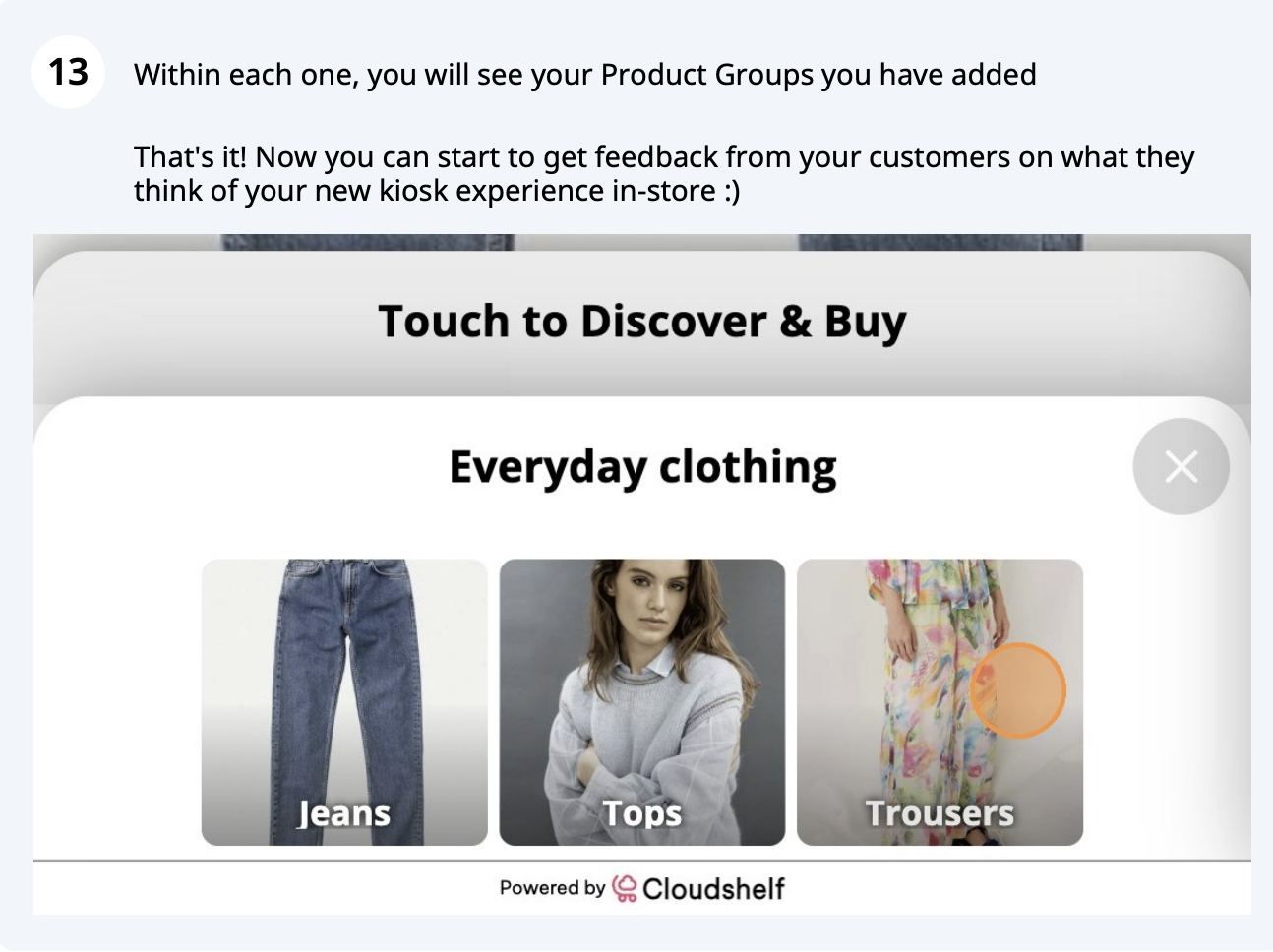
Super Groups give shoppers an easy-to-navigate browsing experience on your in-store kiosks. Each Cloudshelf focuses on a specific product range, for example Team Sports or Women's Clothing, and Super Groups then break that range down into clear categories such as Basketball, Football or Summerwear.
This keeps navigation tidy and intuitive, letting shoppers drill down by intent rather than scrolling through a flat list of products. For retailers, Super Groups structure your catalogue in a way that mirrors your online store, improve in-store browsing, and guide shoppers straight to what they are looking for.
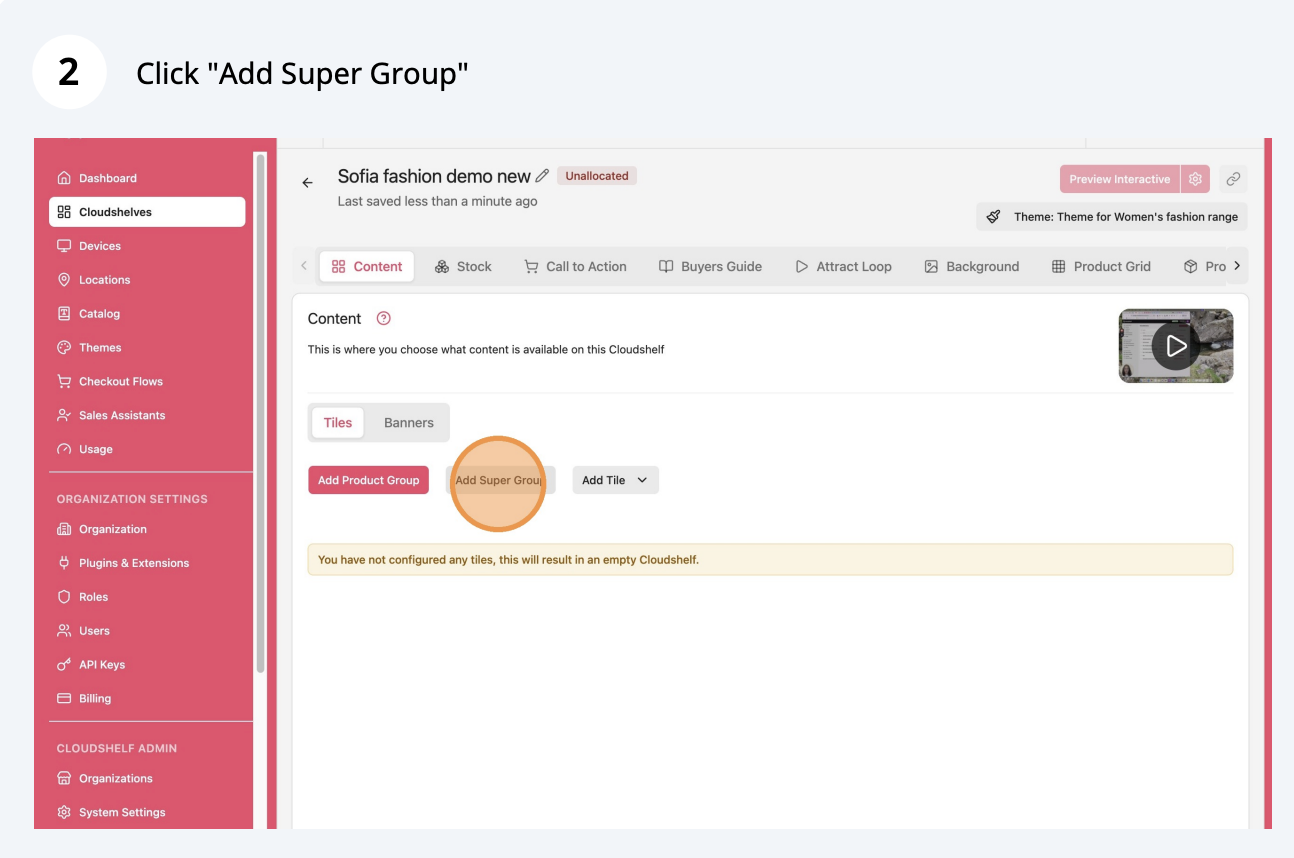
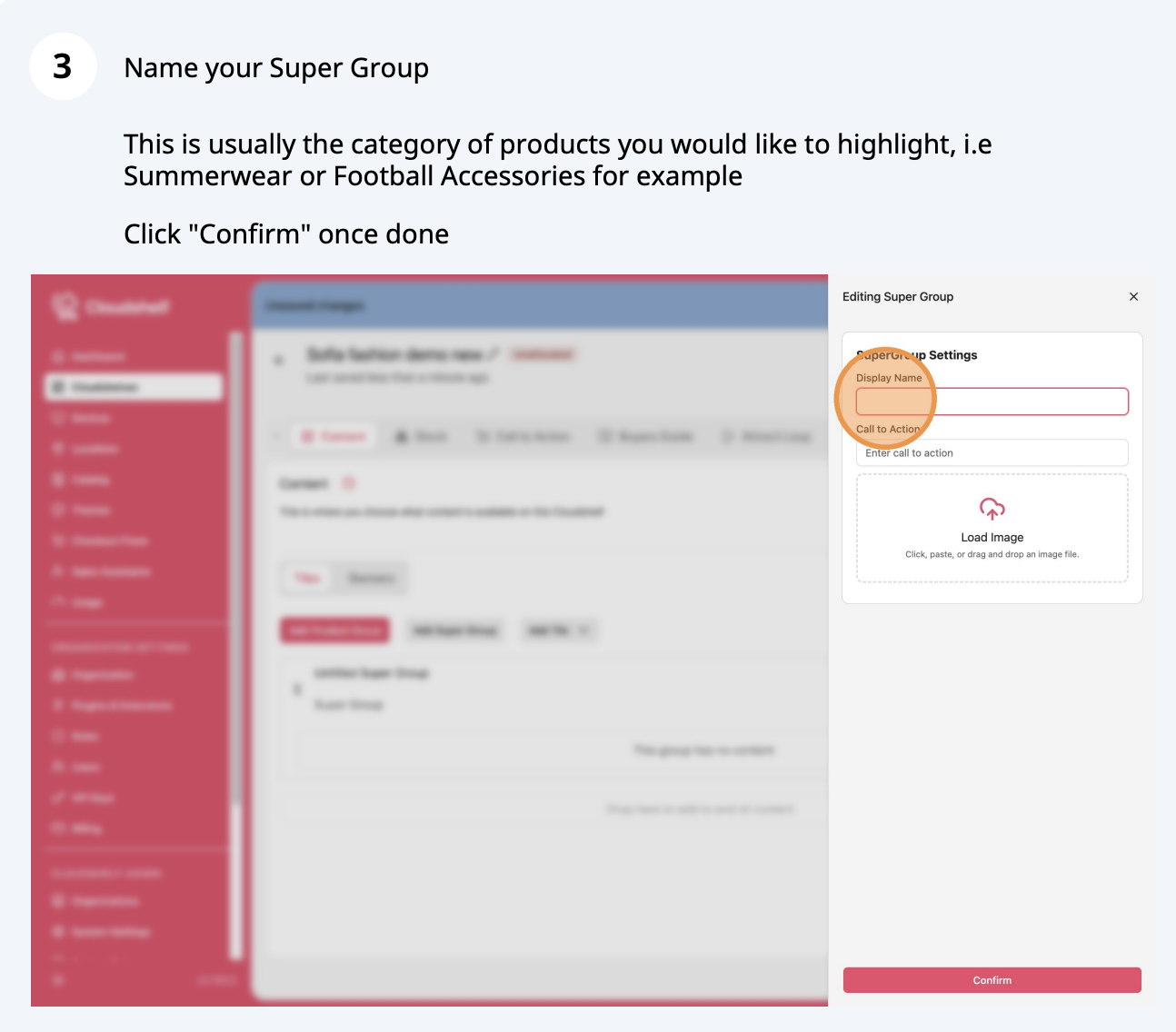
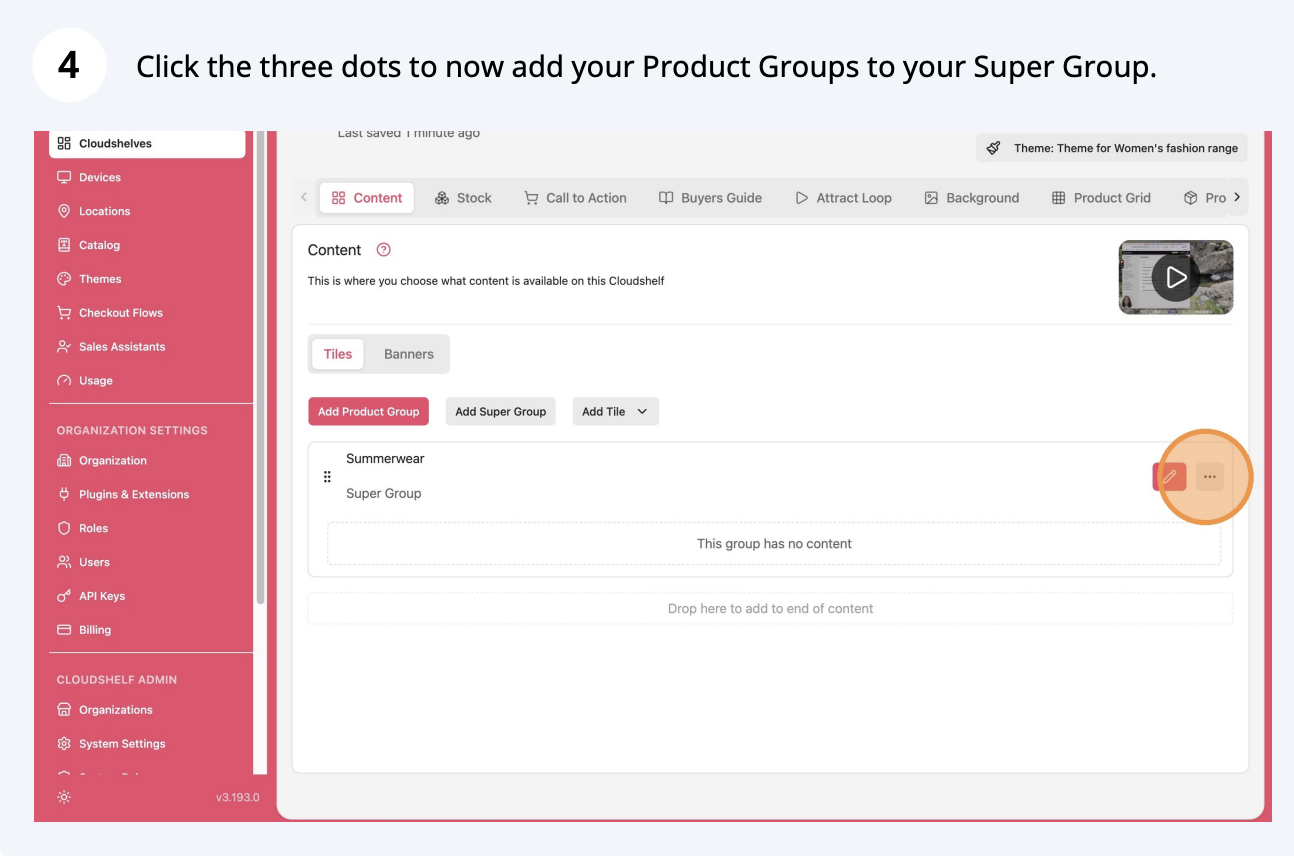
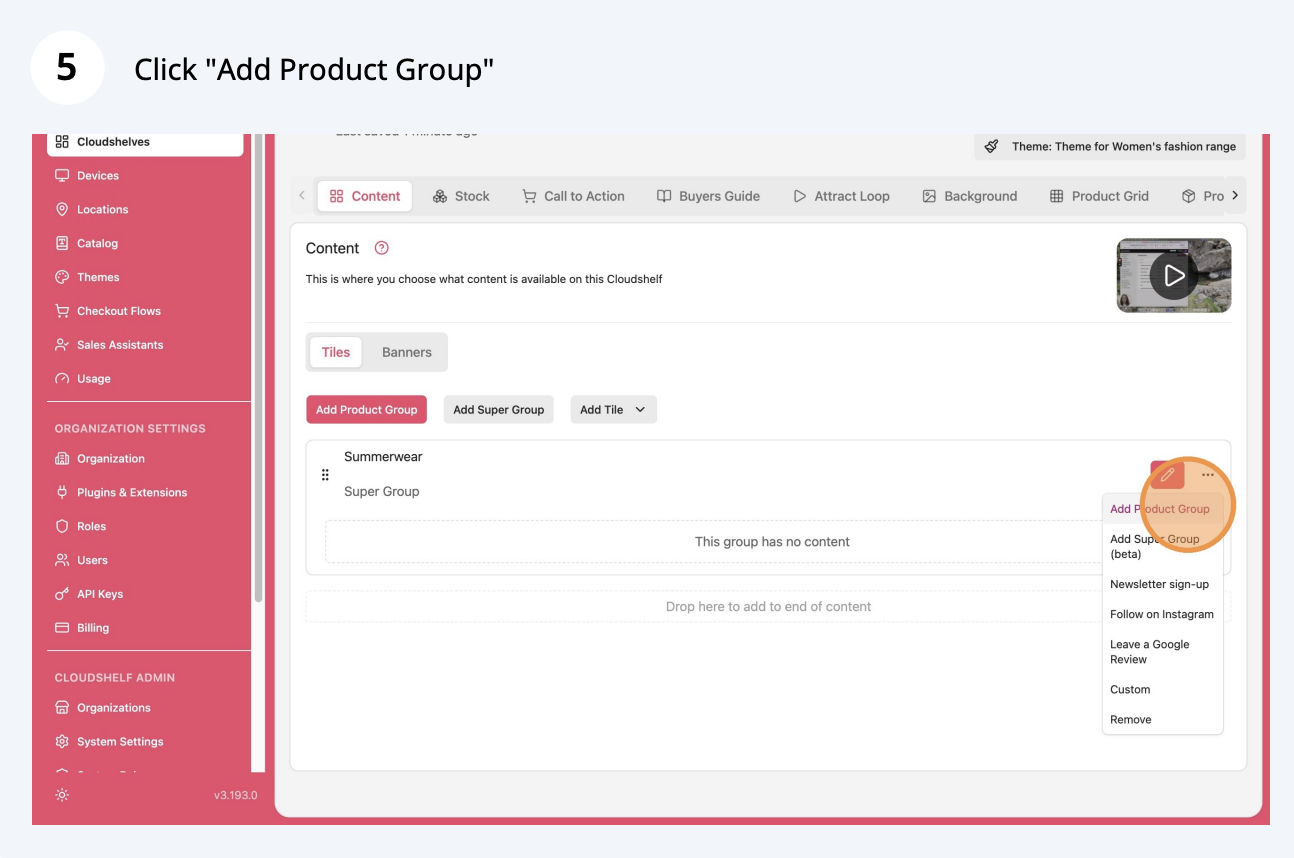
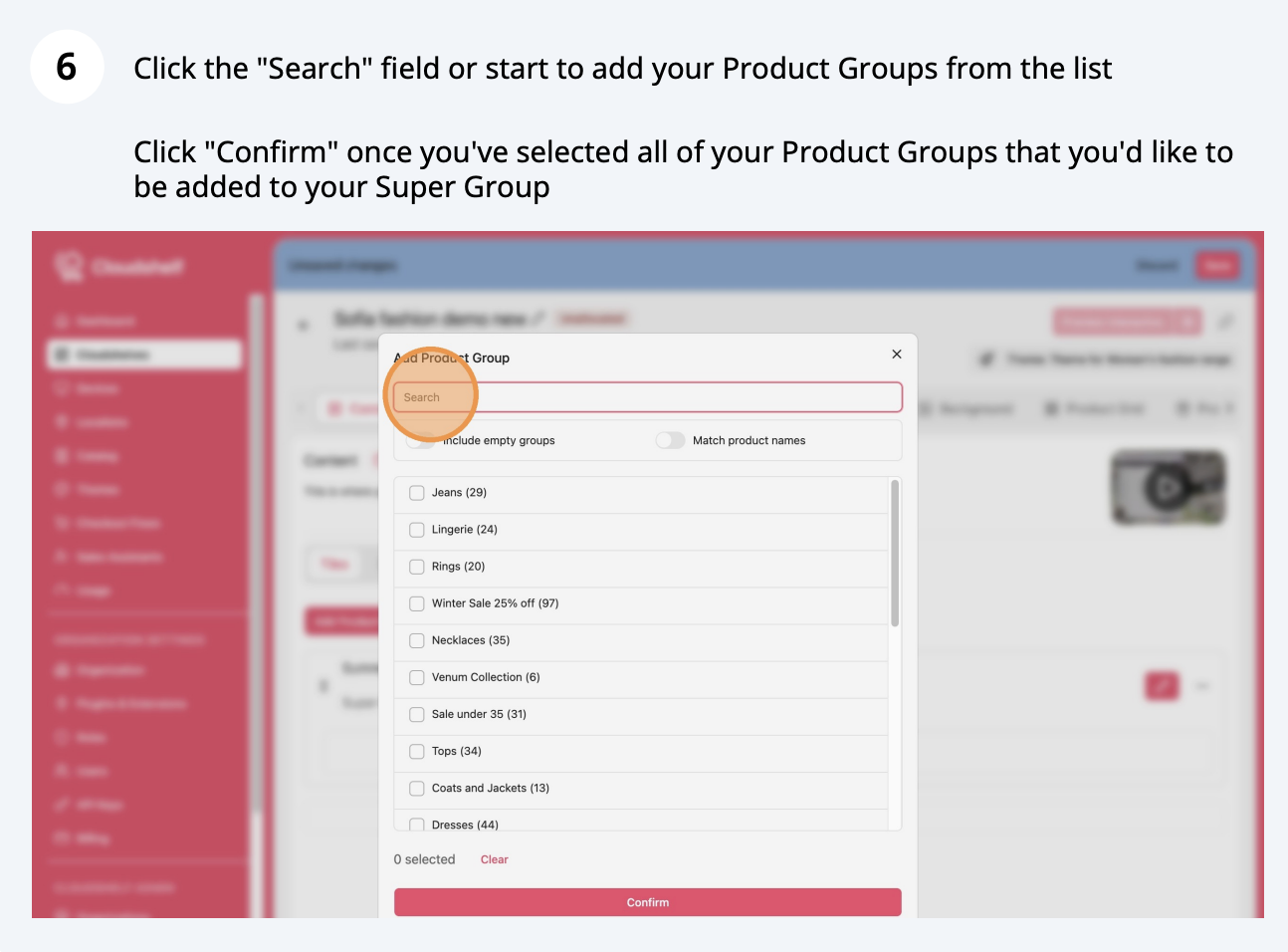
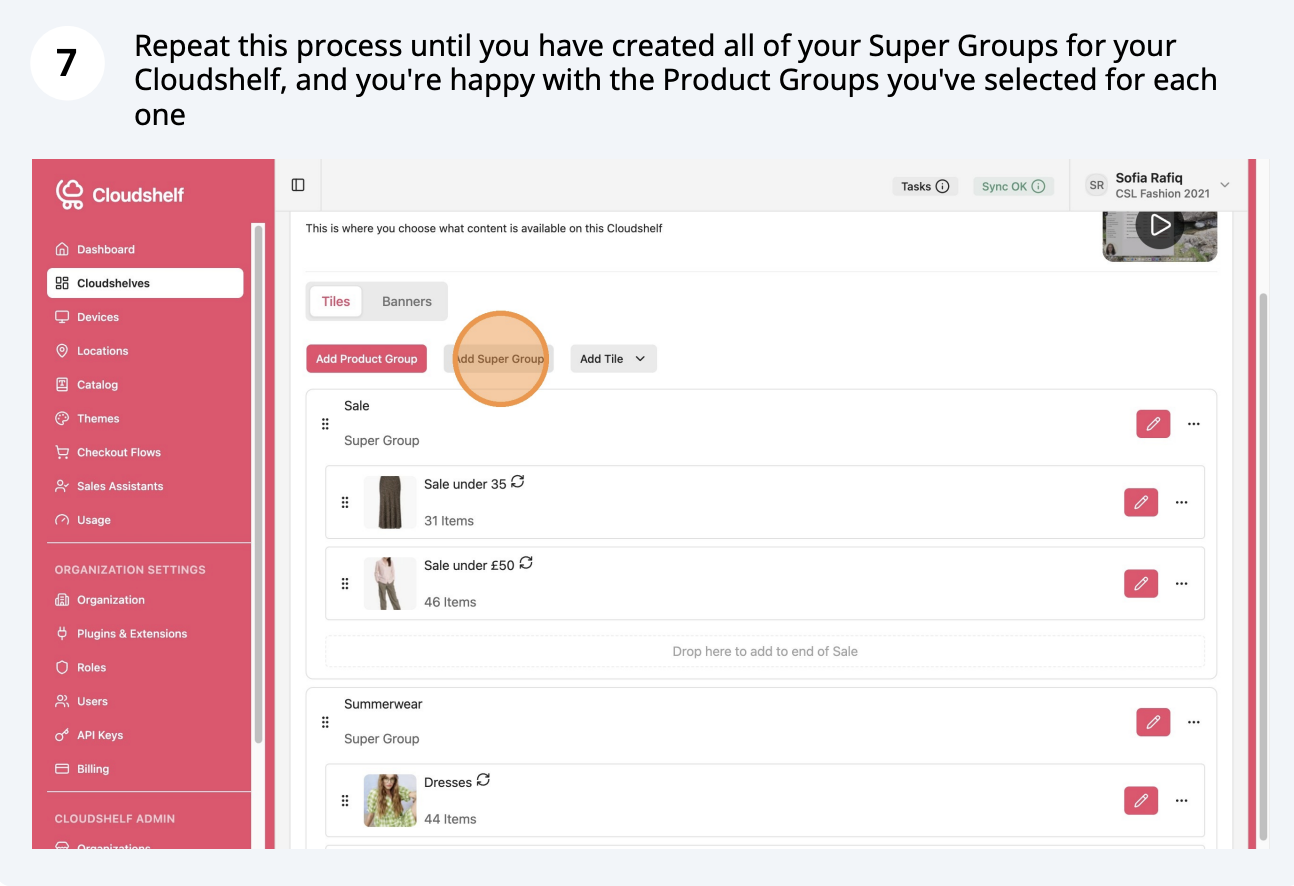
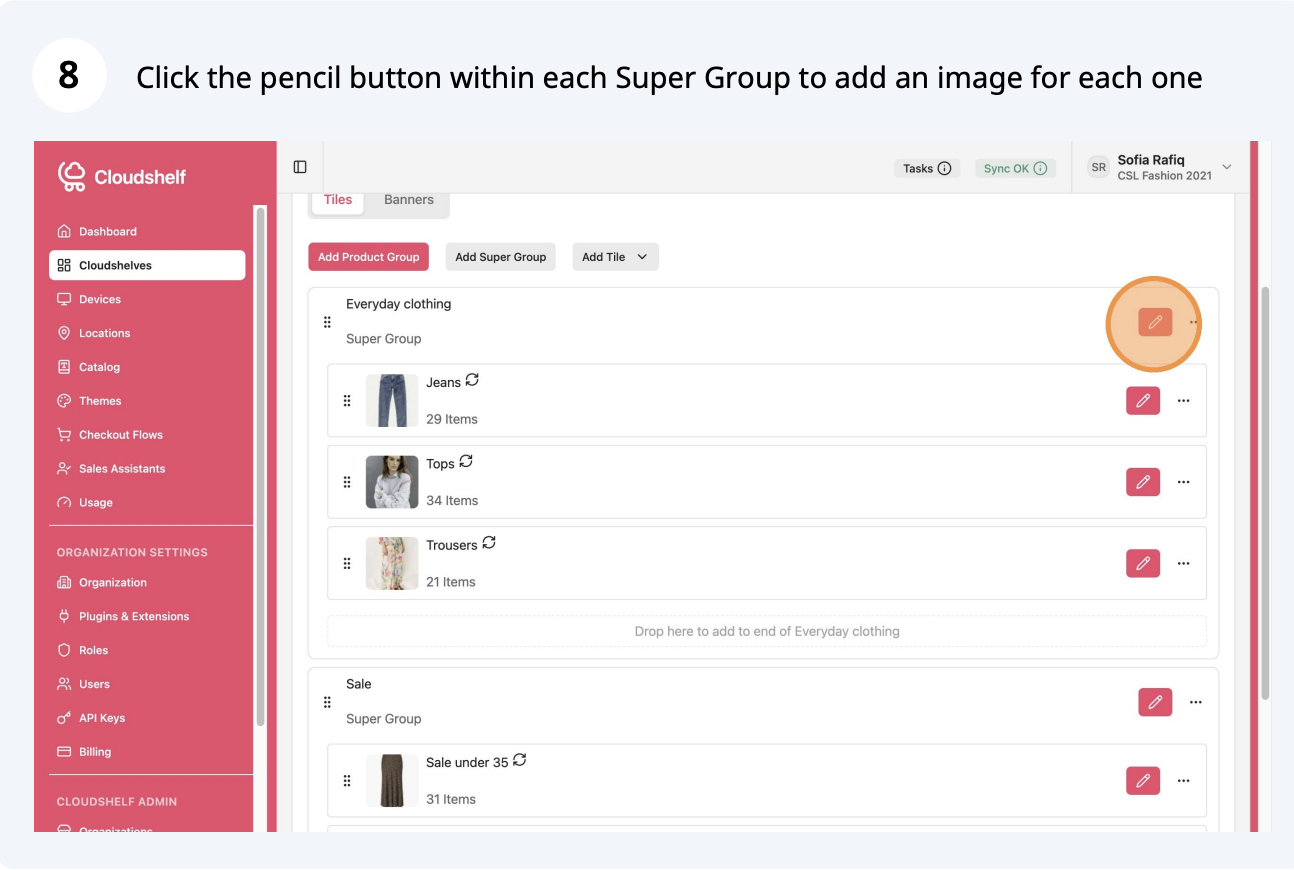
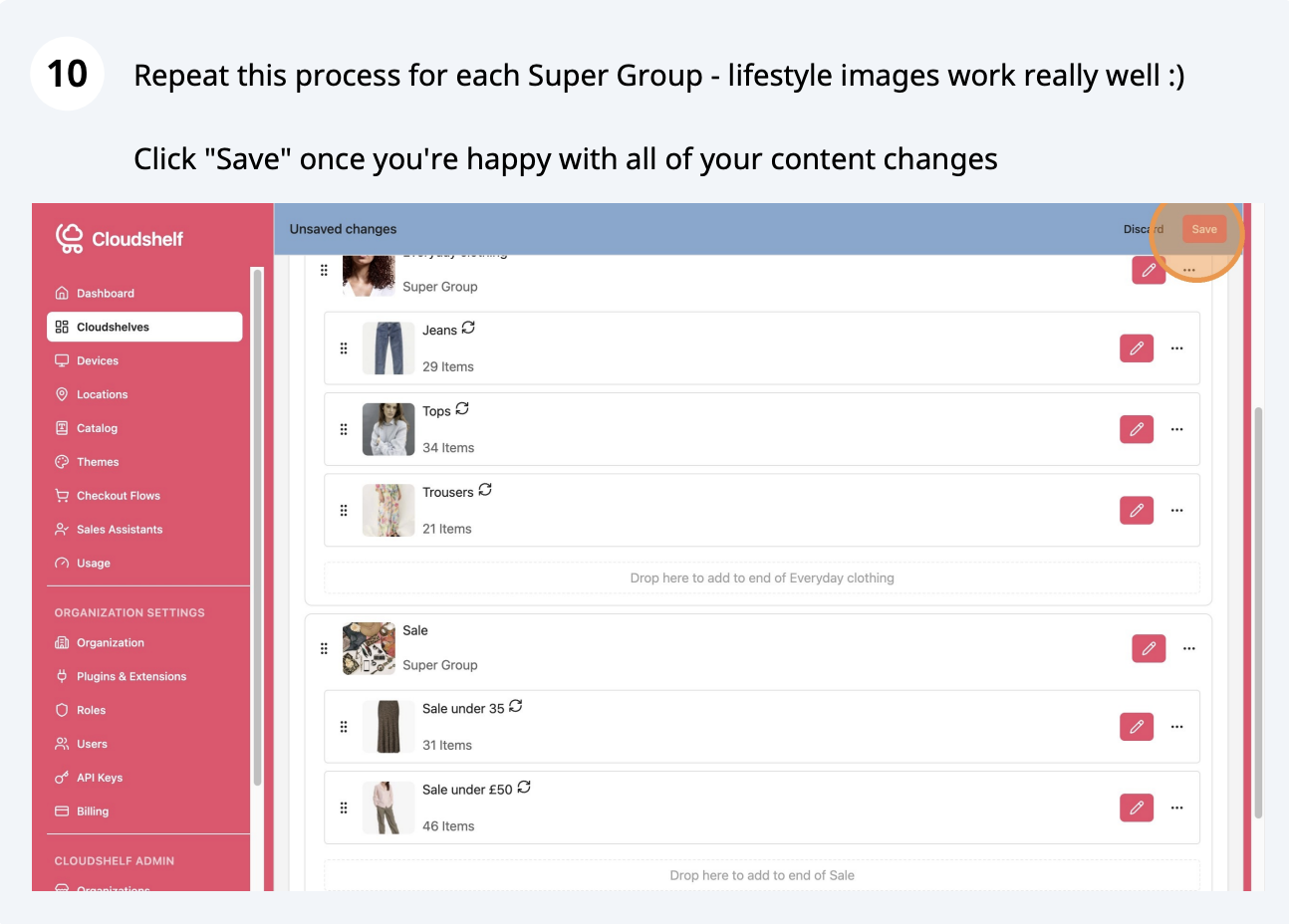
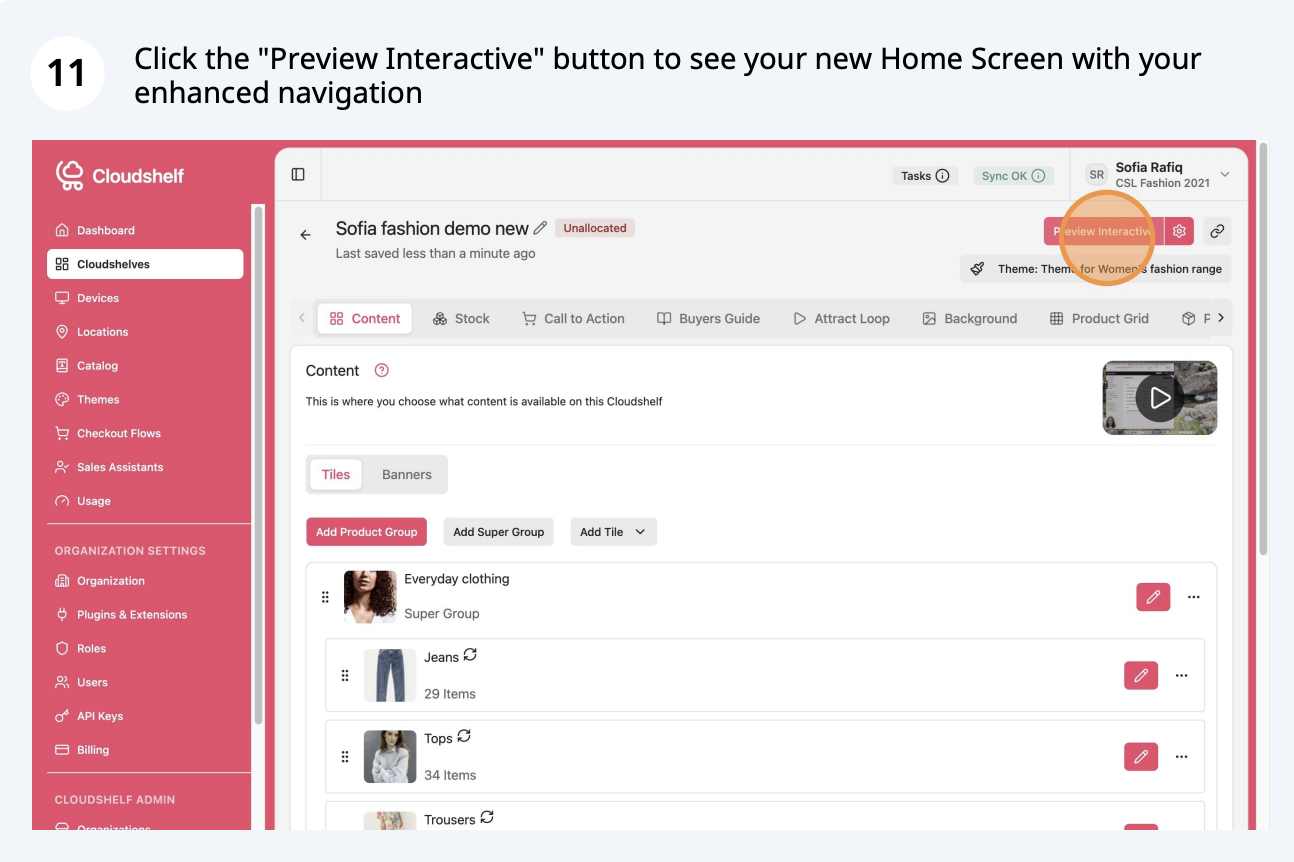
Here are the steps to create Super Groups for your Cloudshelves:


There is also a quick tutorial video: watch the Super Groups video.
If you have any further questions or need help, contact our support team on support@cloudshelf.ai.