

No worries, there are simple solutions.
Can you find the Cloudshelf icon on your home screen?
Then simply relaunch it.
It launches but says no Cloudshelf is allocated
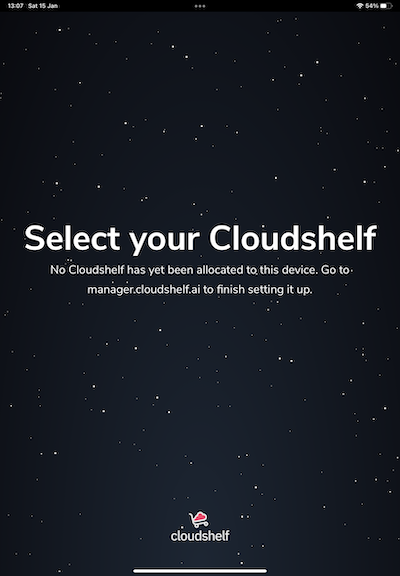
- Go to your Shopify admin panel.
- Select the Cloudshelf app.
- Go to the Devices tab.
- Click the name of the device you want to re-associate.
- In the next window, select the Cloudshelf you want it to show.
It launches but says the device is no longer linked
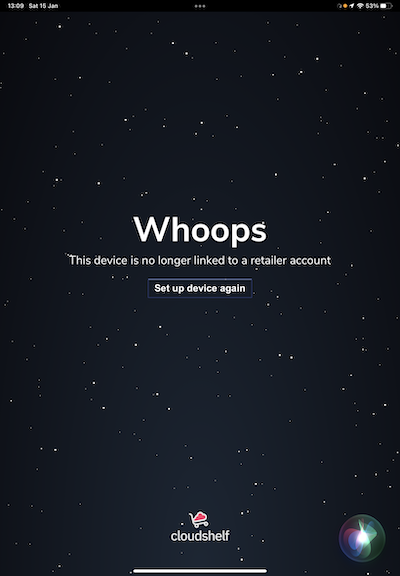
Click 'set up device again' to get a new pairing code.
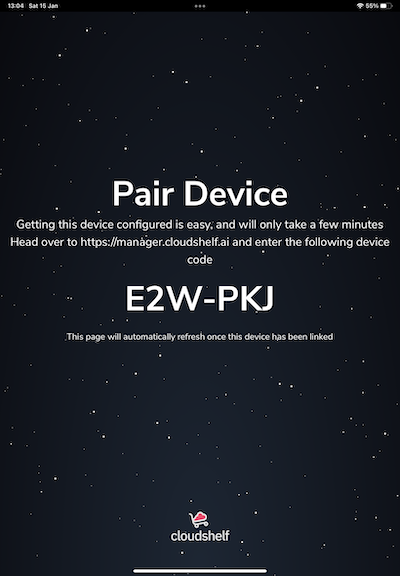
Once the pairing code is displayed:
- Go to your Shopify admin panel.
- Select the Cloudshelf app.
- Go to the Devices tab.
- Click 'Pair device'.
- Enter the code.
- Click the new device.
- In the next window, give the device a name and select the Cloudshelf you want it to show.
2 minutes later the screen will refresh and display the Cloudshelf.
You can't find the Cloudshelf to associate with the device
You may have accidentally deleted the Cloudshelf. You can re-create it in a few clicks.
- Go to your Shopify admin panel.
- Select the Cloudshelf app.
- Go to the Cloudshelves tab.
- Click 'New Cloudshelf'.
- Follow the wizard to set up your Cloudshelf.
- Once done, go to the Devices tab.
- Click the name of the device you want to re-associate.
- In the next window, select the Cloudshelf you want it to show.