
Here are the steps to set up devices before shipping them to retailers.
These steps may change as we update our system. We’ll keep you posted.
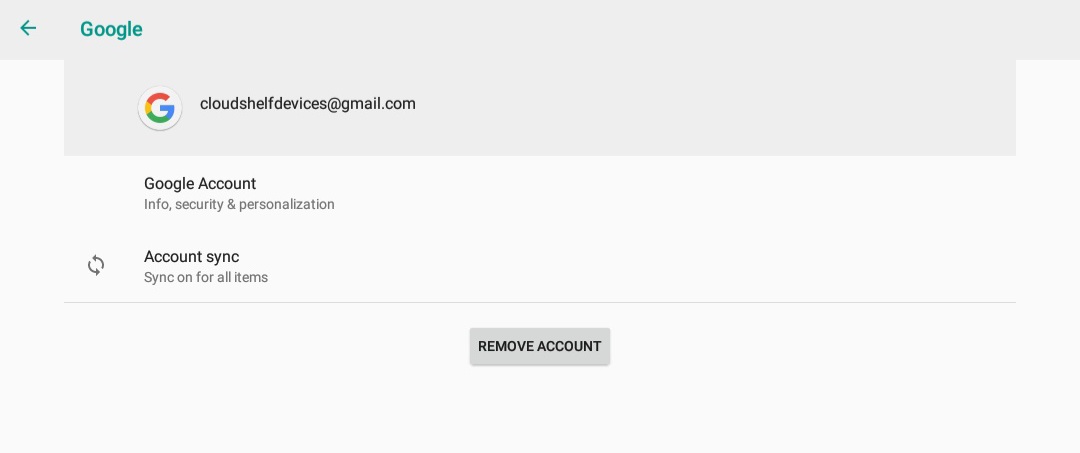
1. Connect to Wi-Fi and sign in to the Play Store
Connect the device to Wi-Fi and log in to the Play Store with your credentials.
2. Update Chrome
In the Play Store, search for Chrome and update the app. You may need to update the Play Store first to allow Chrome to update.
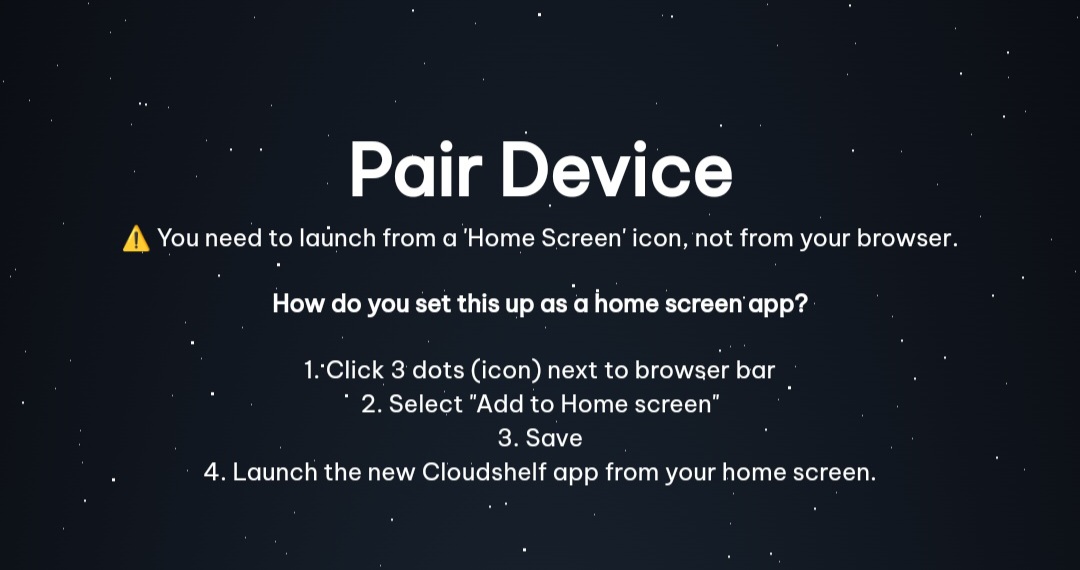
3. Add the Cloudshelf app to the home screen
Once Chrome has updated, launch the browser and enter the URL device.cloudshelf.ai. It will ask you to save the URL to the home screen. Once you have done this, you can launch the app from the home screen.
4. Pair the device
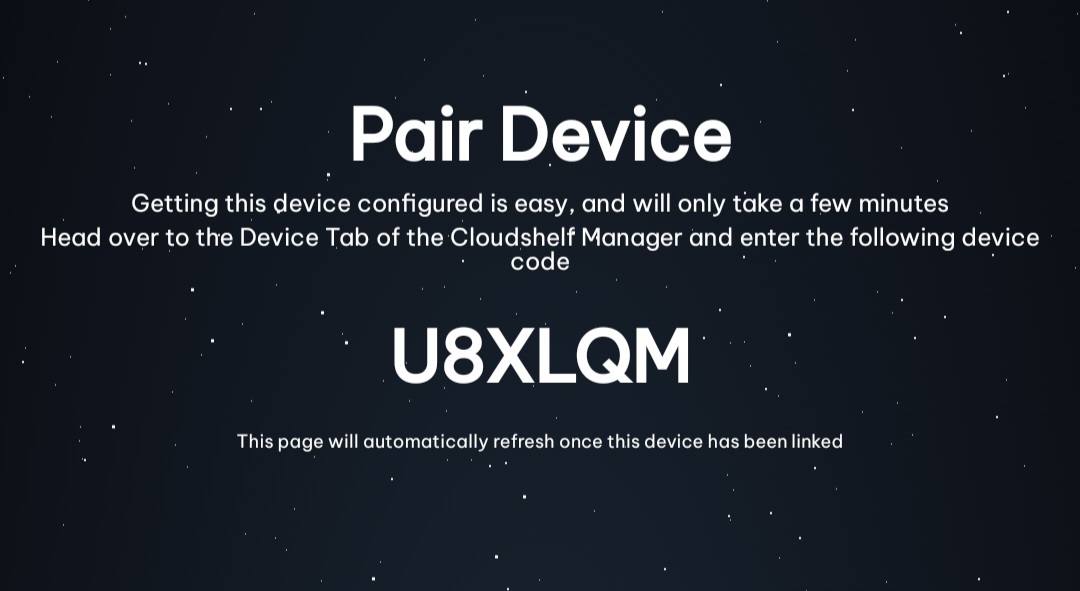
Launch the Cloudshelf app and it will ask for a pairing code. Email the pairing code to support@cloudshelf.ai and we will pair the device for you. You should then see the Cloudshelf running.
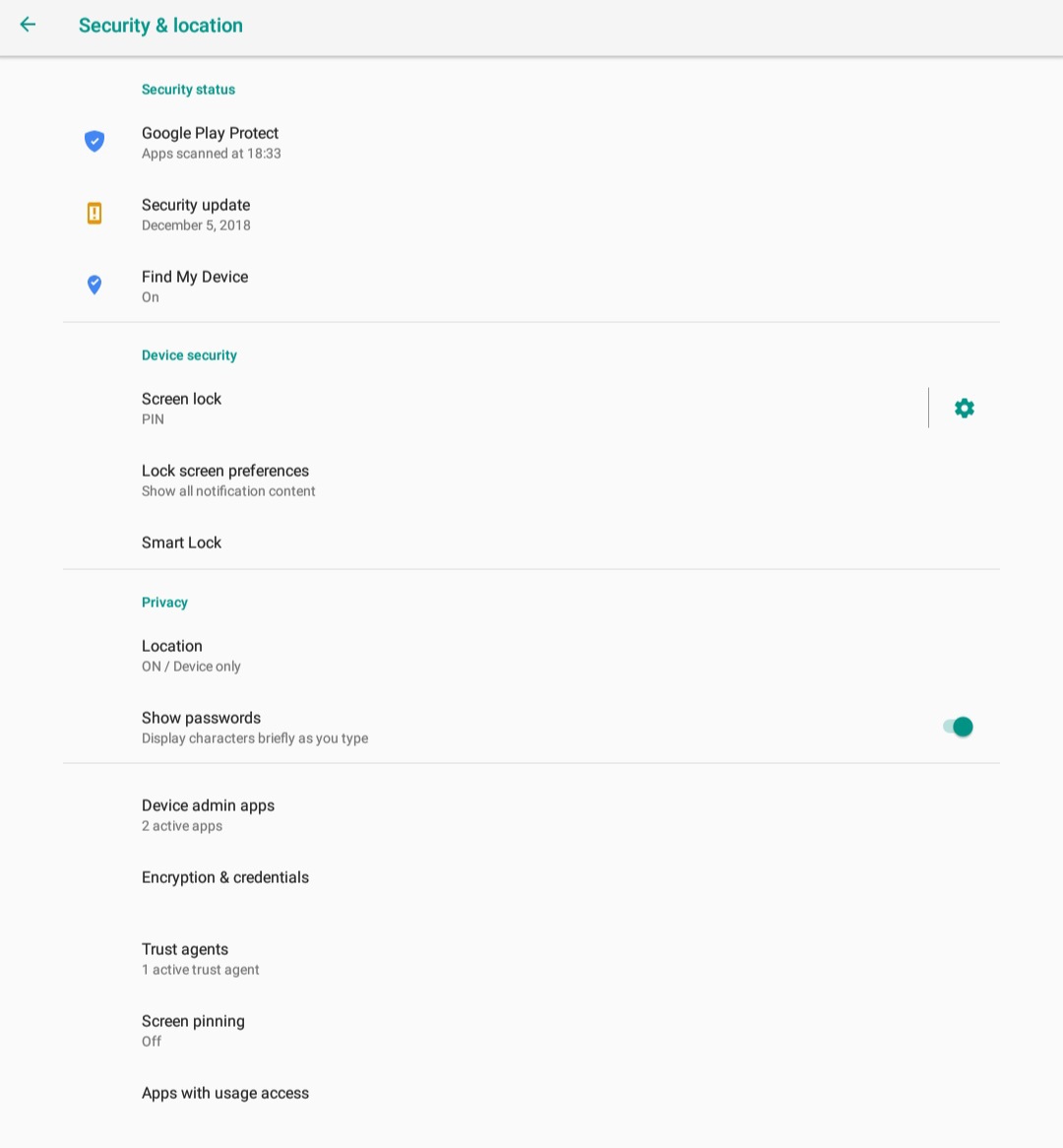
5. Turn on screen pinning
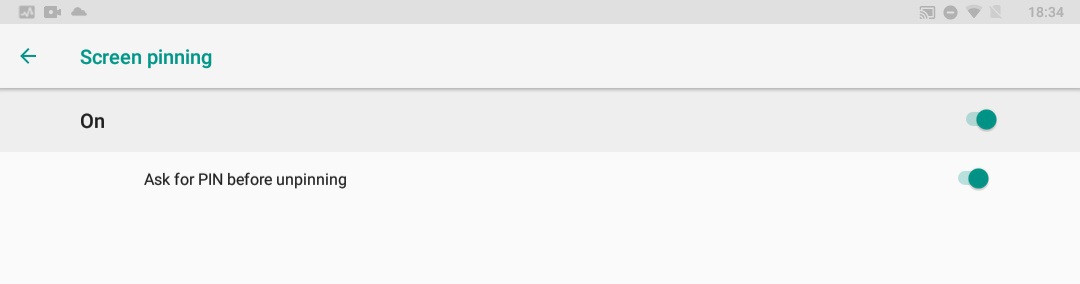
Go to Settings → Security & location → Screen pinning (turn on). Set the PIN to 456321 to unlock the screen.
6. Test screen pinning
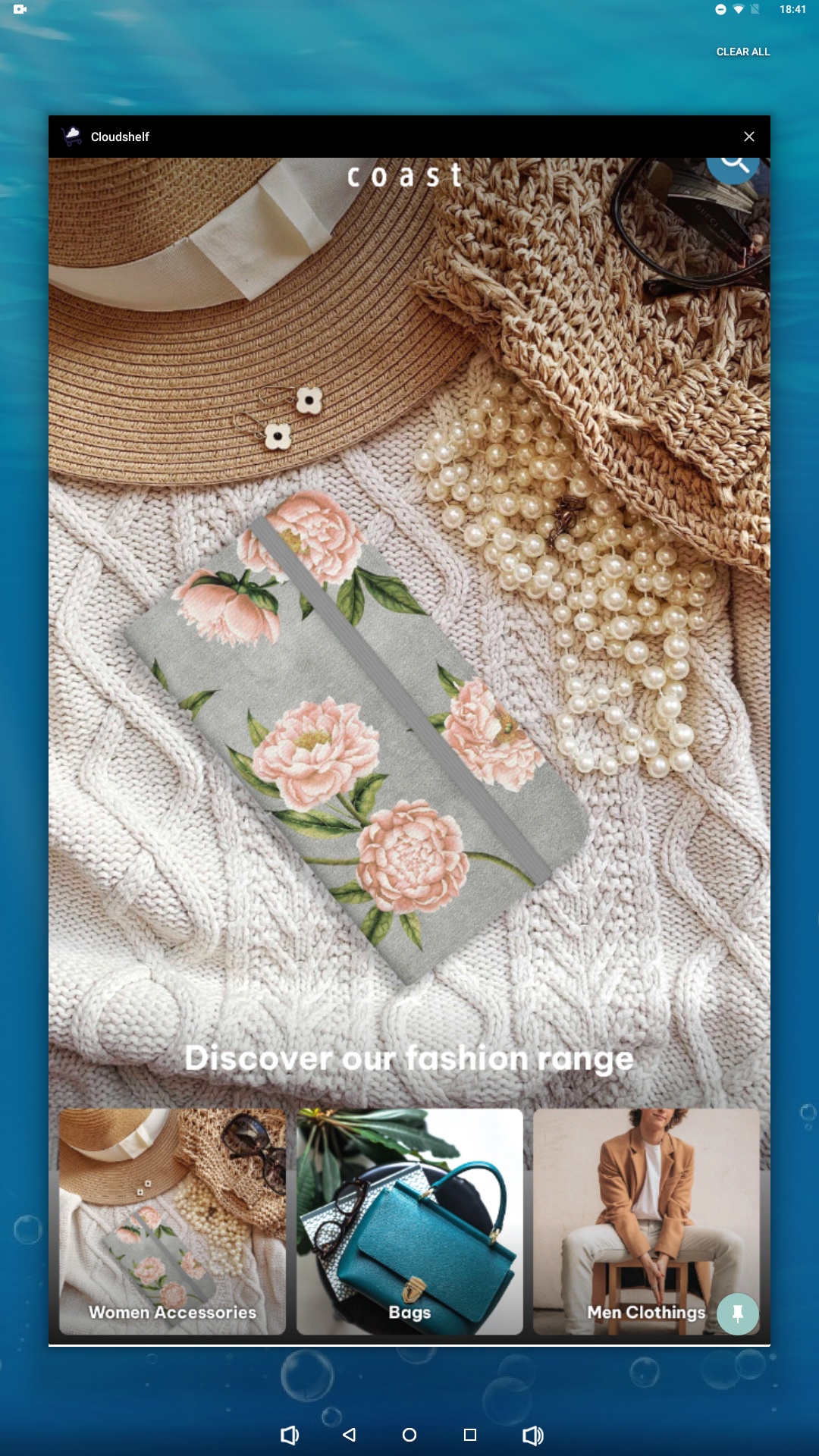
Press the square icon at the bottom of the screen and select the pin icon.
7. Before shipping the device
Go to Settings → Users and accounts → remove the account from this device.