

Custom backgrounds for your Home Screen
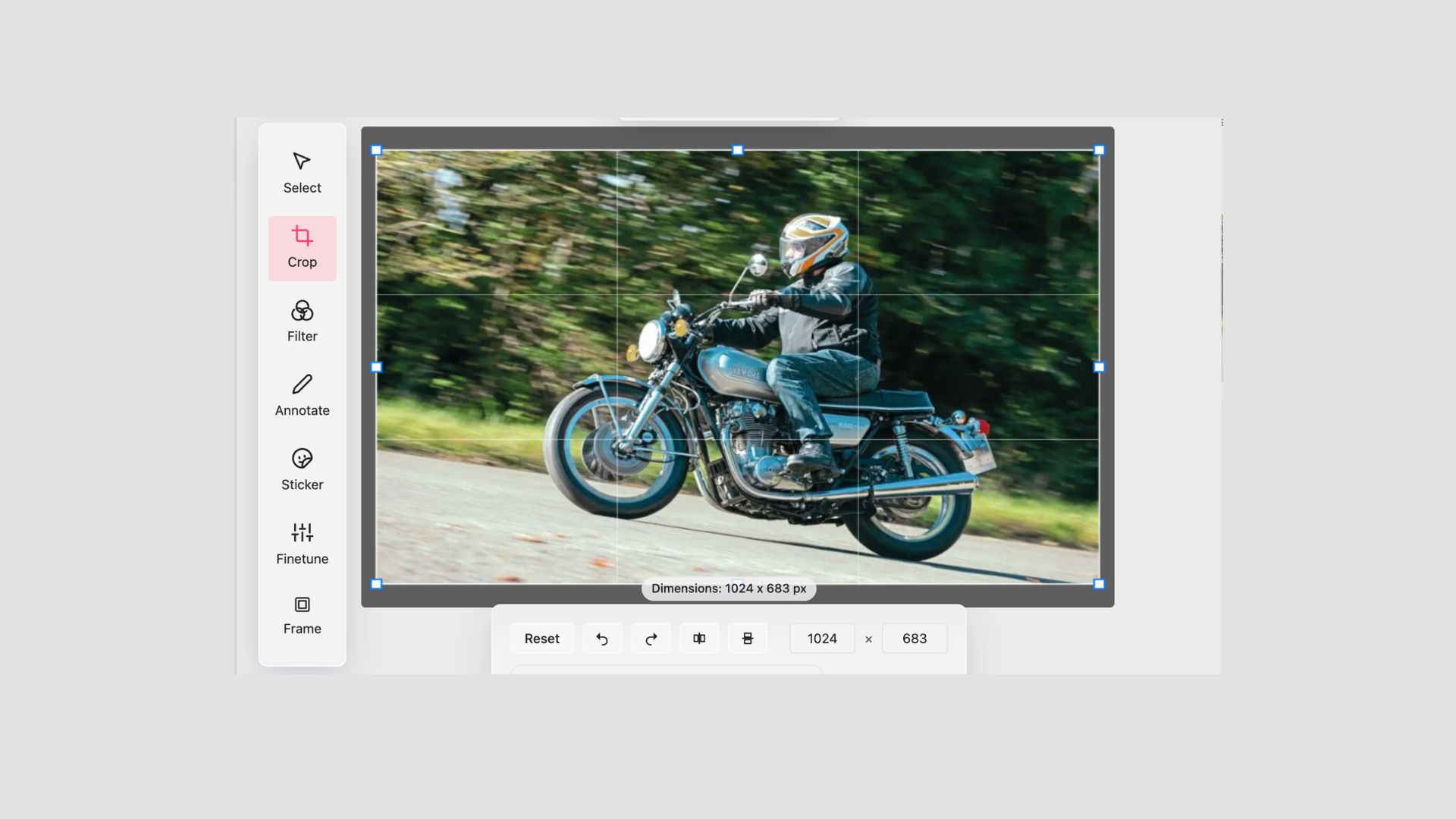
The home screen of a Cloudshelf display is the first thing a shopper sees. It sets the tone for the browsing experience before a single product is viewed. The Background feature gives you direct control over what that screen shows and how it moves.
What the Background feature does
You can now configure exactly which images appear on the home screen of your Cloudshelf display. There are two ways to source them.
The first option is to use imagery from a product group already attached to your Cloudshelf. If your display is set up around a particular range, this keeps the home screen consistent with what shoppers will browse.
The second option is to upload custom images. You choose the images, drag to set the order in which they appear, and load them directly into Cloudshelf Manager. This gives you full control over the visual presentation: brand campaign imagery, seasonal photography, or any set of visuals that suits the display context.
Animation options
Once you have two or more images in place, you can choose how the display transitions between them. Two options are available.
Cross fade blends smoothly from one image to the next. It is well suited to displays where continuity is important, such as a lifestyle or fashion context where an abrupt cut would feel jarring.
Vertical move slides images in from above or below. It adds a sense of movement to the display and works particularly well for product-led imagery where you want to draw the eye downward into the screen.
Animation requires at least two images to be configured. With a single image, the background remains static.
Why this matters
In-store displays compete for attention in environments that are already visually busy. A home screen that reflects your brand, your current campaign, or the season makes the display feel intentional rather than generic. It also gives your team a lever to pull without involving a designer: swap the imagery directly in Cloudshelf Manager whenever the display needs refreshing.
For retailers running multiple displays across different locations or departments, the ability to configure backgrounds per Cloudshelf means each display can reflect its context. A display in a footwear section can show different imagery to one in outerwear, without any change to the underlying product catalogue.
How to set it up
In Cloudshelf Manager, open the Cloudshelf you want to configure and select the Background tab. Choose your image source, upload or select your images, set the display order, and pick your animation style. Changes are saved and applied to your live display immediately on publish.
Here is a quick video to explain further: https://youtu.be/FCPG7nw0U_4
Find out more
To find out more about this feature or to enquire about how Cloudshelf can help you build better in-store experiences, reach out to us at sales@cloudshelf.ai.