

This article explains how to create a demo using your client's own data and branding, whatever their eCommerce backend, by scraping their data and adding it to a Shopify dev account.
If you want a quick generic demo, use the instant demo at cloudshelf.ai/demo and choose an interactive or display-only demo.
Set up the Shopify environment
1. Register as a Shopify partner (accounts.shopify.com/signup) so you can open as many dev stores as you want, or log in to your existing partner account (partners.shopify.com).
2. Create a free Shopify dev store for the client demo.
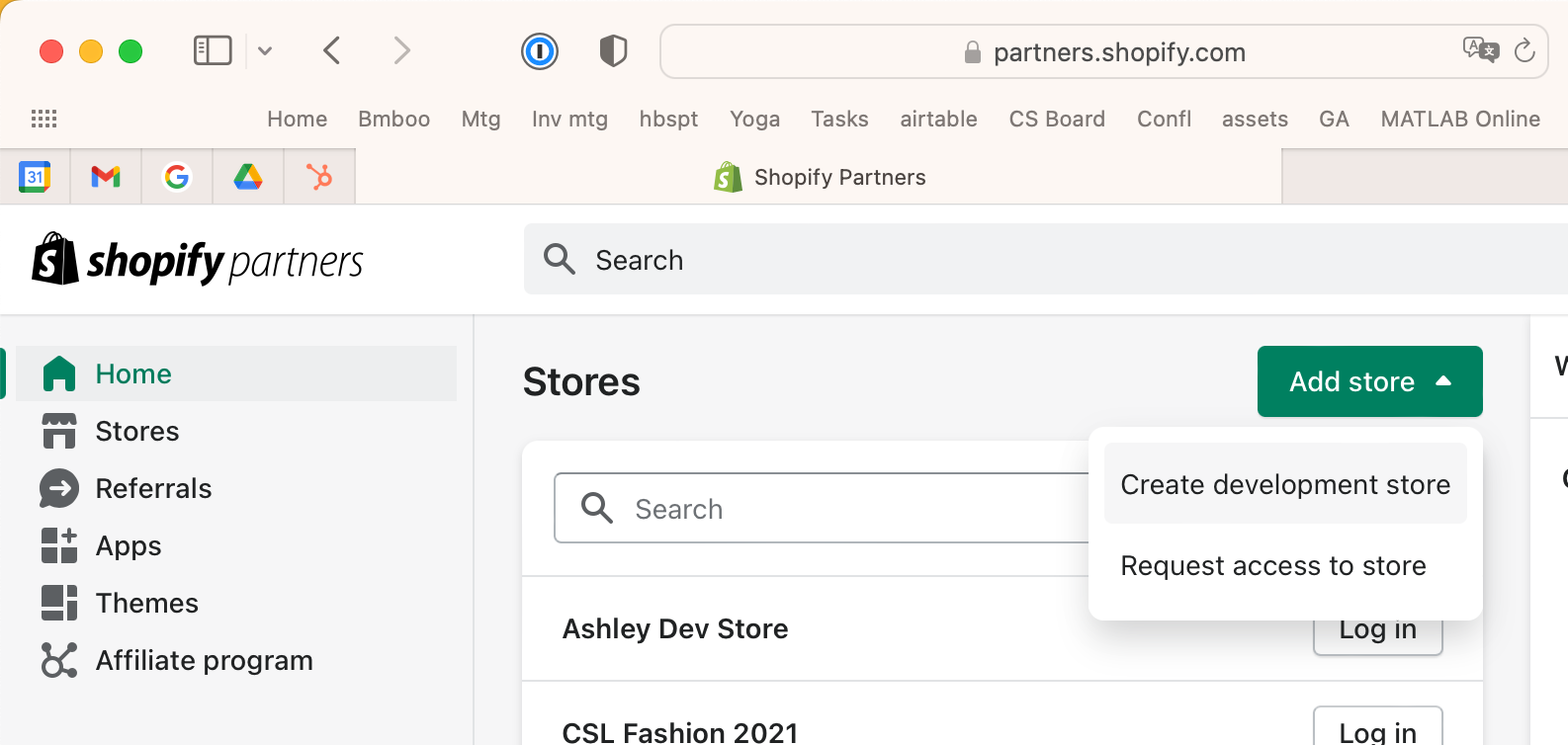
3. Choose to create a store for a client and fill in the basic info.
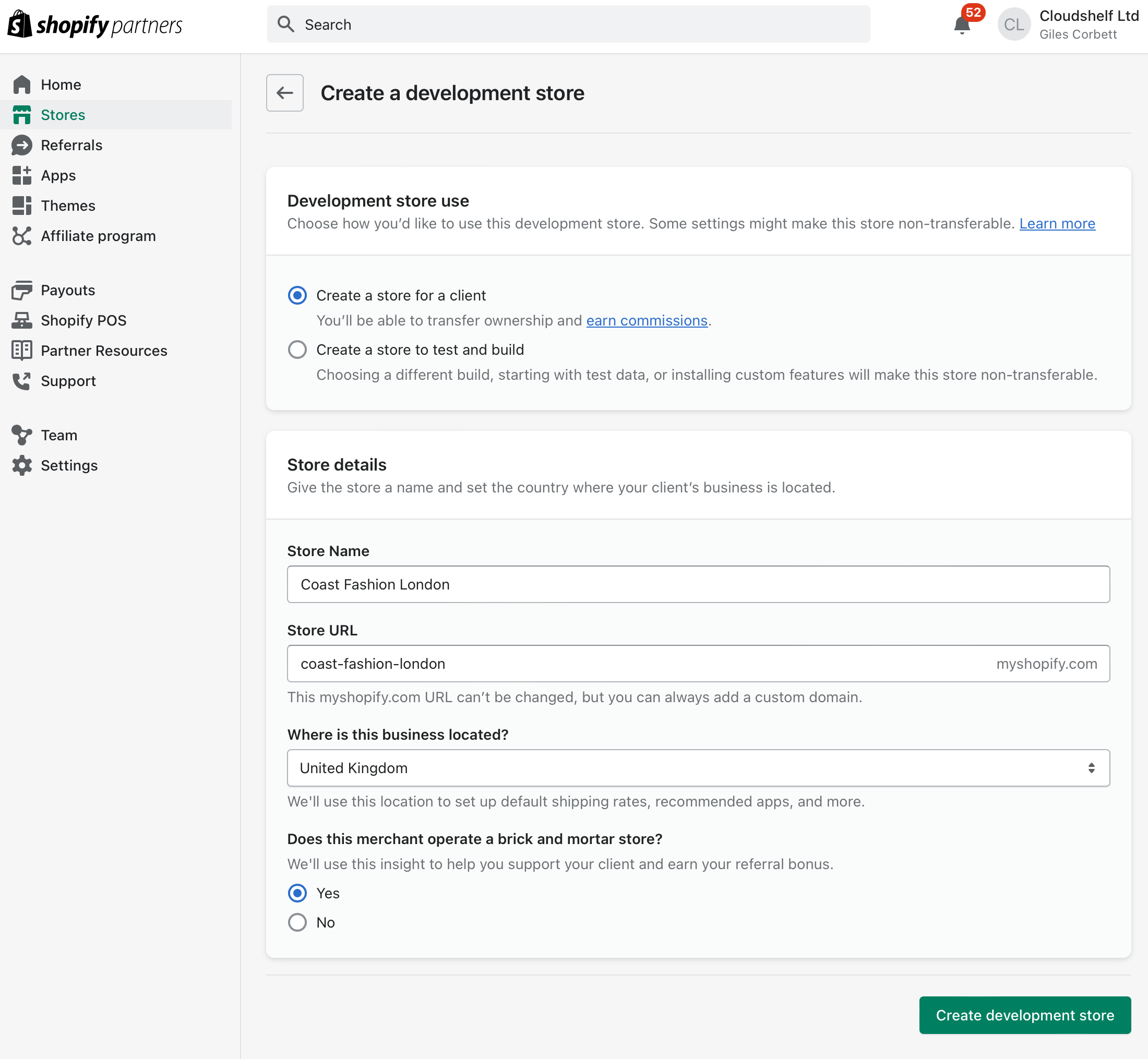
If you just want to test Cloudshelf, you can choose 'Create a store to test and build' and get Shopify to populate it with dummy data.
Add your customer's data
1. Choose product groups to scrape. Work out which will best illustrate the solution to your client. Aim for 6–12 product groups, each with 10–50 products.
2. Scrape the website data into the Shopify CSV import format. Example sheet: product_template.csv. A few notes on the format:
- each product has a unique handle and is on its own row
- each further variant is on the next row, starting with the product's unique handle
- each additional image is on the next row
- set column Q (Inventory tracker) to 'Shopify' and add a dummy quantity in column R (Variant Inventory Qty)
- for the demo, ignore the Google Shopping categories: they break the import unless they follow the correct syntax
- add a final column called 'Collection' with the collection or product group name you want in the Cloudshelf demo
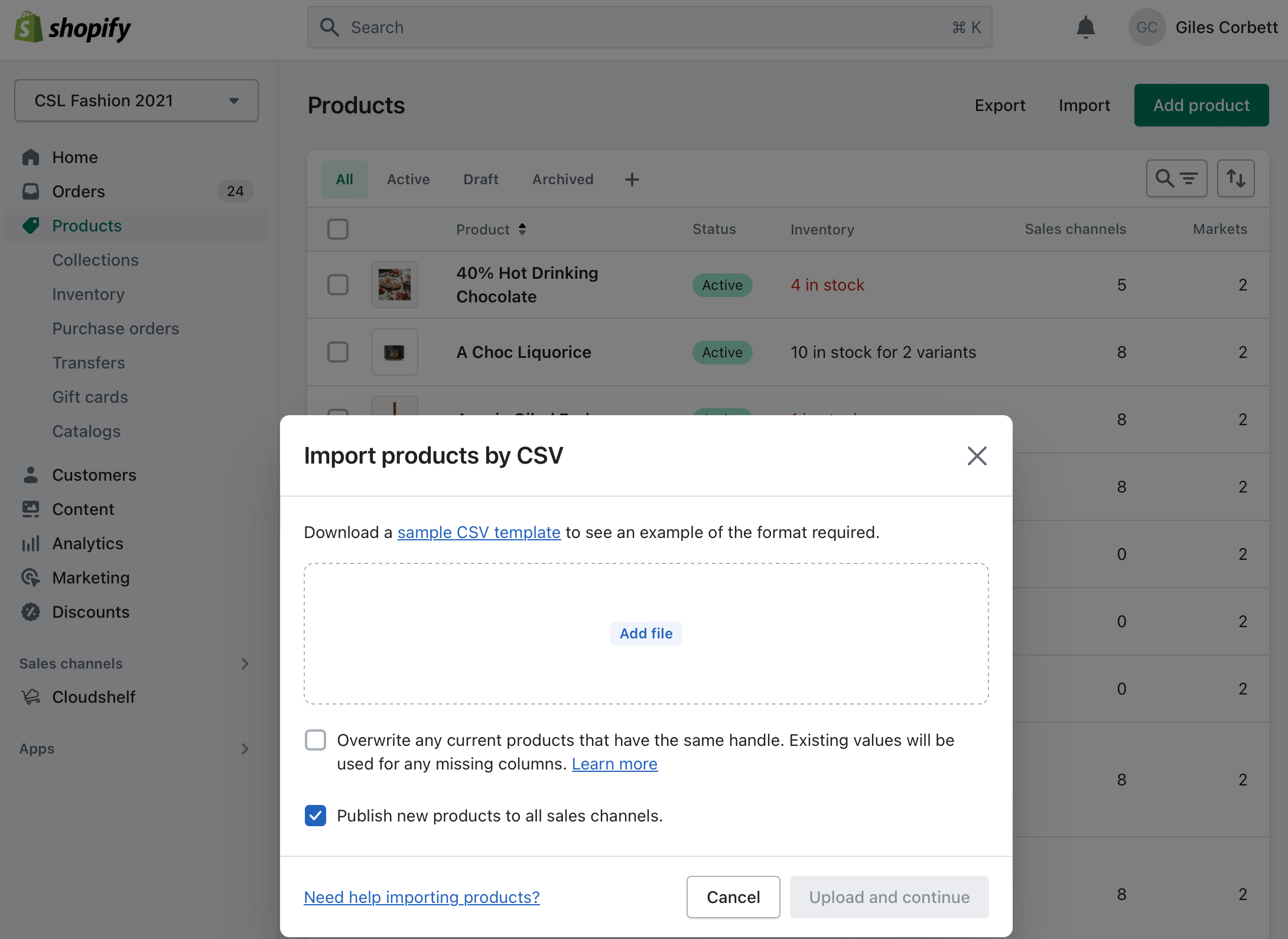
3. Import. In the Shopify admin, open Products on the left and click 'Import' at the top right.
Create the demo Cloudshelf
Once all the products are imported and show in Shopify with an active status and a stock level, you are ready to connect Cloudshelf.
See select which content appears on each Cloudshelf to start adding content to your client's demo.
Allocate it to a demo device
See Video: setting up a new device.
Create a Shopify test store with dummy data
See creating a Shopify demo store for testing.
If you need any help with this, contact our support team on support@cloudshelf.ai.